> ## Documentation Index
> Fetch the complete documentation index at: https://docs.vortexiq.ai/llms.txt
> Use this file to discover all available pages before exploring further.
# Bulk Content Migration in StagingPro for BigCommerce
Bulk Content Migration is the StagingPro screen you use when the destination environment is empty (or you intend to overwrite most of it) and you want to copy your full BigCommerce catalogue from one environment to another. It runs on a dedicated high-performance migration platform with parallel processing, checkpoint resumability, idempotent upserts, and automatic BigCommerce API rate-limit handling.
## When to use Bulk Content Migration
| Scenario | Use Bulk Content Migration |
| ------------------------------------------------------------------- | ------------------------------------------------------------------------------------------- |
| New sandbox provisioned, need a copy of Production catalogue | Yes |
| Refreshing a stale Staging environment with current Production data | Yes |
| Standing up a fresh UAT for a major release | Yes |
| Moving one or two products between environments | No, use [selective content migration](/vortex-apps/staging-pro/selective-content-migration) |
The bulk migration options are as follows:
| **Option** | **Notes** |
| --------------- | --------------------------------------------------------------------------------------------------------------------------------------------------------------------------------------------------------------------------------------------------------------------------------------------------------------------------------------------------------------------------------------------------------------------------------------------------------------------------------------------------------------------------------------------------------------------------------------------------------- |
| Add New | **For existing items in your destination store:** Only add new items. Anything already in your destination store will be left exactly as it is. Nothing will be updated or deleted. - Best for a clean, brand-new destination store (empty or lightly populated).
- Safety guard: if the destination already holds more than 100 products, an Add New Only full run is blocked —
- switch to Update Existing or Make Exact Copy for an already-populated store.
ℹ️This never updates or deletes anything already on the destination — it only creates items that are missing. |
| Update Existing | **Keep your destination store up to date without removing existing products:** - Add any items that are missing.
- Update matching products to match your source store.
- Keep products that exist only in your destination store.
- Matching products will have their options, variants, modifiers and pricing updated to match the source store.
**⚠️ This cannot be undone. Live stock levels are never changed.** |
| Make Exact Copy | **Make your destination store an exact copy of your source store:** - Add missing items.
- Update matching items.
- Remove products, brands, categories and promotions that exist only in the destination store.
**⚠️ Product deletion only happens during a full-store migration. This cannot be undone. Live stock levels are never changed.**
**Themes are never deleted — old copies are left for you to remove manually.**
**Note:** This option is **not** displayed if the destination store is "**Production**" |
The assumption underneath Bulk is "destination should look like source for the entities I selected". If that is not your intent, switch to selective.
## The interface
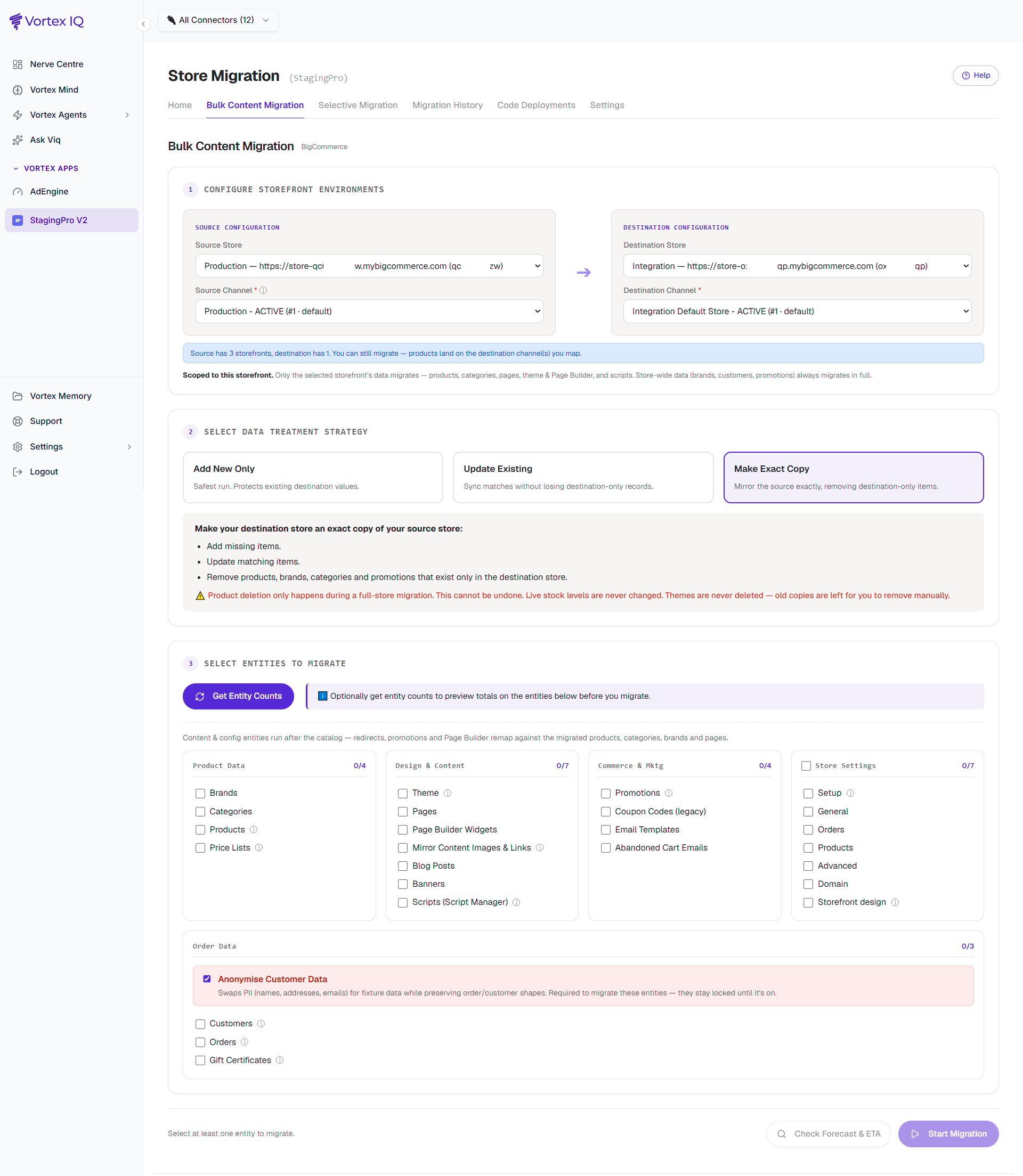 Pick the source environment (store and storefront), pick the destination environment (store and storefront), tick the entities you want to move, and click **Start Migration**. Once submitted, switch to the [history and rollback](/vortex-apps/staging-pro/history-and-rollback) tab to monitor progress.
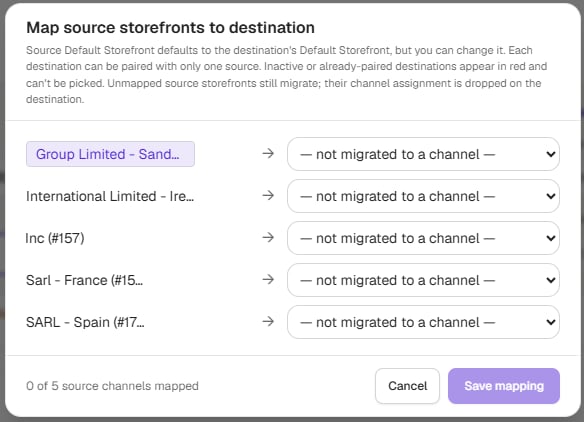
> **Channel Mapping:** You can map the source store channels with the destination store channels prior to the migration (when both the source and destination stores are multi-storefront enabled) so as to enable you to migrate the entities to corresponding destination channels/storefronts.
>
> To do this, click the source store's channel drop down selector and select all storefronts option, map the channels and click Save mapping.
>
>
>
Pick the source environment (store and storefront), pick the destination environment (store and storefront), tick the entities you want to move, and click **Start Migration**. Once submitted, switch to the [history and rollback](/vortex-apps/staging-pro/history-and-rollback) tab to monitor progress.
> **Channel Mapping:** You can map the source store channels with the destination store channels prior to the migration (when both the source and destination stores are multi-storefront enabled) so as to enable you to migrate the entities to corresponding destination channels/storefronts.
>
> To do this, click the source store's channel drop down selector and select all storefronts option, map the channels and click Save mapping.
>
>
>  >
> "**Get Entity Counts**" button → Optionally get entity counts to preview totals on the entities before you migrate.
> Moreover, "**Check Forecast & ETA**" button gives you the calculated estimate time required to migrate the entities so that you can plan your migration accordingly.
## Product Bulk Migration
Product bulk migration processes each product through multiple component steps:
1. **Base product** creation (name, description, price, SKU)
2. **Options** and **Modifiers** setup
3. **Variants** generation
4. **Images** and **Videos** upload
5. **Reviews**, **Custom Fields**, and **Bulk Pricing Rules**
6. **Complex Rules** and **Related Products** associations
7. **Channel Assignments** and **Metafields** (product and variant level)
8. **Content** (widgets and template associations)
9. **Locale** (multi-language product data via GraphQL)
Products can be migrated in **bulk** (all products) or **selective** (specific product IDs) mode.
A failure in any step is logged but does not block subsequent steps for the same product. Failed components show up in the migration error summary with categorised errors and a CSV download.
## Category bulk migration
Category migration automatically includes parent categories, ensuring that the category hierarchy is preserved correctly.
This helps eliminate the “parent category not found” errors that are commonly encountered with manual or custom-built BigCommerce category imports.
## Order Data Migration
Under the **Order Data Migration** section, enable:
* **Anonymise Customer Data**
This option **scrambles customer data** from the source environment before migrating it to the destination environment, ensuring **data security** for testing purposes.
Click **Start Migration** to run with these semantics.
> If you want a clean-slate destination instead, delete the destination catalogue first via the BigCommerce control panel, then run Bulk migration.
***
## Entity Dependencies
* Entities with the **info-circle icon** have **dependencies**.
>
> "**Get Entity Counts**" button → Optionally get entity counts to preview totals on the entities before you migrate.
> Moreover, "**Check Forecast & ETA**" button gives you the calculated estimate time required to migrate the entities so that you can plan your migration accordingly.
## Product Bulk Migration
Product bulk migration processes each product through multiple component steps:
1. **Base product** creation (name, description, price, SKU)
2. **Options** and **Modifiers** setup
3. **Variants** generation
4. **Images** and **Videos** upload
5. **Reviews**, **Custom Fields**, and **Bulk Pricing Rules**
6. **Complex Rules** and **Related Products** associations
7. **Channel Assignments** and **Metafields** (product and variant level)
8. **Content** (widgets and template associations)
9. **Locale** (multi-language product data via GraphQL)
Products can be migrated in **bulk** (all products) or **selective** (specific product IDs) mode.
A failure in any step is logged but does not block subsequent steps for the same product. Failed components show up in the migration error summary with categorised errors and a CSV download.
## Category bulk migration
Category migration automatically includes parent categories, ensuring that the category hierarchy is preserved correctly.
This helps eliminate the “parent category not found” errors that are commonly encountered with manual or custom-built BigCommerce category imports.
## Order Data Migration
Under the **Order Data Migration** section, enable:
* **Anonymise Customer Data**
This option **scrambles customer data** from the source environment before migrating it to the destination environment, ensuring **data security** for testing purposes.
Click **Start Migration** to run with these semantics.
> If you want a clean-slate destination instead, delete the destination catalogue first via the BigCommerce control panel, then run Bulk migration.
***
## Entity Dependencies
* Entities with the **info-circle icon** have **dependencies**.
Example: *Migrating Products also migrates Brands and Categories.*
* Entities **without** the icon have **no dependencies** and can be migrated independently.
***
## Monitoring Migration Progress
During bulk migration, you can monitor progress through:
* **Monitoring Dashboard** (Home tab) for overall migration status
* **History and Rollback** tab for detailed migration metrics and health
***