> ## Documentation Index
> Fetch the complete documentation index at: https://docs.vortexiq.ai/llms.txt
> Use this file to discover all available pages before exploring further.
# Selective Content Migration in StagingPro for BigCommerce
Selective Content Migration is the StagingPro screen for surgical updates: copy a single product, a specific promotion, a category, a theme, a custom page, or a page template from one environment to another without overwriting everything else.
Use it as a follow-up to a Bulk migration, or as the primary tool when you only need to sync a small slice of the catalogue.
## When Selective is the right tool
| Scenario | Selective vs Bulk |
| -------------------------------------------------- | ------------------------------------------------------- |
| Update one product description across environments | Selective |
| Move a few promotions to UAT for testing | Selective |
| Sync three categories that were edited yesterday | Selective |
| Copy a custom page from Staging to Production | Selective |
| Refresh the entire catalogue | [Bulk](/vortex-apps/staging-pro/bulk-content-migration) |
Selective is non-destructive on items you do not select. Bulk applies the operation to the entire chosen entity set.
## The interface
The screen shows tabs for the entities you can selectively migrate: Products, Promotions, Categories, Pages, Layouts, Themes.
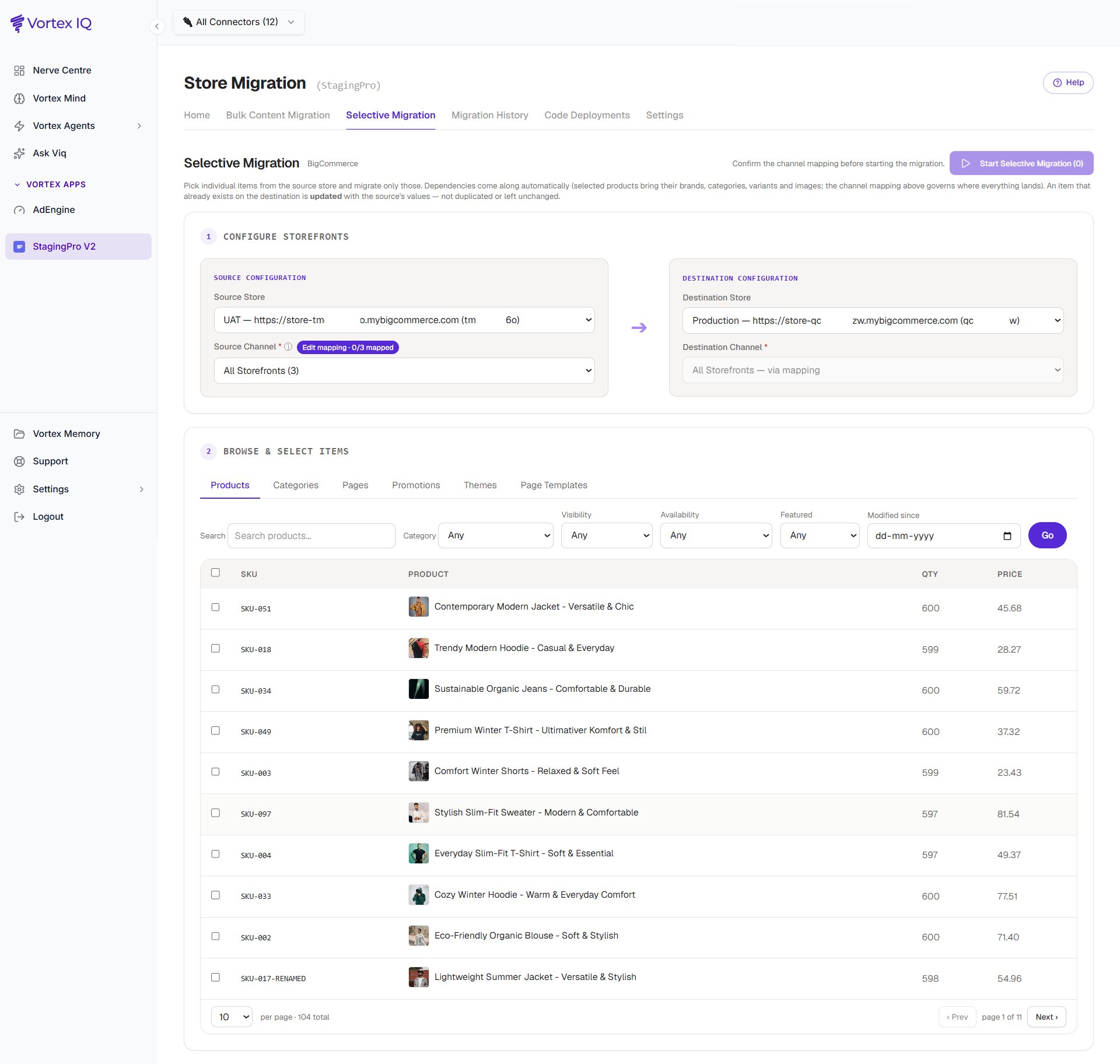 For each tab:
* Pick **source store and storefront**, then **destination store and storefront**.
* Tick the items you want to copy.
* **Select All** checkbox is available on Products, Promotions, and Categories tabs (not on Pages and Layouts).
## Pages and Page Templates
1. Select the source store and storefront.
2. Select the destination store and storefront.
3. Choose the pages or layouts to migrate.
4. Click **Copy Pages** to start the migration.
Page content (text) is updated when the page already exists in the destination, otherwise a new page is created. Existing widgets within an updated page are removed and recreated. The Homepage is selectable from the Page Templates tab.
For older customers not on the new BigCommerce Page Widgets API, the **Migrate Global Widgets** option is available.
## Selective Products, default behaviour
A few defaults to know about when running selective product migration:
* **Stock inventory counts do not migrate by default**. Tick the popup option **Migrate Product Stock inventory counts to target store** if you want stock to come across.
* **Prices do not migrate by default** on selective product migration. Tick **Migrate Price to target store** in the popup if you want pricing.
* If you remove product images on the source SKU and re-run a selective migration, the corresponding images on the destination are not deleted automatically. You must delete those manually on the destination if intended.
* Multi-variant products are deleted and recreated on the destination during a selective product migration update. The variant IDs change, but SKUs (the canonical reference) are preserved.
## Selective Categories, behaviour to know
If a category with the same name already exists in the destination but inside a different parent, selective migration creates a new category with the same name in the source's parent path. You will end up with two same-named categories in the destination, which StagingPro does not auto-deduplicate.
When you run a selective categories migration, only the ticked categories move. To bring across the products inside those categories you must follow up with a selective products migration for the affected SKUs. During a selective product migration, category associations are overwritten on the destination (not appended), so review the source product-category associations before running.
## Selective Promotions
All promotions selected migrate in their entirety. Coupon codes are associated by SKU rather than product ID since IDs are different across BigCommerce instances. Category associations are made by exact category Name plus hierarchy, not by ID.
> **Note that promotions created via the BigCommerce API cannot be edited after creation. Workaround: delete the promotion in the source, recreate it correctly, then migrate.**
## Selective Themes
Use Selective Content Migration to copy individual themes (active or inactive) from source to destination using the **Copy Theme** button. Theme deployment via Git is the recommended path for ongoing development; selective theme migration is for one-off seeding of an environment with a specific theme variation.
For each tab:
* Pick **source store and storefront**, then **destination store and storefront**.
* Tick the items you want to copy.
* **Select All** checkbox is available on Products, Promotions, and Categories tabs (not on Pages and Layouts).
## Pages and Page Templates
1. Select the source store and storefront.
2. Select the destination store and storefront.
3. Choose the pages or layouts to migrate.
4. Click **Copy Pages** to start the migration.
Page content (text) is updated when the page already exists in the destination, otherwise a new page is created. Existing widgets within an updated page are removed and recreated. The Homepage is selectable from the Page Templates tab.
For older customers not on the new BigCommerce Page Widgets API, the **Migrate Global Widgets** option is available.
## Selective Products, default behaviour
A few defaults to know about when running selective product migration:
* **Stock inventory counts do not migrate by default**. Tick the popup option **Migrate Product Stock inventory counts to target store** if you want stock to come across.
* **Prices do not migrate by default** on selective product migration. Tick **Migrate Price to target store** in the popup if you want pricing.
* If you remove product images on the source SKU and re-run a selective migration, the corresponding images on the destination are not deleted automatically. You must delete those manually on the destination if intended.
* Multi-variant products are deleted and recreated on the destination during a selective product migration update. The variant IDs change, but SKUs (the canonical reference) are preserved.
## Selective Categories, behaviour to know
If a category with the same name already exists in the destination but inside a different parent, selective migration creates a new category with the same name in the source's parent path. You will end up with two same-named categories in the destination, which StagingPro does not auto-deduplicate.
When you run a selective categories migration, only the ticked categories move. To bring across the products inside those categories you must follow up with a selective products migration for the affected SKUs. During a selective product migration, category associations are overwritten on the destination (not appended), so review the source product-category associations before running.
## Selective Promotions
All promotions selected migrate in their entirety. Coupon codes are associated by SKU rather than product ID since IDs are different across BigCommerce instances. Category associations are made by exact category Name plus hierarchy, not by ID.
> **Note that promotions created via the BigCommerce API cannot be edited after creation. Workaround: delete the promotion in the source, recreate it correctly, then migrate.**
## Selective Themes
Use Selective Content Migration to copy individual themes (active or inactive) from source to destination using the **Copy Theme** button. Theme deployment via Git is the recommended path for ongoing development; selective theme migration is for one-off seeding of an environment with a specific theme variation.