> ## Documentation Index
> Fetch the complete documentation index at: https://docs.vortexiq.ai/llms.txt
> Use this file to discover all available pages before exploring further.
# Understanding the StagingPro Homepage for BigCommerce
The StagingPro home tab is the operational control surface for your linked BigCommerce environments. Every Staging, UAT and Integration environment you have connected to Production appears as a row, with the latest data migration status, theme version, and quick links into the storefront and control panel.
## The Home tab grid
Each row on the grid represents one linked environment. The columns:
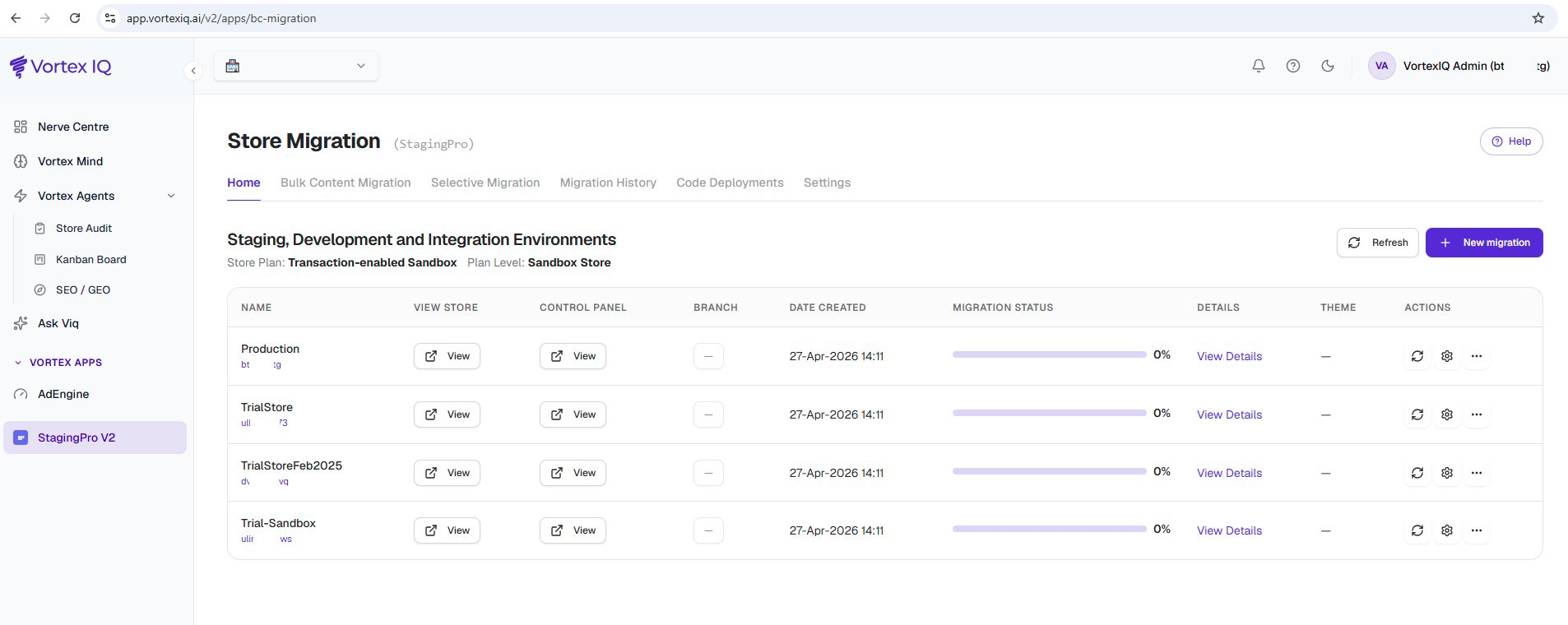 | Column | What it shows |
| ---------------------------------------- | ---------------------------------------------------------------------------------------------------------------------------- |
| **Environment name** | The name you gave the environment when you linked it (Production, Staging, UAT, Integration1, etc.). |
| **View Store** | Opens the frontend storefront URL for that environment in a new tab. Use it to spot-check what the customer would see. |
| **Control Panel** | Opens the BigCommerce admin Control Panel for that environment. Useful when you need to verify a setting after a migration. |
| **Add User** (Git Branch only) | Appears only when GitHub is the connected repository. Lets you add a Git user and provision their per-environment branch. |
| **Date Created** | Date and time of the most recent migration task affecting this environment, not the date the environment itself was created. |
| **Migration Status & Migration Details** | Migration start and end timestamps, plus a progress bar for any in-flight job. |
| **Theme** | Theme column shows the active theme version if applicable. |
## Drilling into migration detail
Click **View Details** will open the Migration History page. Then click on **Open→** link on any row on the Migration History to expand the per-entity migration breakdown:
| Column | What it shows |
| ---------------------------------------- | ---------------------------------------------------------------------------------------------------------------------------- |
| **Environment name** | The name you gave the environment when you linked it (Production, Staging, UAT, Integration1, etc.). |
| **View Store** | Opens the frontend storefront URL for that environment in a new tab. Use it to spot-check what the customer would see. |
| **Control Panel** | Opens the BigCommerce admin Control Panel for that environment. Useful when you need to verify a setting after a migration. |
| **Add User** (Git Branch only) | Appears only when GitHub is the connected repository. Lets you add a Git user and provision their per-environment branch. |
| **Date Created** | Date and time of the most recent migration task affecting this environment, not the date the environment itself was created. |
| **Migration Status & Migration Details** | Migration start and end timestamps, plus a progress bar for any in-flight job. |
| **Theme** | Theme column shows the active theme version if applicable. |
## Drilling into migration detail
Click **View Details** will open the Migration History page. Then click on **Open→** link on any row on the Migration History to expand the per-entity migration breakdown:
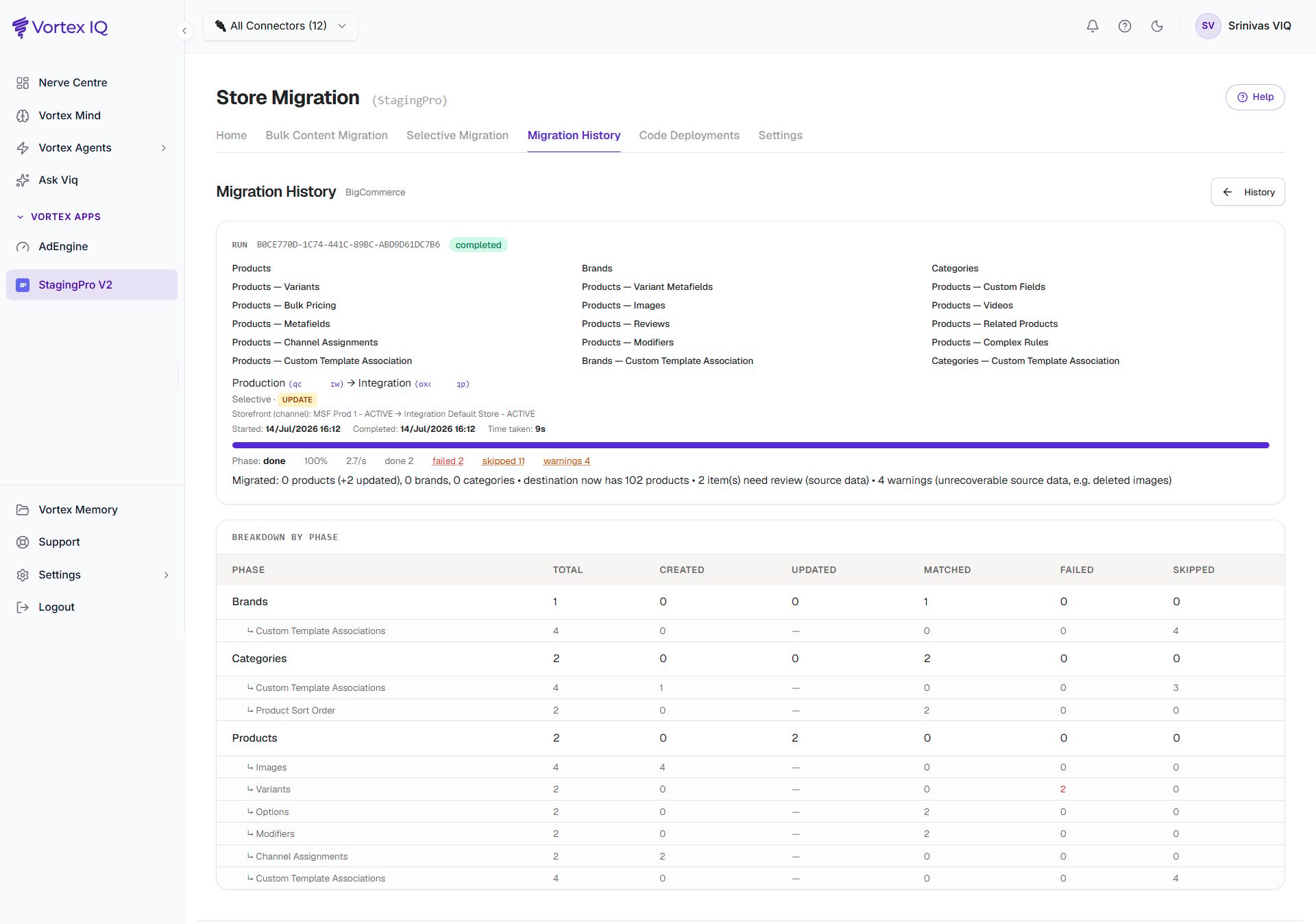 The expanded view lists:
* **Migrated entities** (Products, Categories, Brands, Customers, Orders, Themes, etc.).
* **Counts** per entity.
* **Migration status** per entity, with success or failure indicator.
* **Errors** column with any error messages encountered.
## Home tab summary
Three operational uses:
1. **At-a-glance health check**, are all environments listed correctly? If a row has stale dates or a half-finished progress bar, it may need attention.
2. **Fast environment access**, View Store and Control Panel save the keystrokes of finding the right BigCommerce URL when you flip between Production and the sandboxes.
3. **Theme version check**, the Theme column tells you which theme version is active in each environment. If your developers have just shipped a new theme, this is where you verify it landed.
The expanded view lists:
* **Migrated entities** (Products, Categories, Brands, Customers, Orders, Themes, etc.).
* **Counts** per entity.
* **Migration status** per entity, with success or failure indicator.
* **Errors** column with any error messages encountered.
## Home tab summary
Three operational uses:
1. **At-a-glance health check**, are all environments listed correctly? If a row has stale dates or a half-finished progress bar, it may need attention.
2. **Fast environment access**, View Store and Control Panel save the keystrokes of finding the right BigCommerce URL when you flip between Production and the sandboxes.
3. **Theme version check**, the Theme column tells you which theme version is active in each environment. If your developers have just shipped a new theme, this is where you verify it landed.