

Before you start
- Select the store profile you want the automation for, at the top of the page.
- Know three things: what should happen, when it should happen, and where the result should go (an email, a Slack channel, a list in another app).
- If the automation needs an app that is not connected yet, you can connect it on the way. Only a workspace admin can connect apps.
Step 1: Open the builder
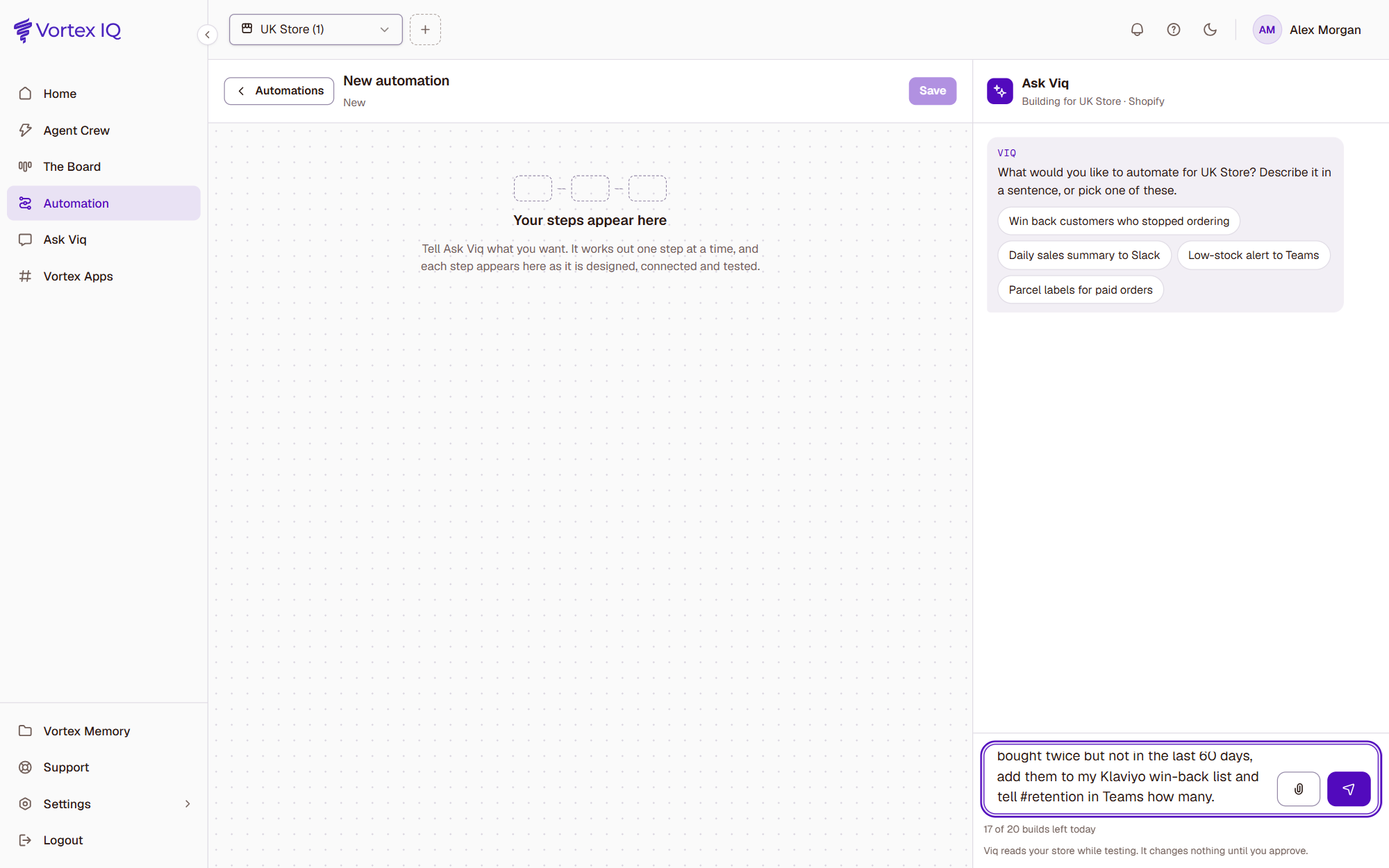
On the Automations page, select Create with Ask Viq. You can also type your request in the Build something new box on the Overview tab and select Build. The builder has two halves:- On the left, your steps. Each step appears here as a card while Ask Viq designs and tests it.
- On the right, the Ask Viq chat. You talk to Ask Viq here, before and after the automation is built.
Step 2: Describe what you want
Type your request in the message box and press Enter. To start a new line, press Shift and Enter. Write it the way you would ask a colleague. One or two sentences are enough. For example:Every Monday, find customers who bought twice but not in the last 60 days, add them to my Klaviyo win-back list and tell #retention in Teams how many.A good request says:
Not sure what to write? Select one of the examples in the chat. Ask Viq starts building it at once.
Never type a password, API key or token in the chat. Ask Viq refuses a message that looks like one. You connect apps in a separate form, described in step 5.
Step 3: Answer a few quick questions, if asked
If your request leaves something open, Ask Viq may ask before it plans. Each question comes with choices, and the suggested one is already picked.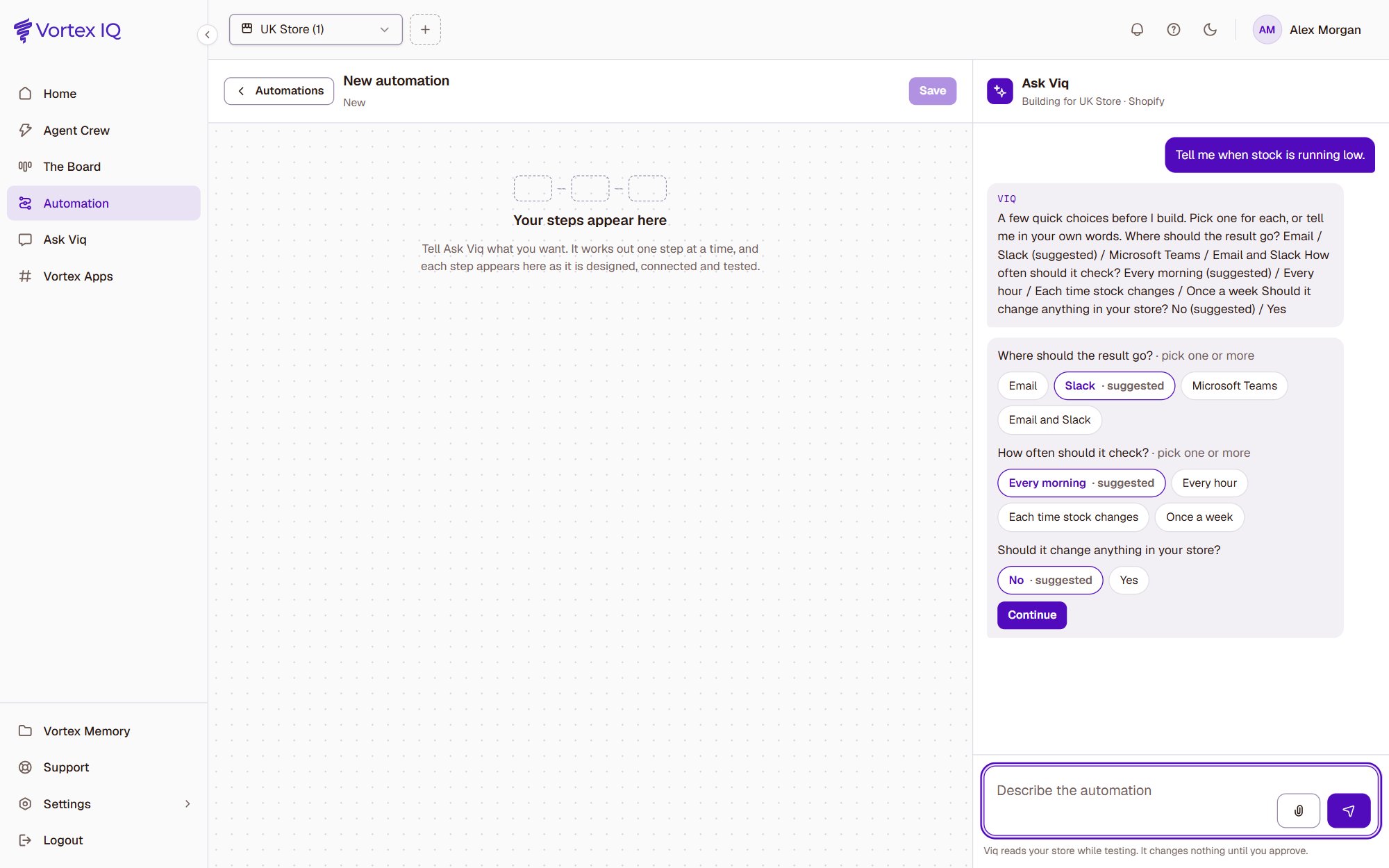
Step 4: Watch Ask Viq plan the steps
Ask Viq reads your request, checks which of your apps are ready, and works out the steps. The chat shows what it is doing, line by line.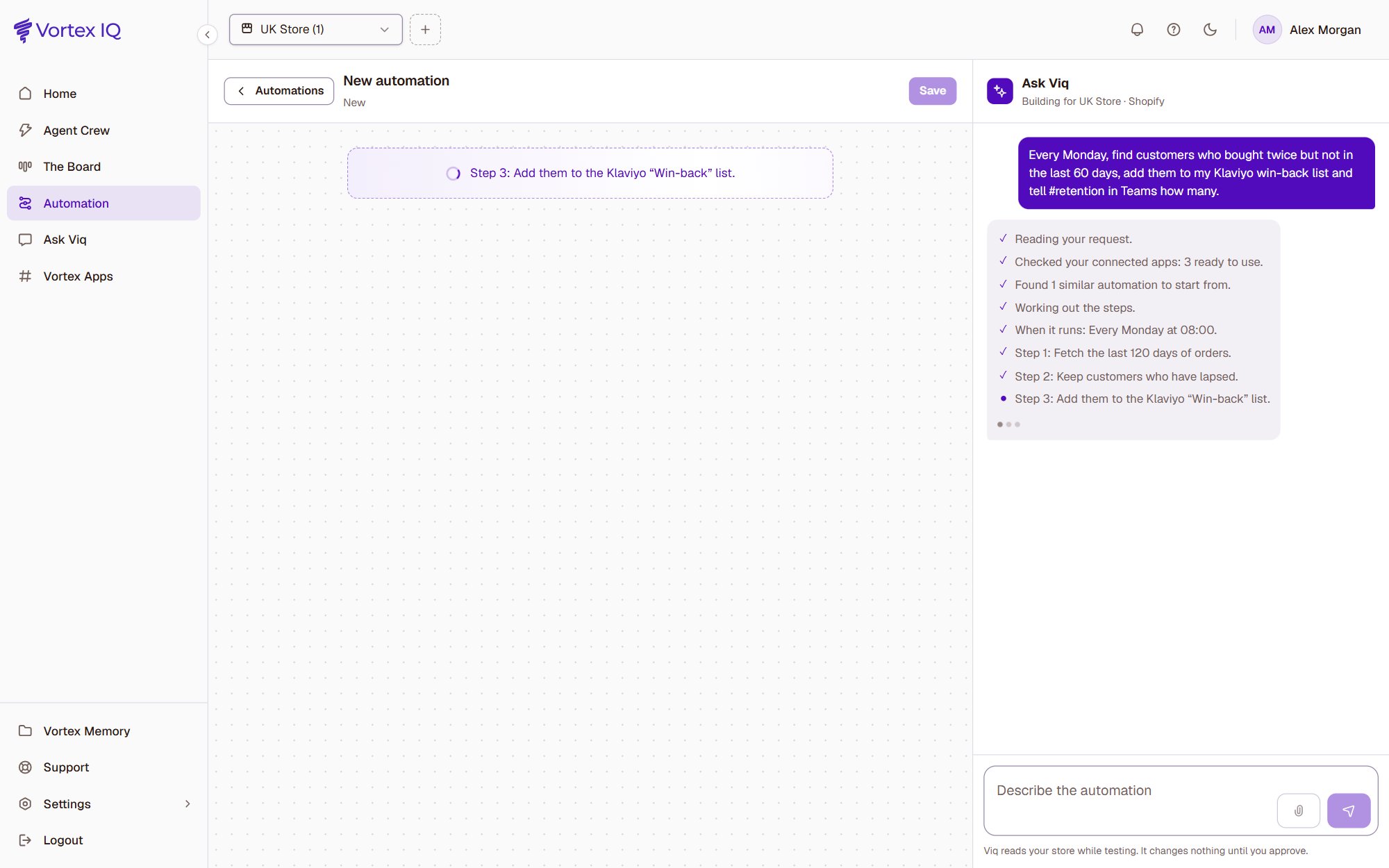
- A trigger card at the top says when the automation runs, for example “Every Monday at 08:00”.
- One card for each step, in the order they run.
Step 5: Let each step be built and tested
Ask Viq now builds the steps one at a time. For each step it designs the step, checks the apps it needs, and tests it on your store’s data. You do not need to do anything while this happens.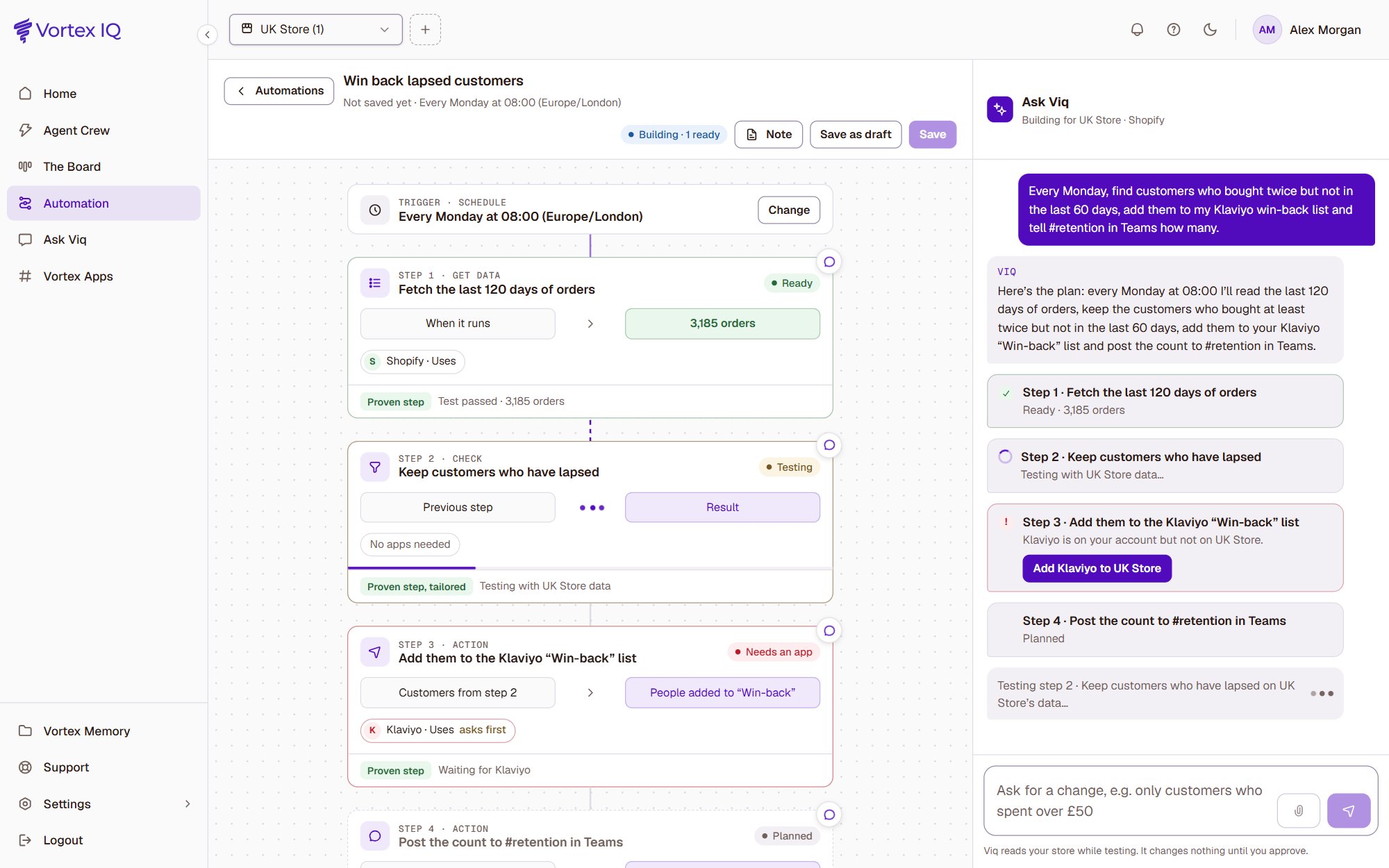
A test reads your live store data. It never changes or sends anything. A step that would make a change, such as adding people to a list or posting a message, is previewed instead. The card says what it would do, for example “212 would be added”.
Connect an app when a step needs one
If a step needs an app that is not ready, the build pauses at that step and the chat tells you which app is missing.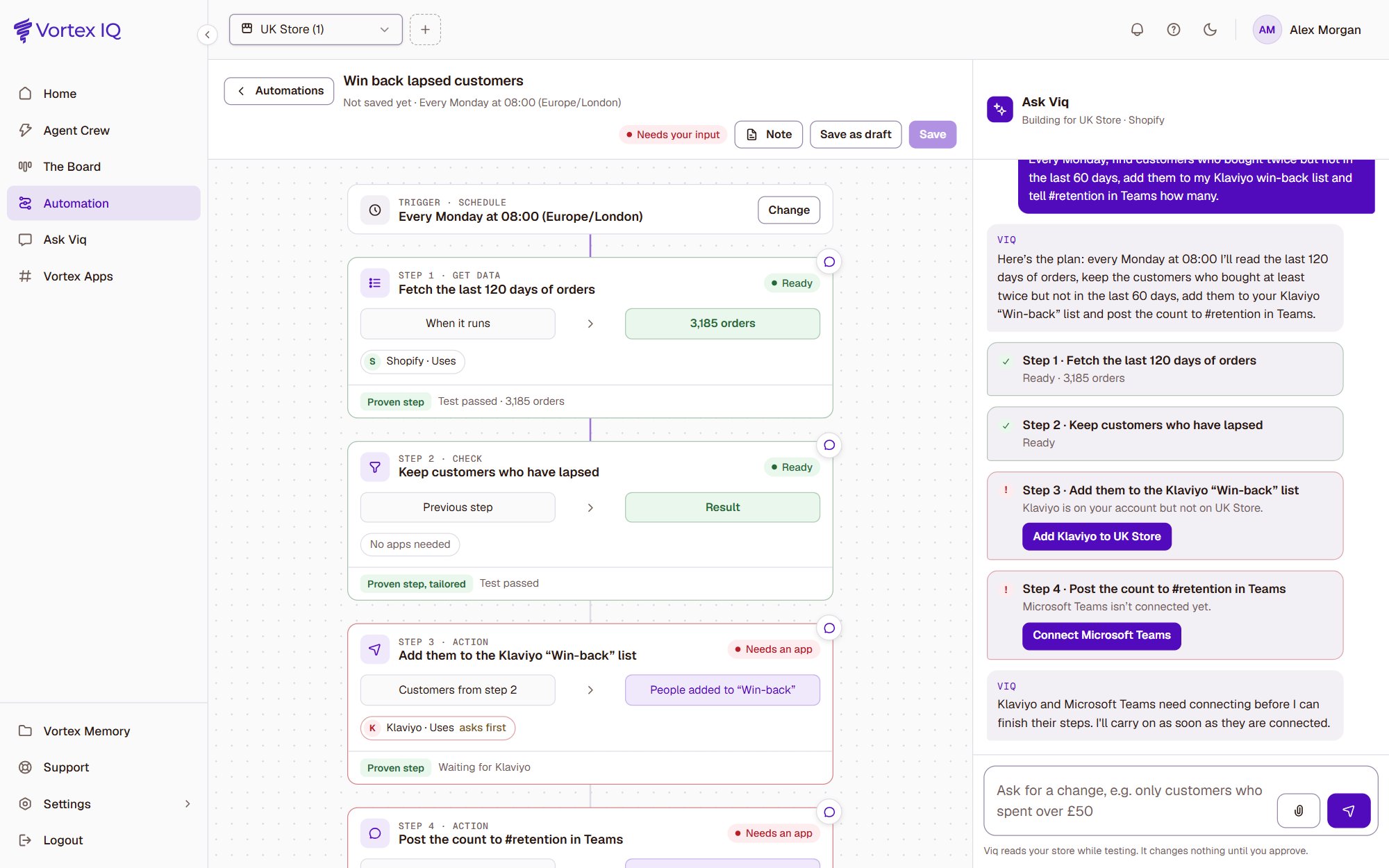
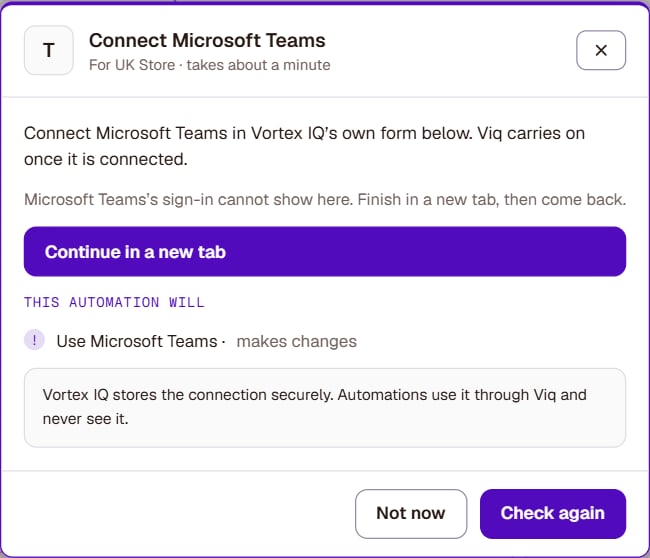
- A connect button, such as Connect Microsoft Teams, opens Vortex IQ’s own connection form for the app. Sign in to the app there. If the app’s sign-in page cannot open inside the window, select Continue in a new tab, finish there and come back. Then select Check again.
- An add button, such as Add Klaviyo to UK Store, appears when the app is already connected on your account but not on this store profile. Select Open the profile, add the app to the profile, and come back.
- An ask button, such as Ask Vortex to add Royal Mail Click & Drop, appears when Vortex IQ cannot use the app in automations yet. Say what you need it for and select Send request.
Step 6: Review the steps
When every step has passed its test, the header shows that all steps are ready, for example All 4 steps ready, and Ask Viq tells you to save when you are ready.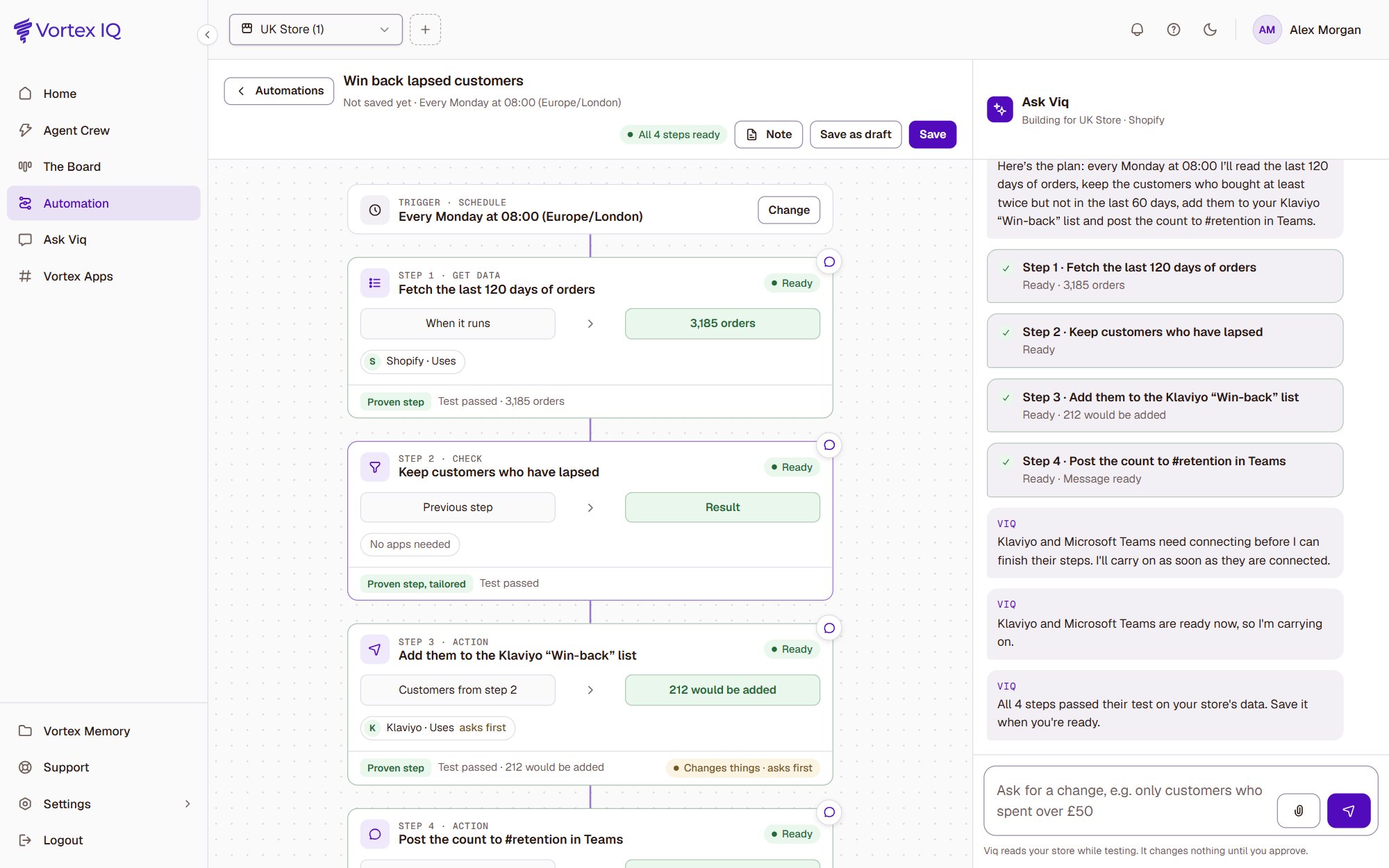
What a step card tells you
Look inside a step
Select a step card to open Step details beside it.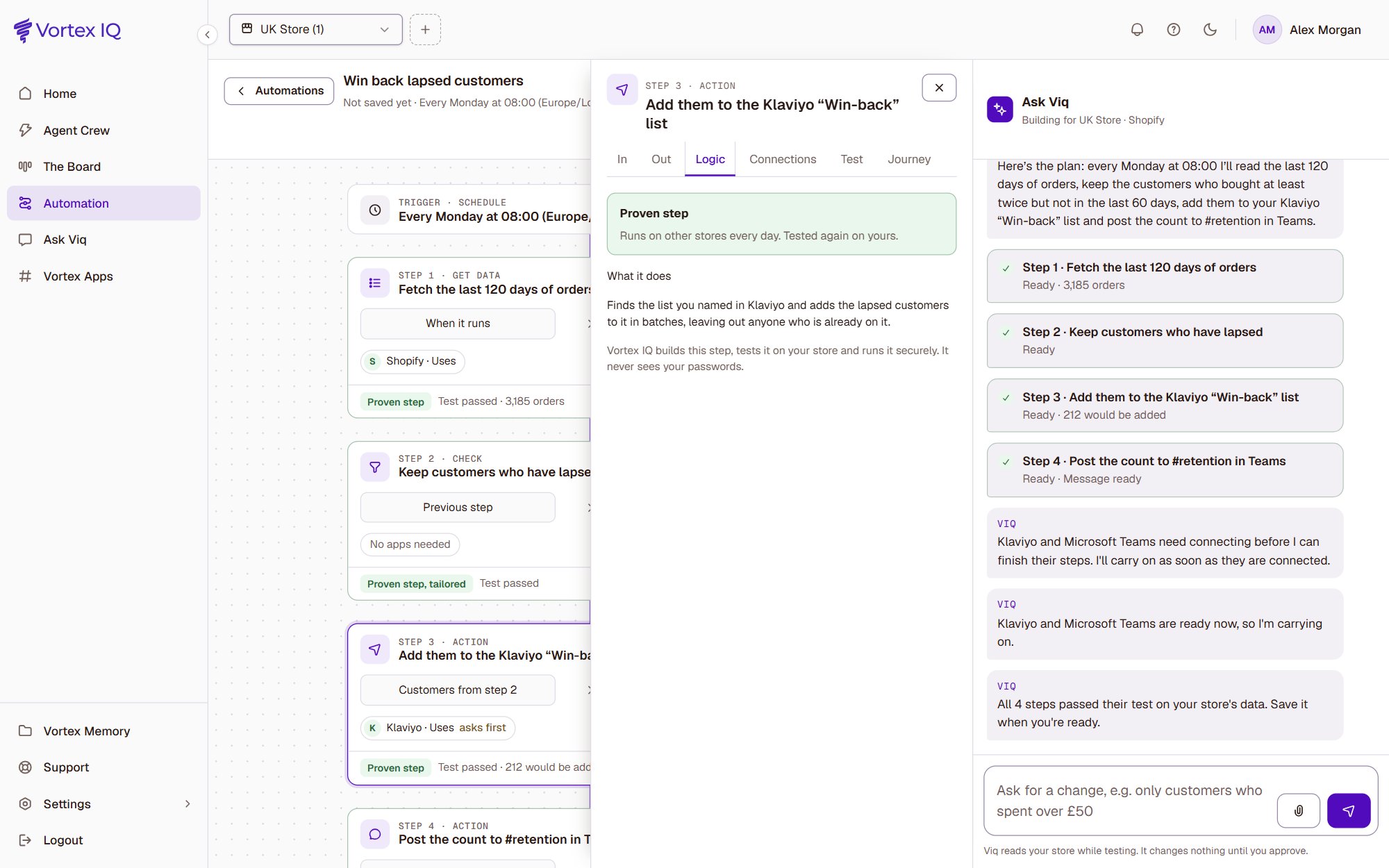
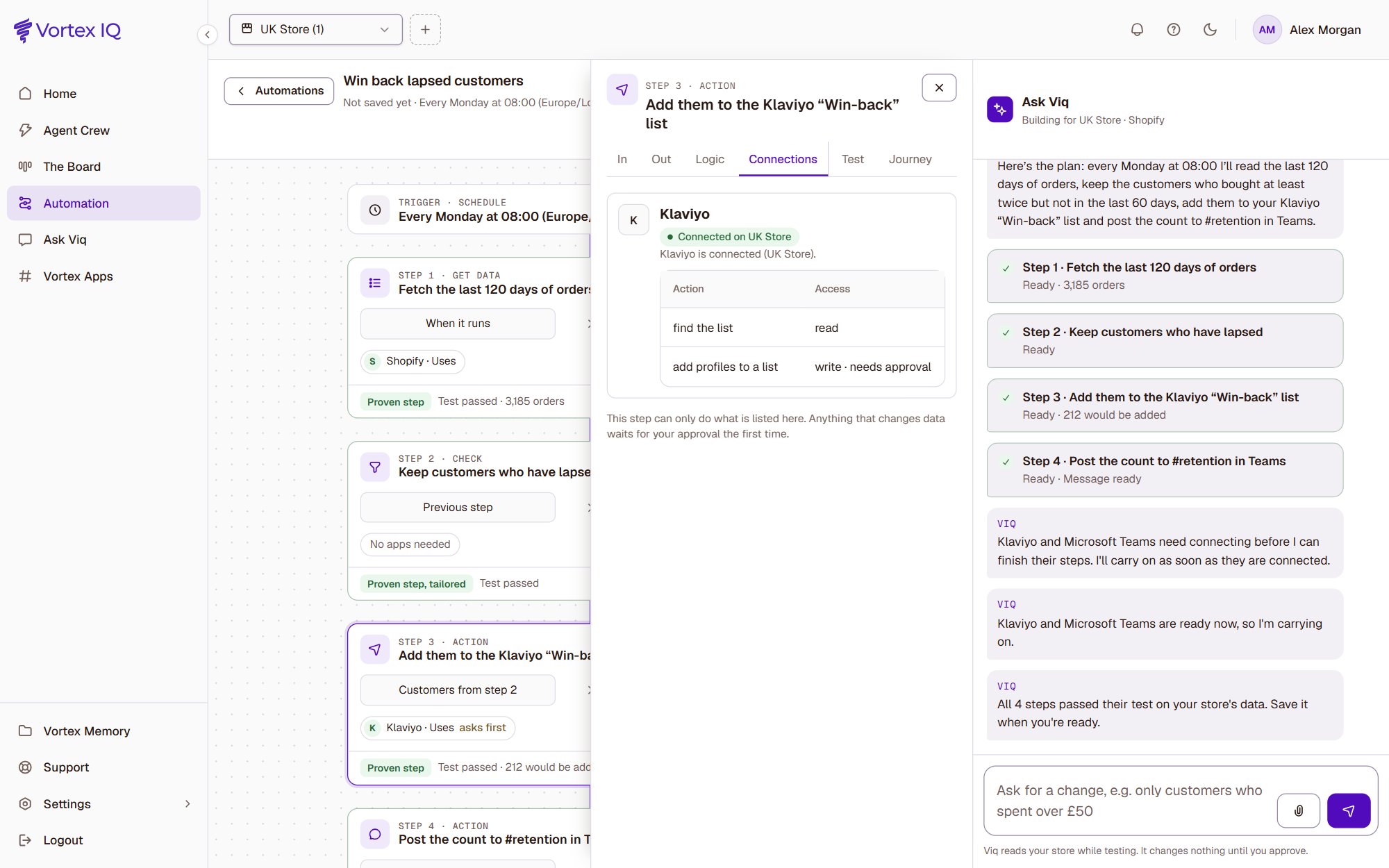
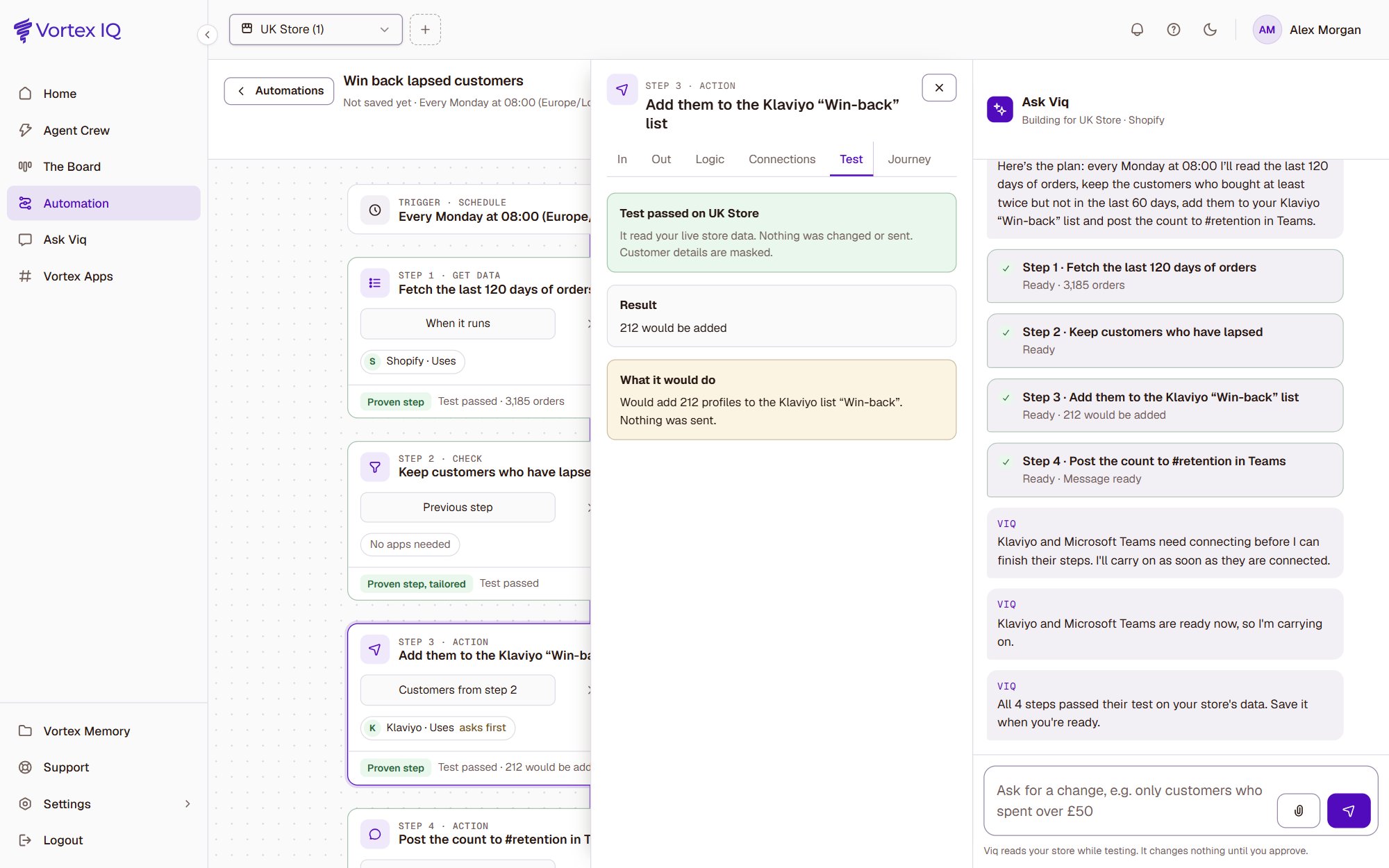
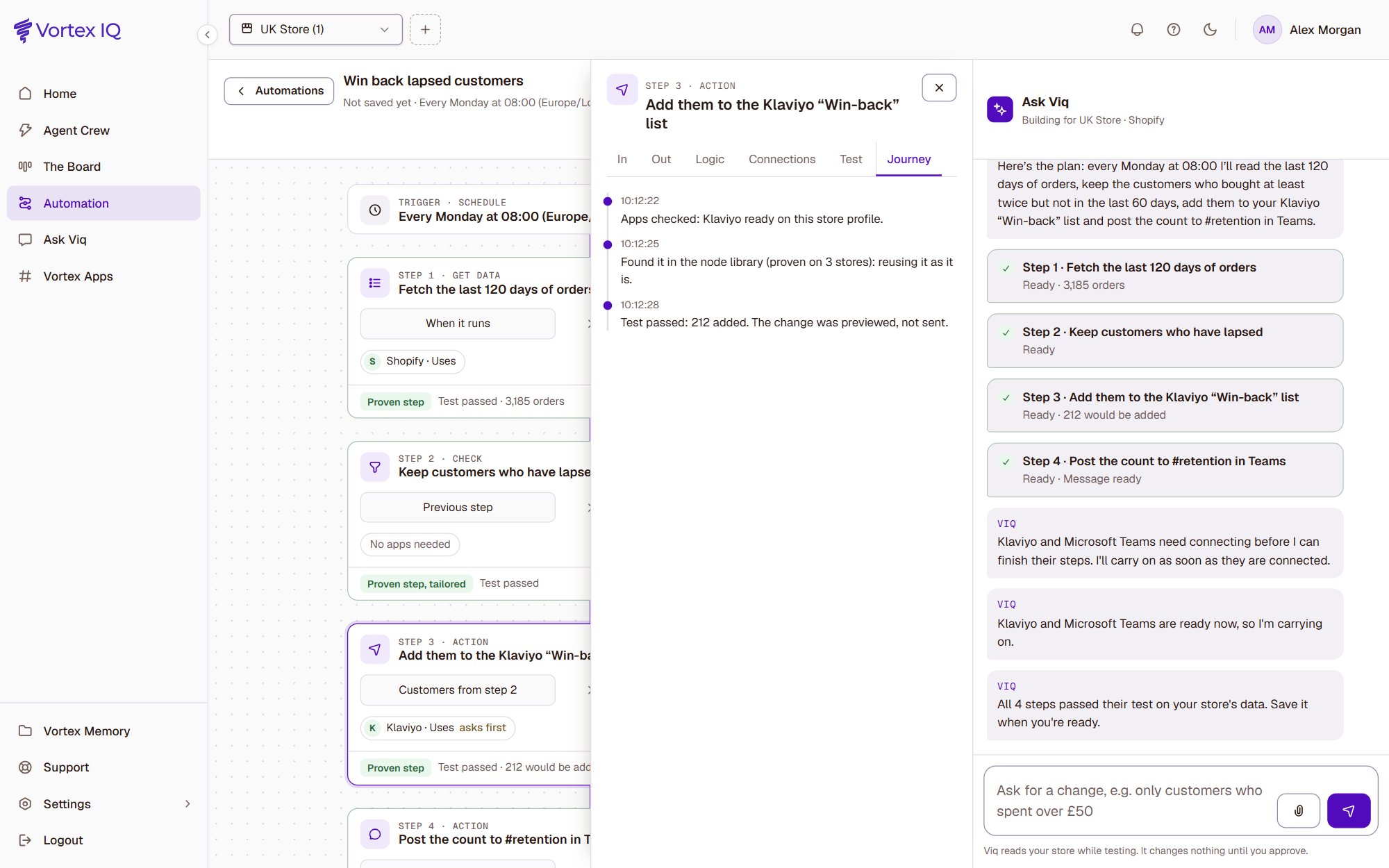
Change something before you save
Tell Ask Viq in the chat, in plain words. For example: “Only customers who spent over £50” or “Post to #marketing instead”. To ask about one step, select the chat icon on the corner of its card. Your next message is then about that step. Ask Viq rebuilds only the steps your change touches and tests them again.Step 7: Save and approve
Select Save in the header. The button is available once every step is ready.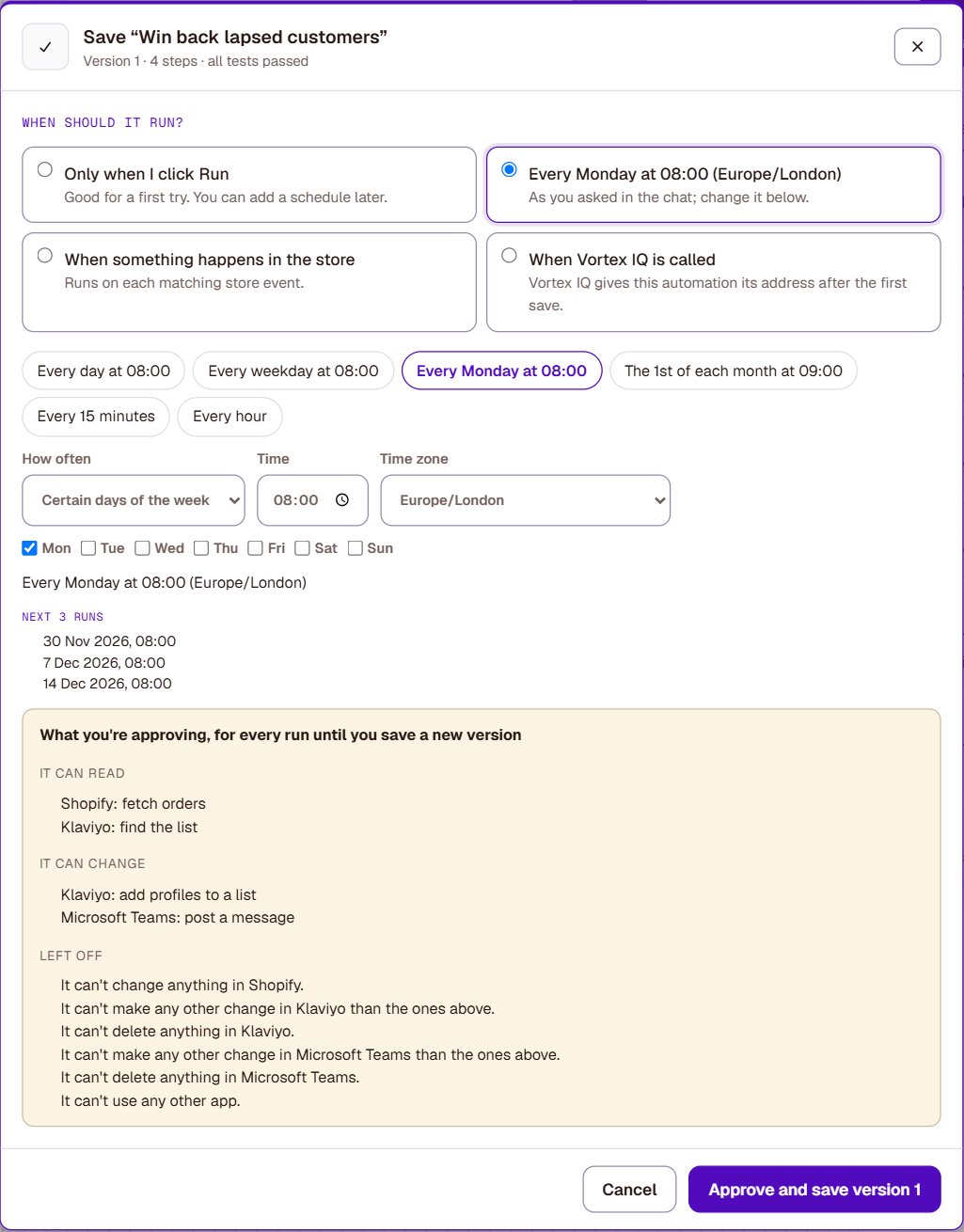
For a schedule, pick one of the ready-made times or set your own under How often, Time and Time zone. Next 3 runs shows when it will run next. More detail is on Schedules and the calendar.
2. Read what you are approving. The box lists, in plain words:
- It can read: what the automation may read in each app.
- It can change: the changes it may make, such as adding people to a list or posting a message.
- Left off: what it cannot do, such as deleting anything or using any other app.
An automation that uses no apps has nothing to approve, so the button reads Save version 1.
Step 8: Run it
After you save, the header shows the version, when it runs, and a Run now button.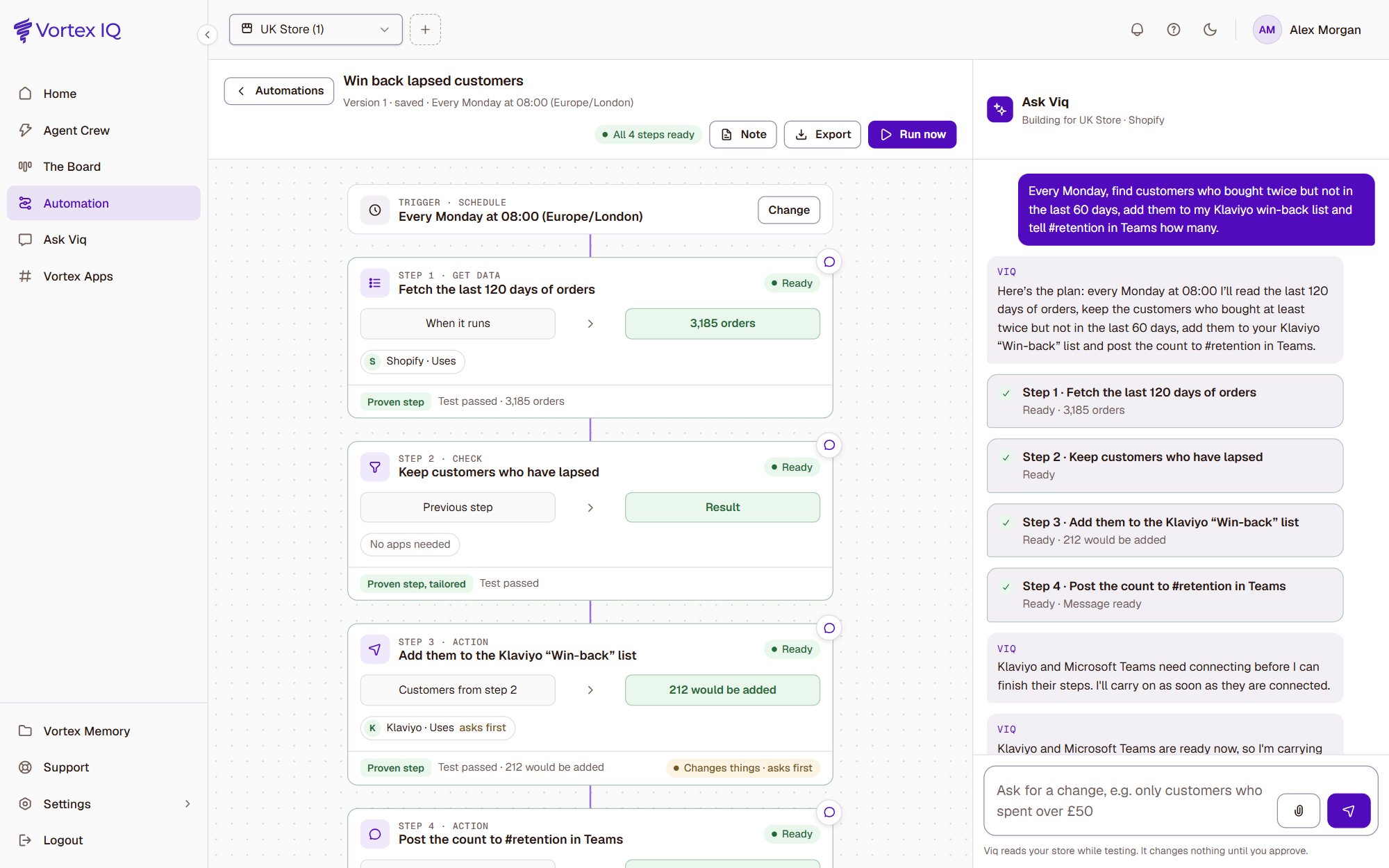
- A scheduled automation starts by itself at its next time. You can still select Run now to try it at once.
- If the automation cannot start by itself yet, the chat says why and what to do, in a line that starts with “It does not run on its own yet”.
- If you chose When Vortex IQ is called, the chat shows the automation’s address once, right after the first save. Copy it then. It is not shown again.
If a step needs help
Sometimes a step cannot be built. Its card shows Needs help and says why, often with the answer the app gave. Select the card, open the Logic tab, and choose:- Ask Viq to change it. The chat opens with “Change step” already typed. Say what the step should do instead.
- Carry on without it. Ask Viq plans the automation again without that step.
Come back later
You do not have to finish in one go.- Save as draft in the header keeps the build as it is, even if a step still needs help. You find it on the Automations tab with the status Draft. Open it to carry on where you stopped.
- A draft is visible only to you, and only on the store profile you built it on.
- If you ask for the same thing again later, Ask Viq offers Open that build or Build it again.
- A build that was never saved and not kept as a draft is deleted 30 days after its last change.
Bring in a workflow from a file or a picture
Select the paperclip button beside the message box to attach one file or picture to your message.
A file can be up to 4 MB and a picture up to 3 MB. Pictures can be PNG, JPEG or WebP. You can add a sentence to say what should be different.
Tips for a good result
- Say when it should run. If you do not, you can still choose when it runs in the Save window.
- Name the app and the place: “post to #sales in Slack”, “add to my Klaviyo list called Win-back”.
- Give numbers where they matter: “below 10 in stock”, “not in the last 60 days”.
- Start small. Save a simple version, run it, then ask Ask Viq to add more.