

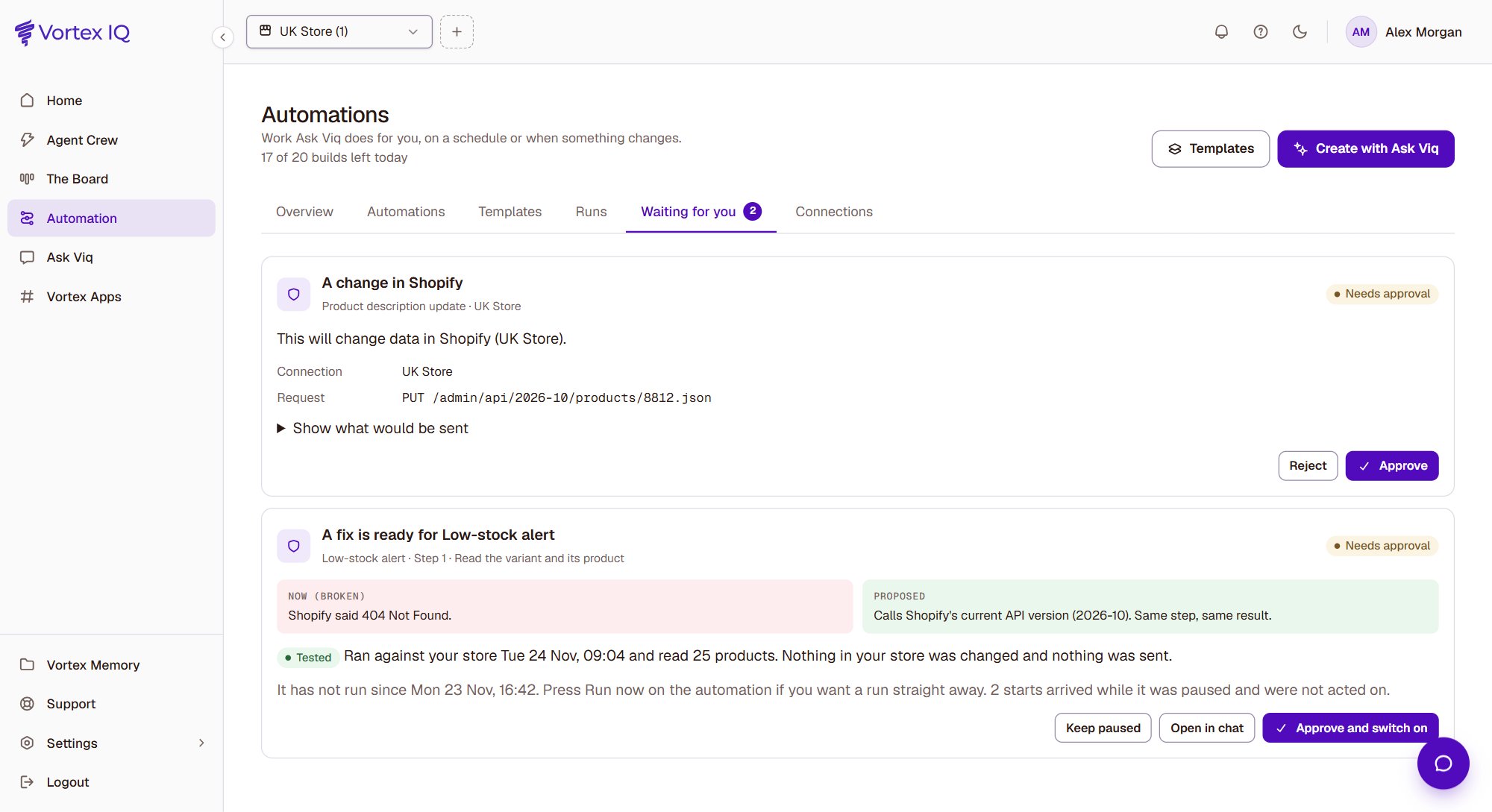
- The number on the Waiting for you tab.
- The Waiting for you tile on the Overview tab.
- The Needs your attention list on the Overview tab. Select Review to come here.
Three moments when you approve
Because you approve an automation when you save it, its runs do not stop here each time. Only changes you have not approved yet wait on this tab.
Approve or reject a change
A card titled “A change in” and the app’s name is one change waiting to be made.
Then choose:
- Approve sends the change, once. A message confirms that it was sent. If the app answers with an error, the message says so.
- Reject discards the change. Nothing is changed.
Review a fix for a paused automation
Apps change over time. When a step stops working because of such a change, Vortex IQ pauses the automation, so it does not keep failing, and tries to repair the step by itself. Vortex IQ also sends an email about the pause to the person who last saved the automation. On the Automations tab, the automation shows Paused · needs you. Its card on this tab goes through these states:When a fix is ready
The card shows:- Now (broken): what went wrong, such as the answer the app gave.
- Proposed: what the fix does. The step keeps doing the same job.
- Tested: how the fix was tested. The test read your store. Nothing in your store was changed and nothing was sent.
- How long the automation has been paused, and how many starts arrived meanwhile and were not acted on.
Approving a fix does not run the automation straight away. It runs at its next scheduled time or event. If you want a run at once, open the automation and select Run now.
Good to know
- Anyone who can open the page can approve a fix. Only the person who saved the automation can rebuild it by chat.
- Resuming a paused automation yourself, with Resume on the list, also closes its card.
- A failed run that has a fix waiting links here with See it in Waiting for you. See Runs and results.