

Open the templates
On the Automations page, select the Templates tab, or the Templates button at the top right.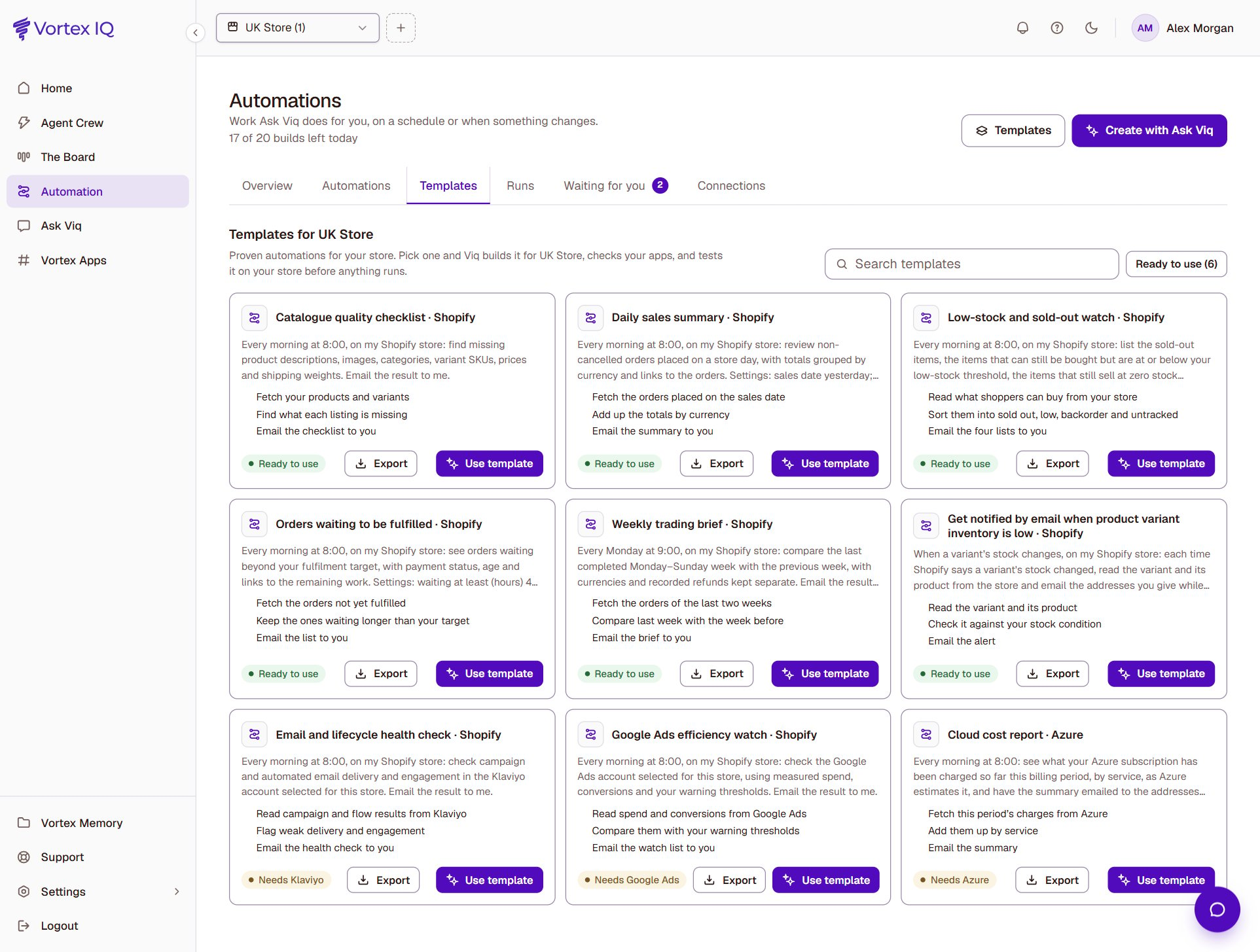
Read a template card
To find a template:
- Type in Search templates. It searches titles, descriptions and app names.
- Select Ready to use to see only the templates you can use right away. Select it again to see all of them.
Use a template
1
Select Use template
The builder opens with the template’s request as your first message. Starting from a template counts as one build for the day.
2
Let Ask Viq build and test it
Ask Viq says it started from the template’s proven steps, then builds each step and tests it on your store. This is the same build as in Build with Ask Viq, only you did not have to write the request.
3
Connect an app if a step needs one
If the card said Needs an app, the build stops at that step and offers a button to connect it. Ask Viq carries on once the app is connected.
4
Make it yours
Ask for changes in the chat. For example: “Use a low-stock threshold of 10”, “Send it at 7:30 instead” or “Email it to ops@example.com as well”.
5
Save and approve
Select Save, choose when it runs, read what the automation can read and change, and select the approve button.
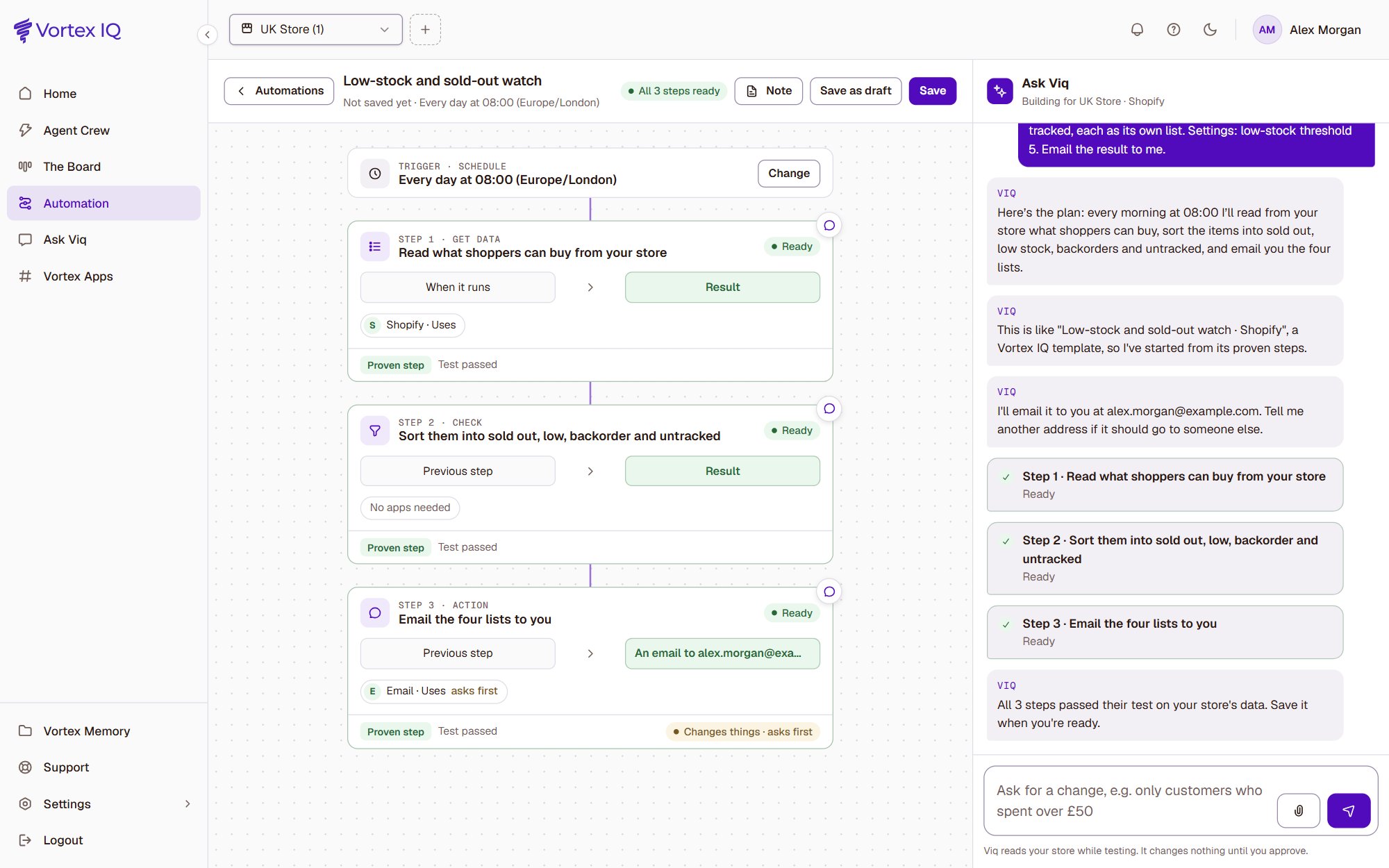
A template that emails a result sends it to your own email address, unless you name another one. Ask Viq tells you which address it will use, and you can change it in the chat.
What kinds of templates are there
The list changes as Vortex IQ adds templates. These are examples of what you can find.Export a template
Select Export on a card to download the template as a file. The file holds the template’s name, when it runs, and each step with its settings. It holds no keys, no connections and no email addresses. Whoever brings the file in connects their own apps, and its emails go to them. To bring a file in, attach it to a new chat in the builder. See Bring in a workflow from a file or a picture.Good to know
- A template is a starting point. After you save, the automation is yours. Changing it does not change the template.
- If no template fits, describe what you need instead. See Build with Ask Viq.
- If the tab says the templates could not be loaded, wait a moment and open the tab again.