

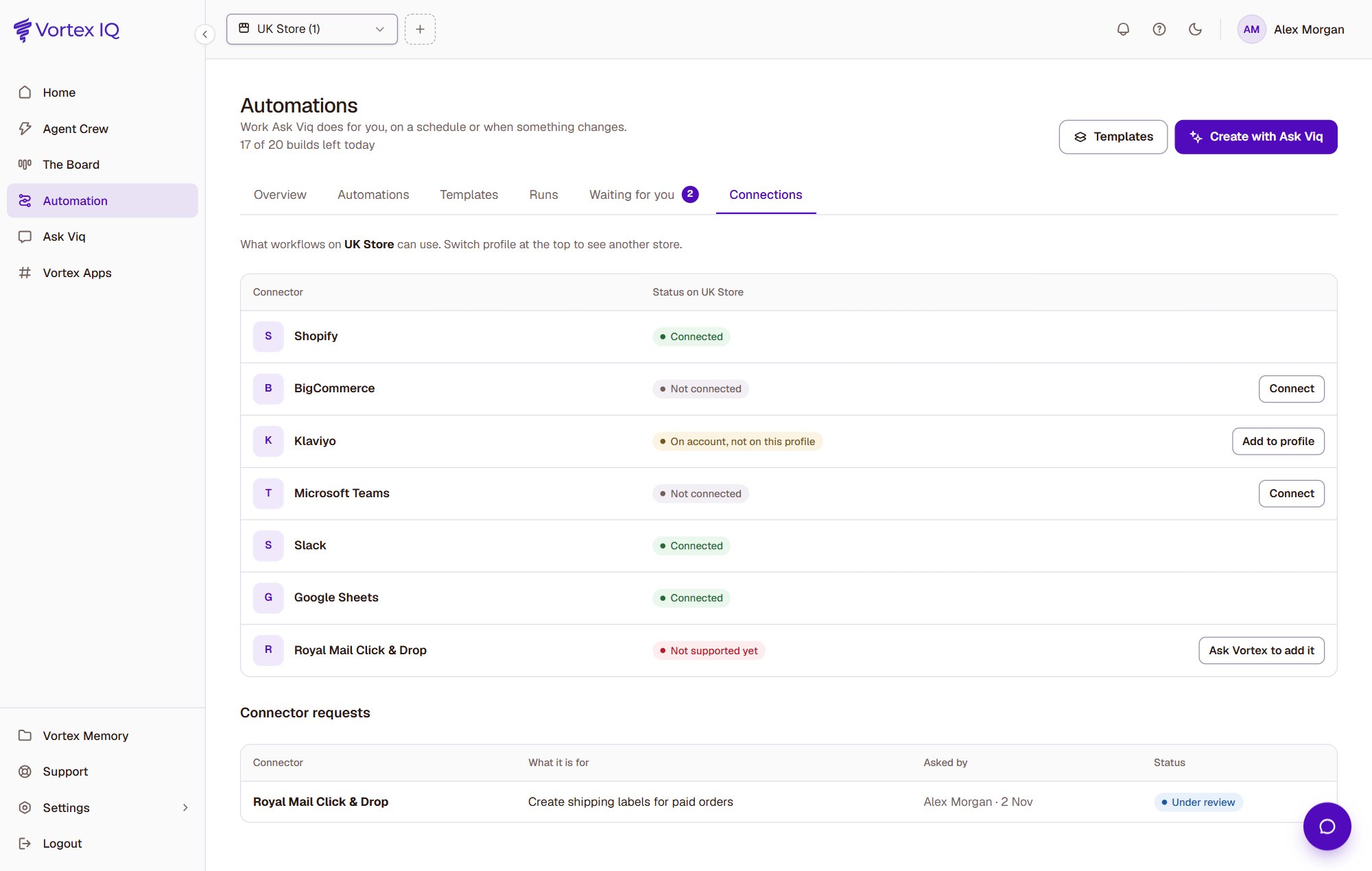
Read the list
Only a workspace admin can connect an app or add one to a store profile. If you are not an admin, the window offers Ask an admin instead.
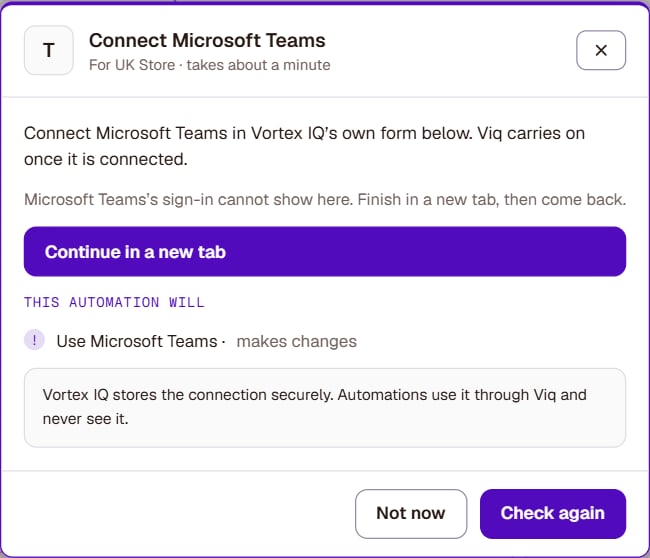
Connect an app
- Select Connect beside the app.
- A window opens with Vortex IQ’s own connection form for that app. Sign in to the app there.
- If the app’s sign-in page cannot open inside the window, select Continue in a new tab. Finish there, then come back.
- Select Check again. When the app is connected, the window says so and closes.
Add an app to this store profile
If an app is already connected for another store profile, you do not have to sign in again.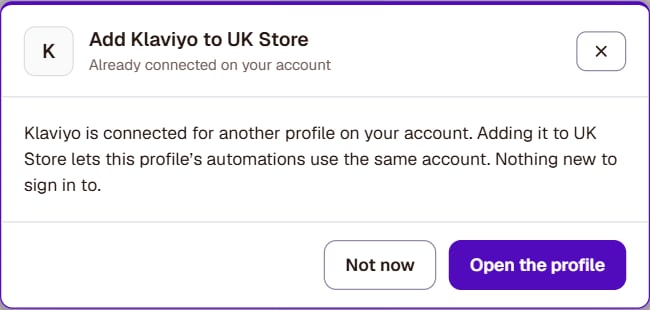
- Select Add to profile.
- Select Open the profile. The store profile opens in a new tab.
- Add the app to the profile there, and come back.
Ask Vortex IQ to add an app
If an app is Not supported yet, you can ask for it.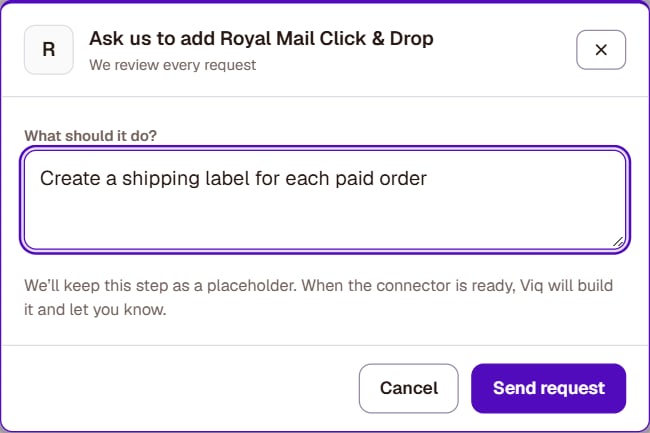
- Select Ask Vortex to add it.
- Under What should it do?, say what you want the app to do in your automation.
- Select Send request.
Connect while you build
You do not have to visit this tab first. When a step needs an app that is not ready, the chat offers the right button under that step, and Ask Viq carries on as soon as the app is connected. See Connect an app when a step needs one.Good to know
- Templates check these connections too. A template that shows Needs and an app name is waiting for that app.
- If an app’s connection expires, runs that use it fail, and the run tells you to reconnect the app.
- Disconnecting an app is done in Settings, under Connected Sources. Automations that use it stop working until it is connected again.