

Read the list
Open a run
Select a row to open the run under it. Select the row again to close it.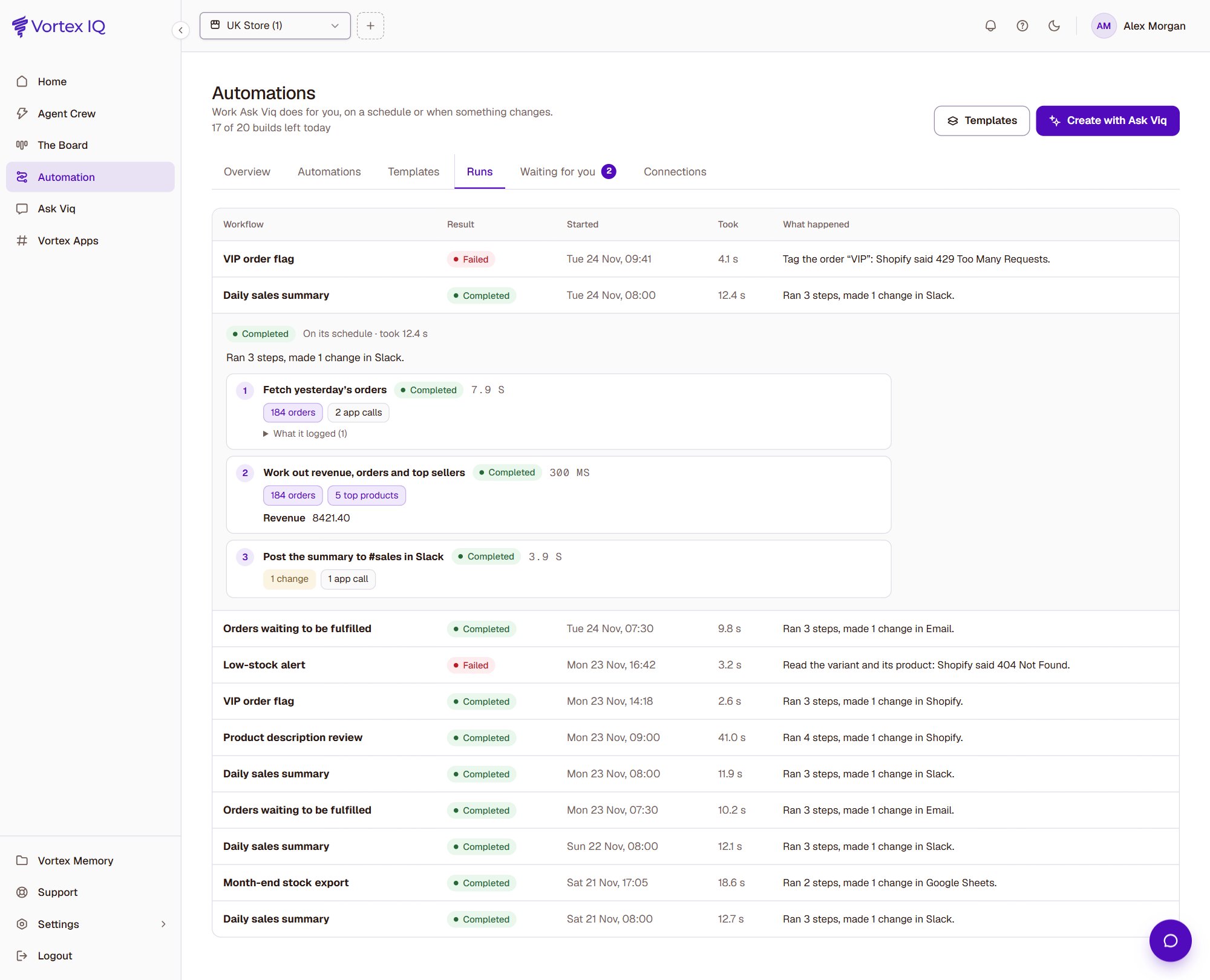
A run shows counts and short results, never your customers’ details. If a step was asked to show a value that could contain people’s details, the run says the value is not shown. Its numbers are still shown.
When a run fails
A failed run tells you three things: which step failed, why, and what to do next.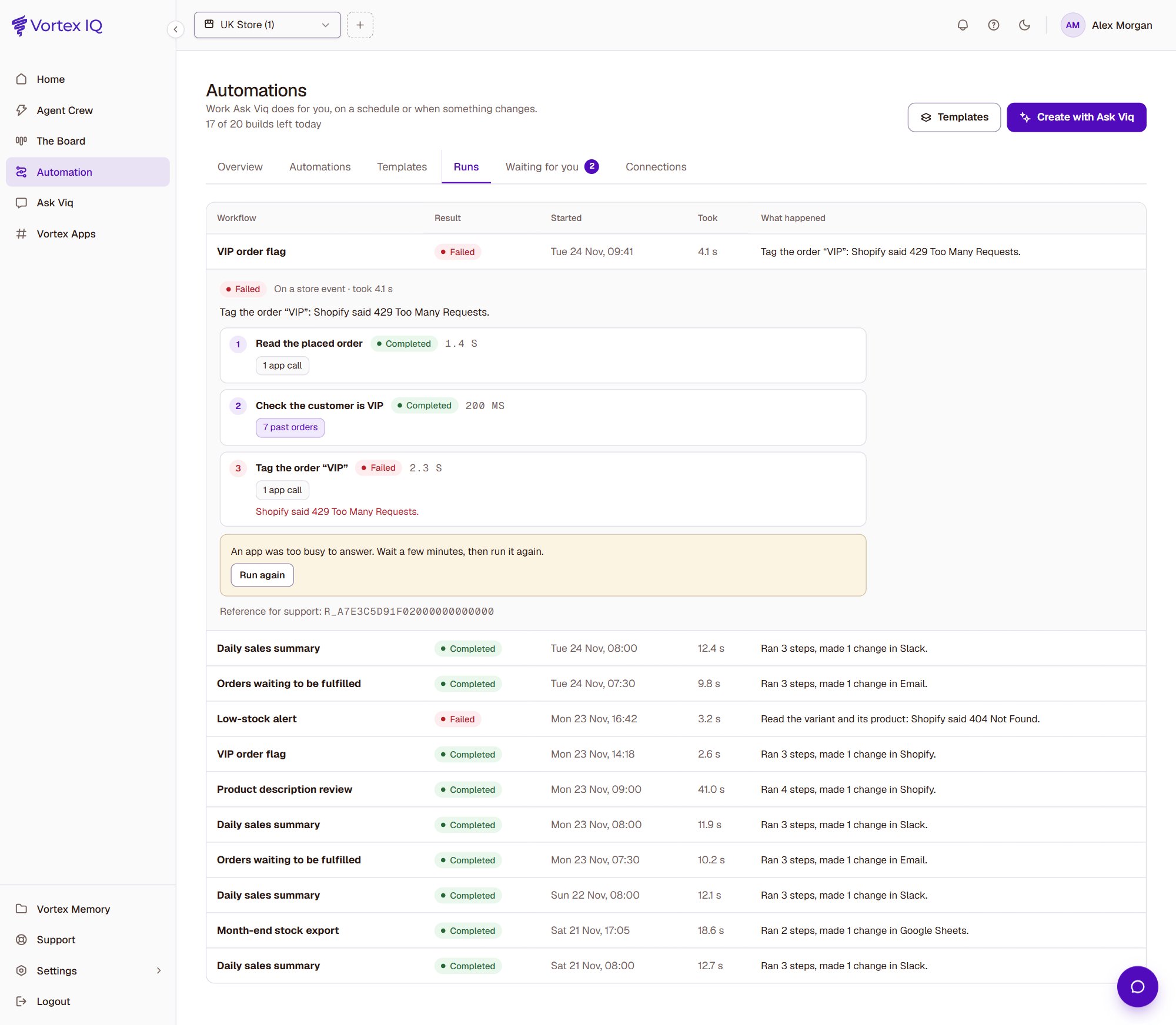
- Read the step that failed. The red line says what went wrong, often in the app’s own words.
- Read the advice under the steps. It says in plain words what to do. The table below lists the usual cases.
- Select Run again when you are ready. The run starts again with what started it the first time, for example the same store event.
If Vortex IQ is already fixing it
When a step broke because of something that can be repaired, Vortex IQ pauses the automation and prepares a fix by itself. The failed run then shows a notice and the See it in Waiting for you button instead of Run again. Review the fix on the Waiting for you tab.Contact support about a run
Every failed run ends with Reference for support and a code. Send that code to Vortex IQ support so they can find the run.Other places you see results
- In the chat. After Run now, the result appears in the automation’s chat, with one line for each step.
- On the list. The Last run column on the Automations tab shows how each automation’s most recent run ended.
- On the Overview. Failed runs counts the failed runs of the last seven days, and Needs your attention lists them with an Open run button.
Good to know
- If the tab says “No runs yet”, no automation has run on this workspace so far. Each run appears here once it starts.
- The list holds the most recent runs. Very old runs drop off it.
- A run started by Run now counts like any other run and is listed here.