

Read the list
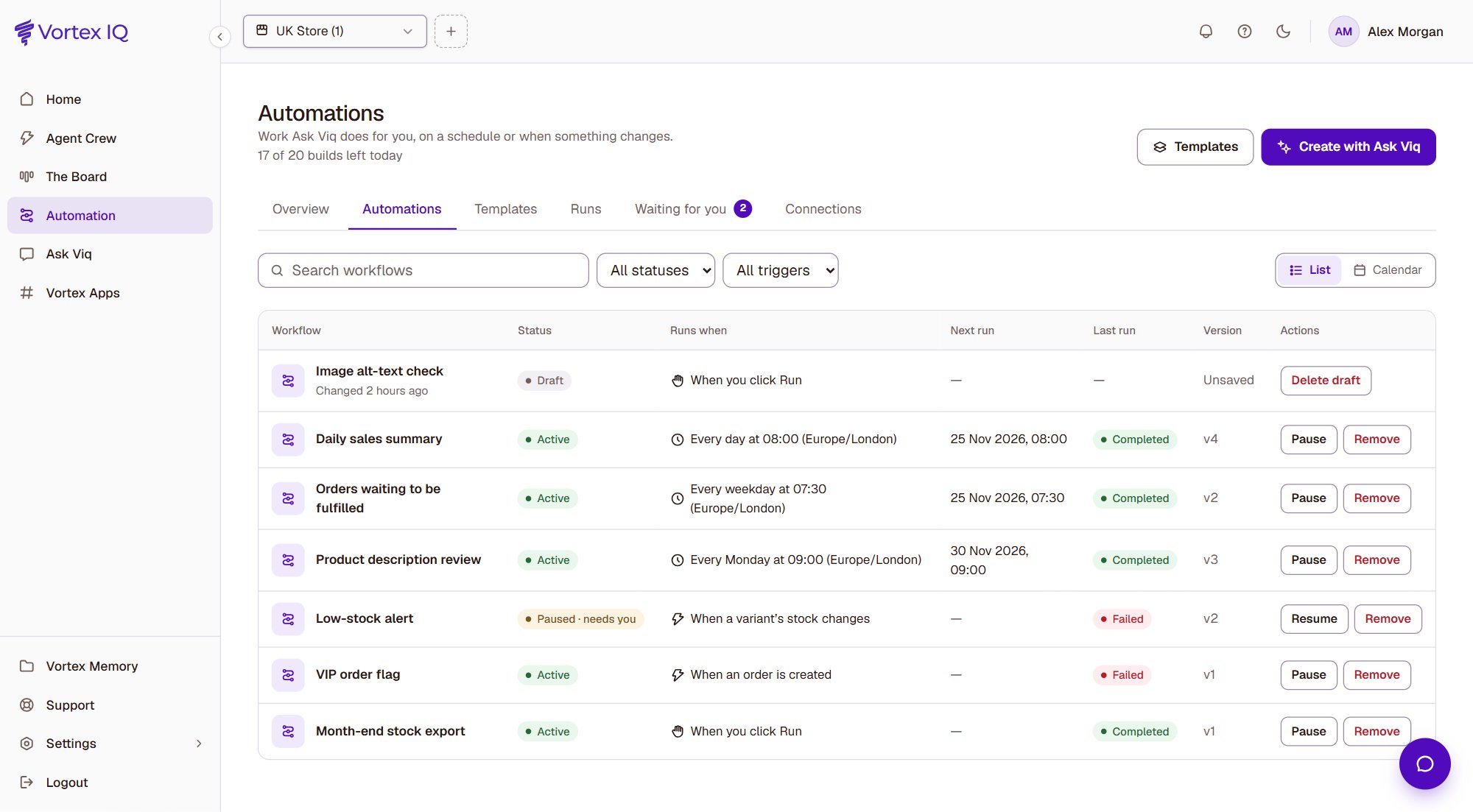
Find an automation
- Type part of its name in Search workflows.
- Filter by status with All statuses, or by how it starts with All triggers: Schedule, Store event, Manual or HTTP call.
- If nothing matches, select Clear filters.
- Select Calendar to see scheduled runs on a calendar instead. See Schedules and the calendar.
Open an automation
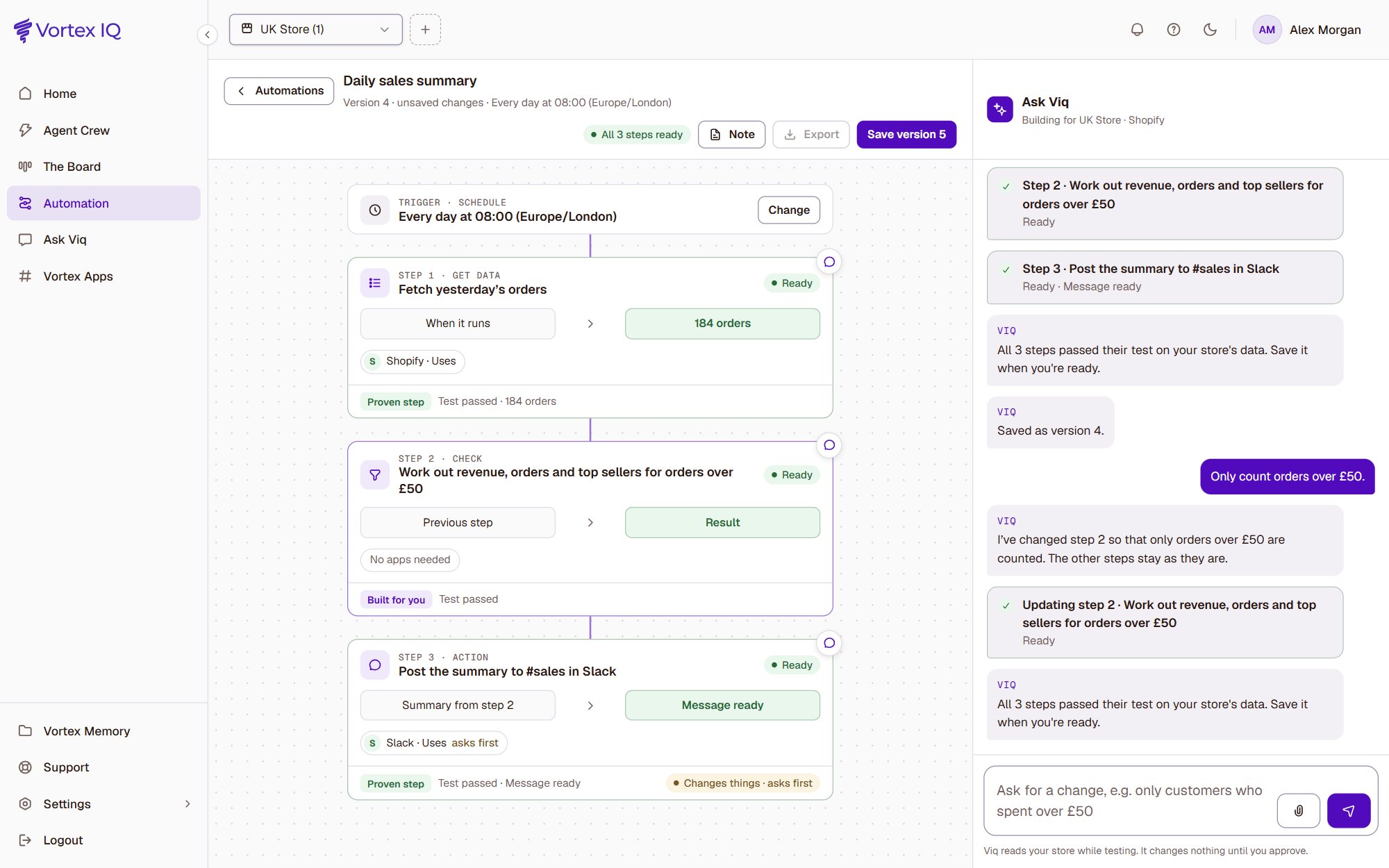
Select its row. A saved automation opens with its steps on the left and the Ask Viq chat on the right. A draft opens in the builder, as you left it.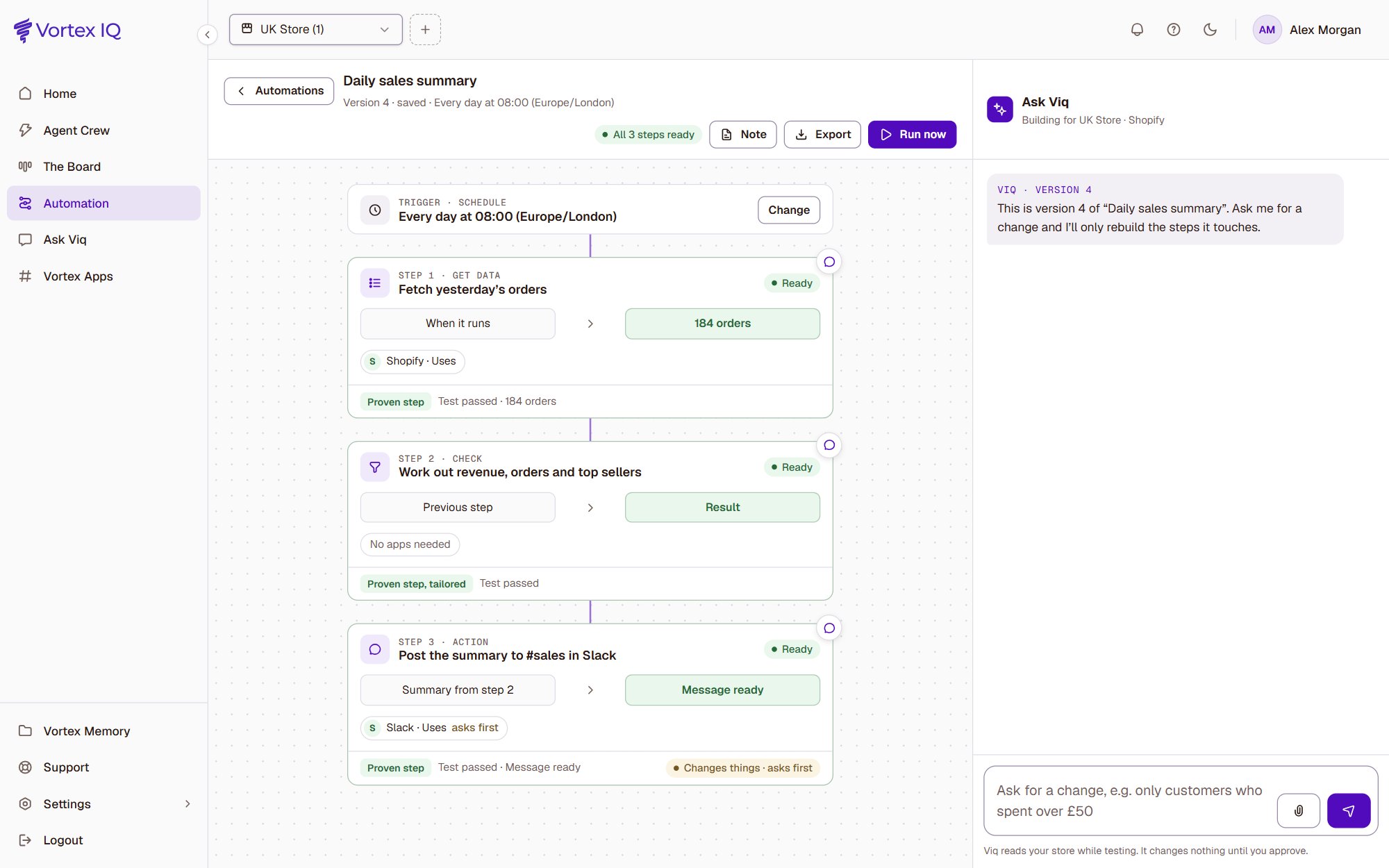
Select a step card to see what it uses, what it produces and how its test went. See Look inside a step.
Run it now
Select Run now. The run starts at once, whatever its schedule says. The chat shows that it is running and then the result, with one line for each step.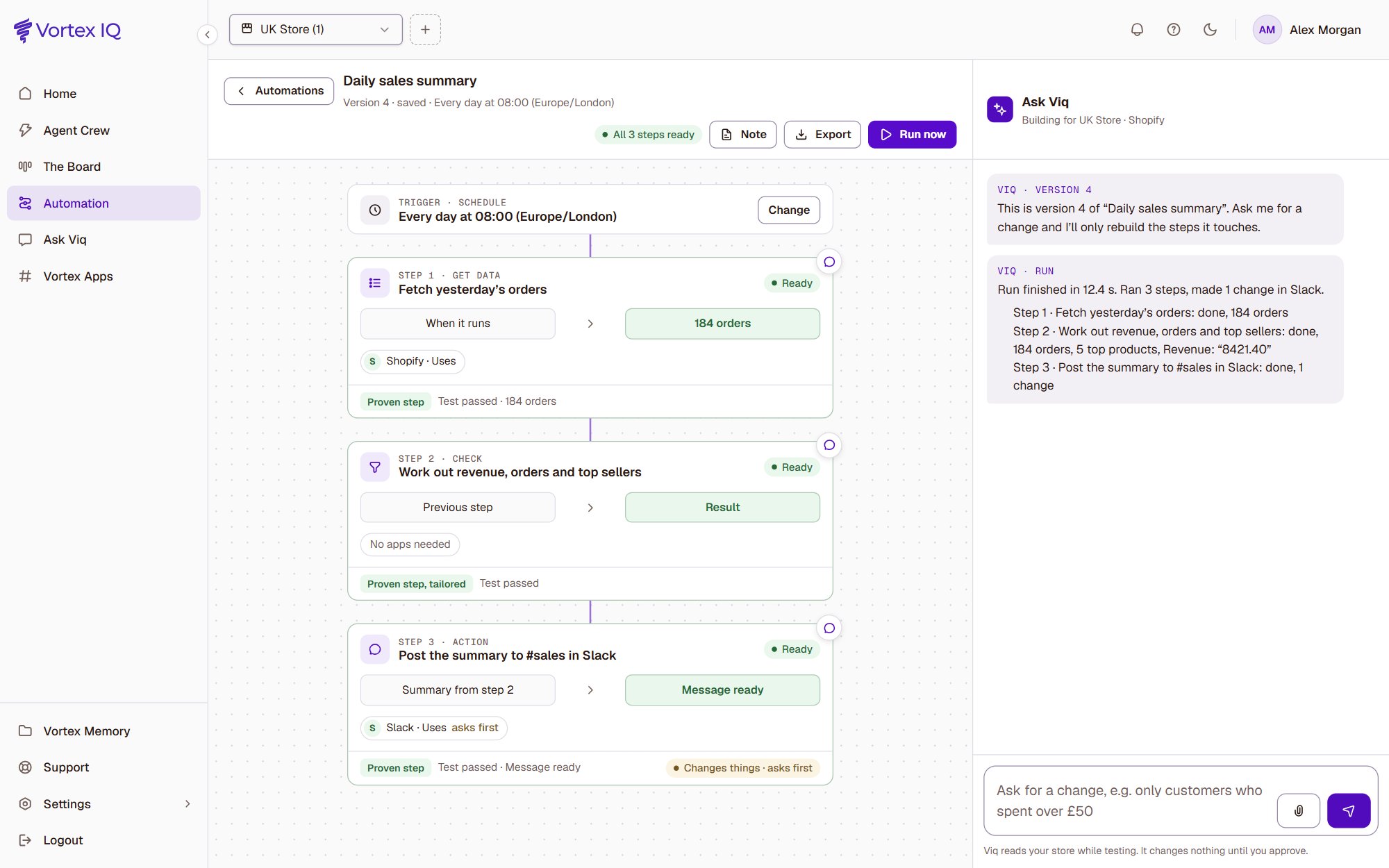
Run now is available for a saved automation with no unsaved changes. After you change something, the button becomes Save version and a number. Save first, then run.
Change it by chat
Type the change in the chat, in plain words. For example: “Only count orders over £50.” Ask Viq works out which steps your change touches, rebuilds only those, and tests them again. The other steps stay as they are.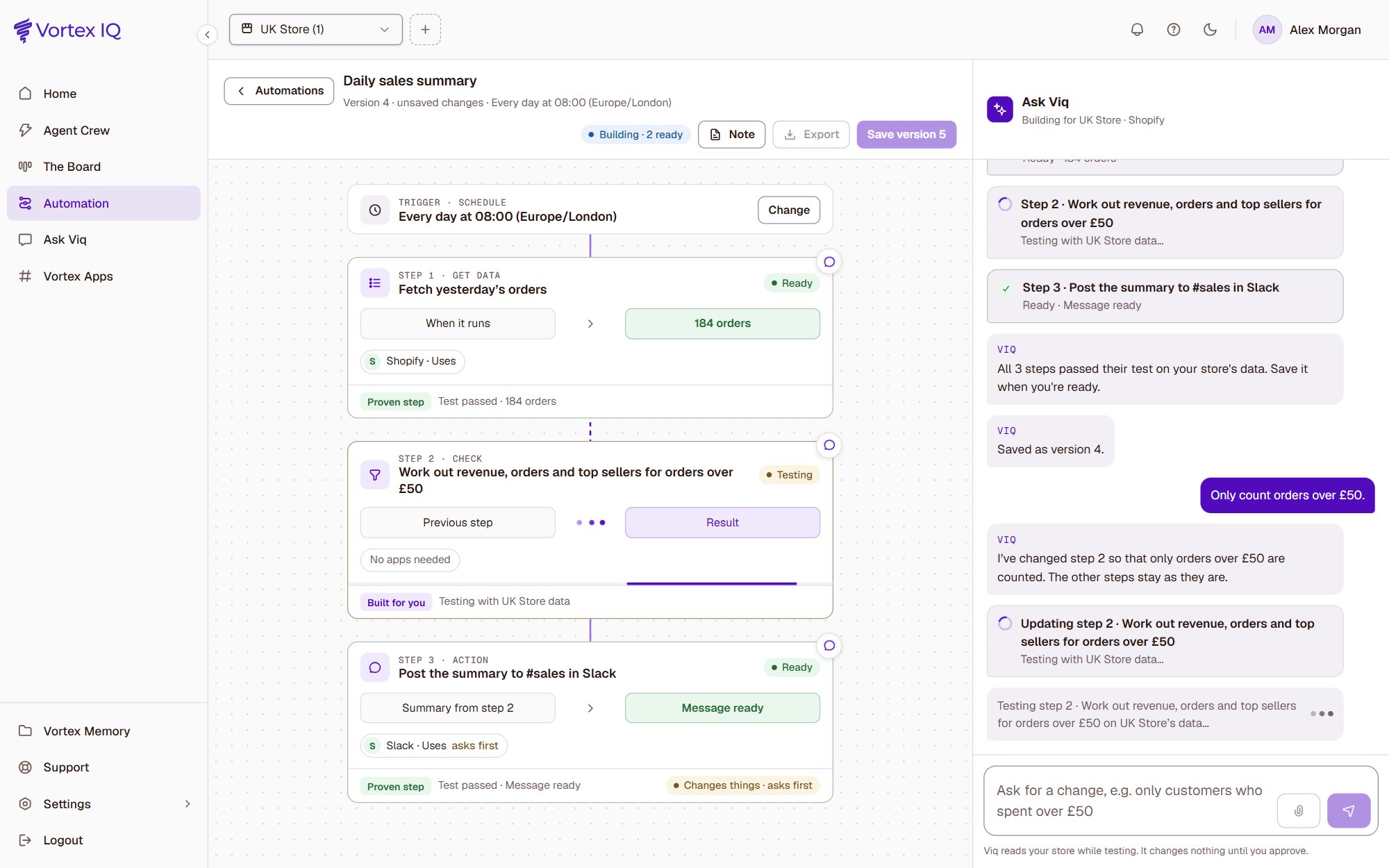
Change when it runs
Select Change on the trigger card at the top of the steps. The Save window opens. Choose when the automation should run and save the new version. You can also change a schedule from the calendar. See Schedules and the calendar.Pin a note
A note is a reminder for you and your team, such as why the automation runs at a certain time.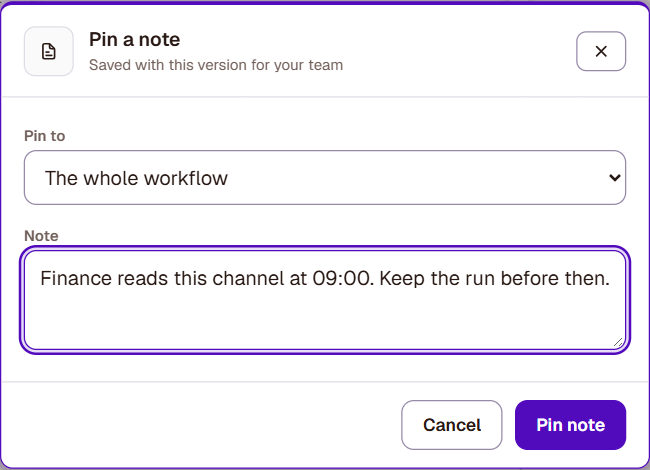
- Select Note in the header.
- Under Pin to, choose The whole workflow or one step.
- Type the note and select Pin note.
Export an automation
Select Export, then Export again to confirm. The saved version downloads as a file. The file holds the automation’s name, when it runs, and each step with its settings, including any email addresses in them. It holds no keys and no connections. Whoever brings the file in connects their own apps. To bring a file in, attach it to a new chat in the builder. See Bring in a workflow from a file or a picture.Export always downloads the saved version. If the automation has unsaved changes, save them first.
Pause and resume
On the list, select Pause to switch an automation off. Nothing runs while it is paused, and a scheduled automation’s coming runs do not start. Select Resume to switch it on again. Both take effect at once. Starts that arrive while an automation is paused, such as a store event, are not acted on later.Remove an automation or delete a draft
On the list, select Remove. A window asks you to confirm.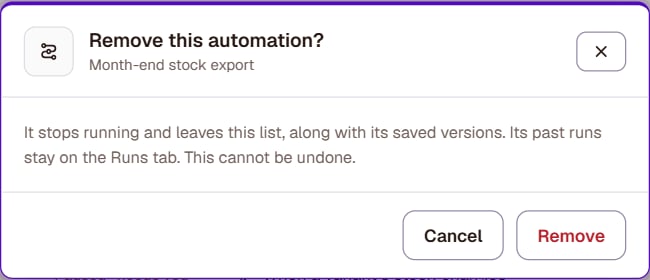
- A removed automation stops running and leaves the list, along with its saved versions. Its past runs stay on the Runs tab. This cannot be undone.
- A deleted draft loses its steps and its chat. It cannot be brought back.