

How an automation can start
For When Vortex IQ is called, the chat shows the automation’s address once, right after the first save. Copy it then. It is not shown again.
Set a schedule
The same schedule controls appear in three places: the Save window, the Change button on a draft’s trigger card, and Change when this runs on the calendar.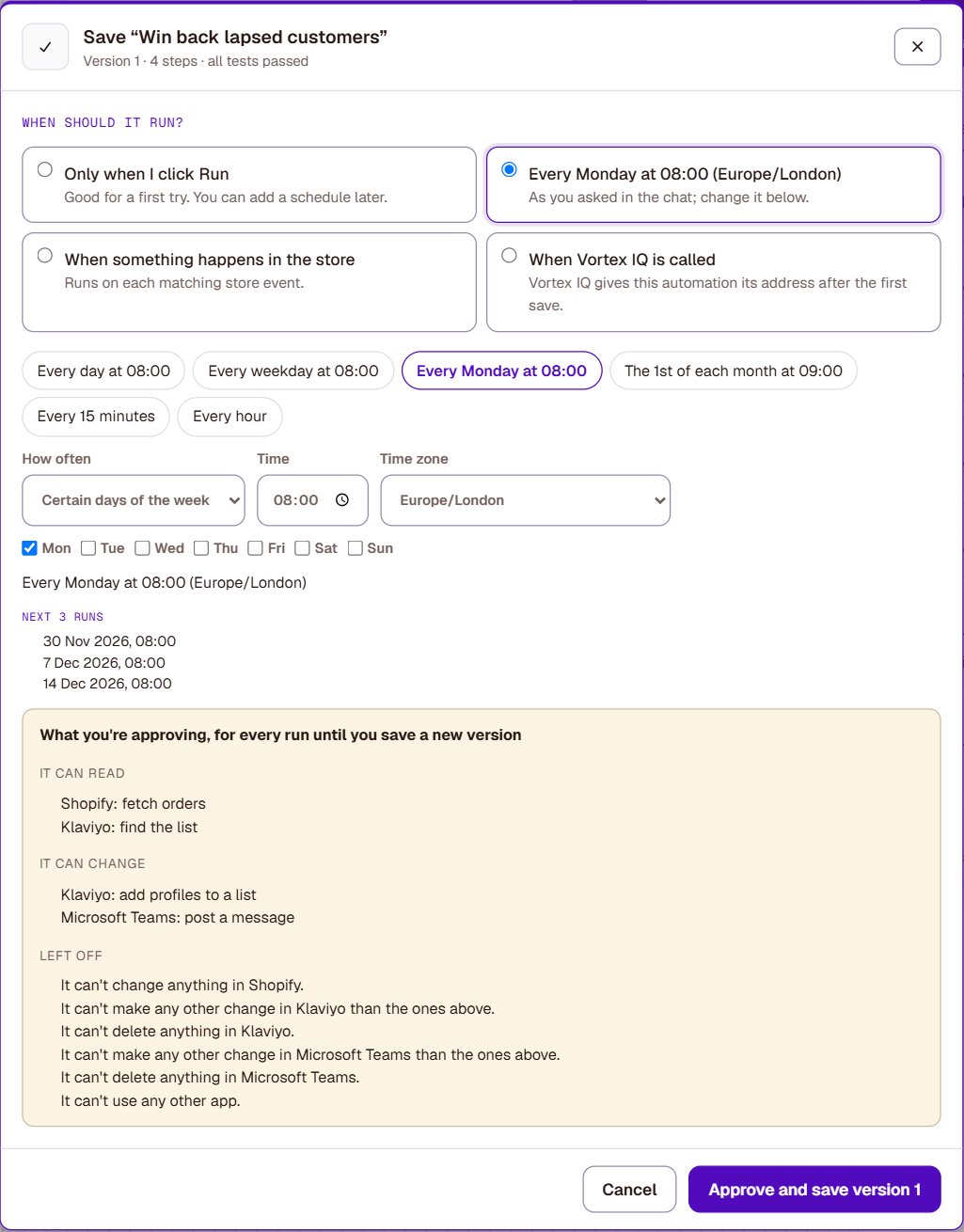
- Pick a ready-made schedule, such as Every day at 08:00, Every weekday at 08:00 or Every Monday at 08:00.
-
Or set your own with How often:
- Choose the Time zone the times are in.
- Check the sentence under the controls. It says the schedule in words, such as “Every Monday at 08:00 (Europe/London)”.
- Check Next 3 runs. They are shown in your own time. If the schedule uses another time zone, its time is shown beside yours.
See your runs on a calendar
On the Automations tab, select Calendar.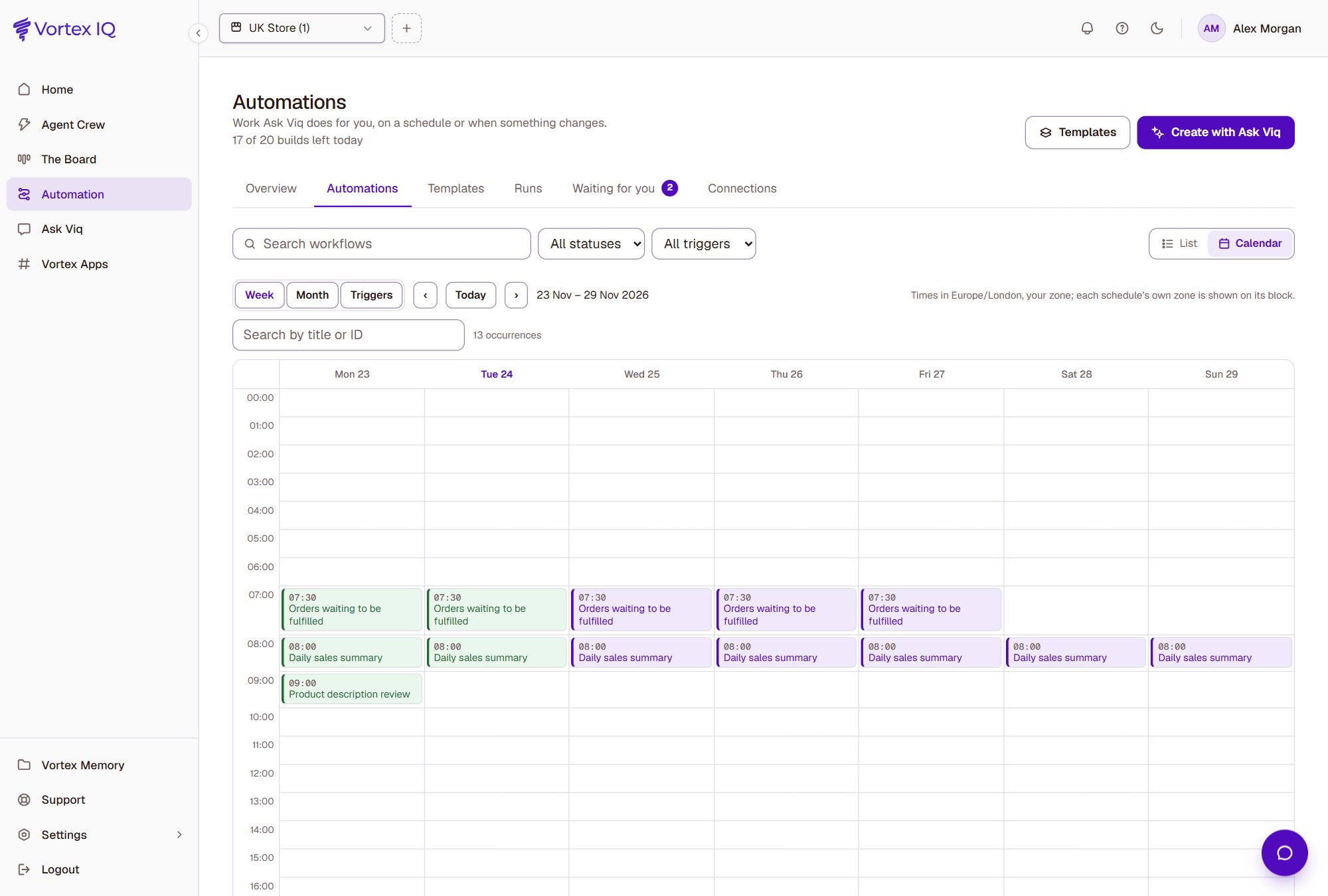
- Week, Month and Triggers switch the view.
- The arrows move one week or month back or forward. Today comes back to now.
- Search by title or ID shows only the runs of one automation.
- All times are in your own time zone. If a schedule uses another time zone, its block says so.
- Runs that already happened and runs that are still to come have different colours.
Month view
The month view shows up to three runs on each day. A day with more shows how many more there are.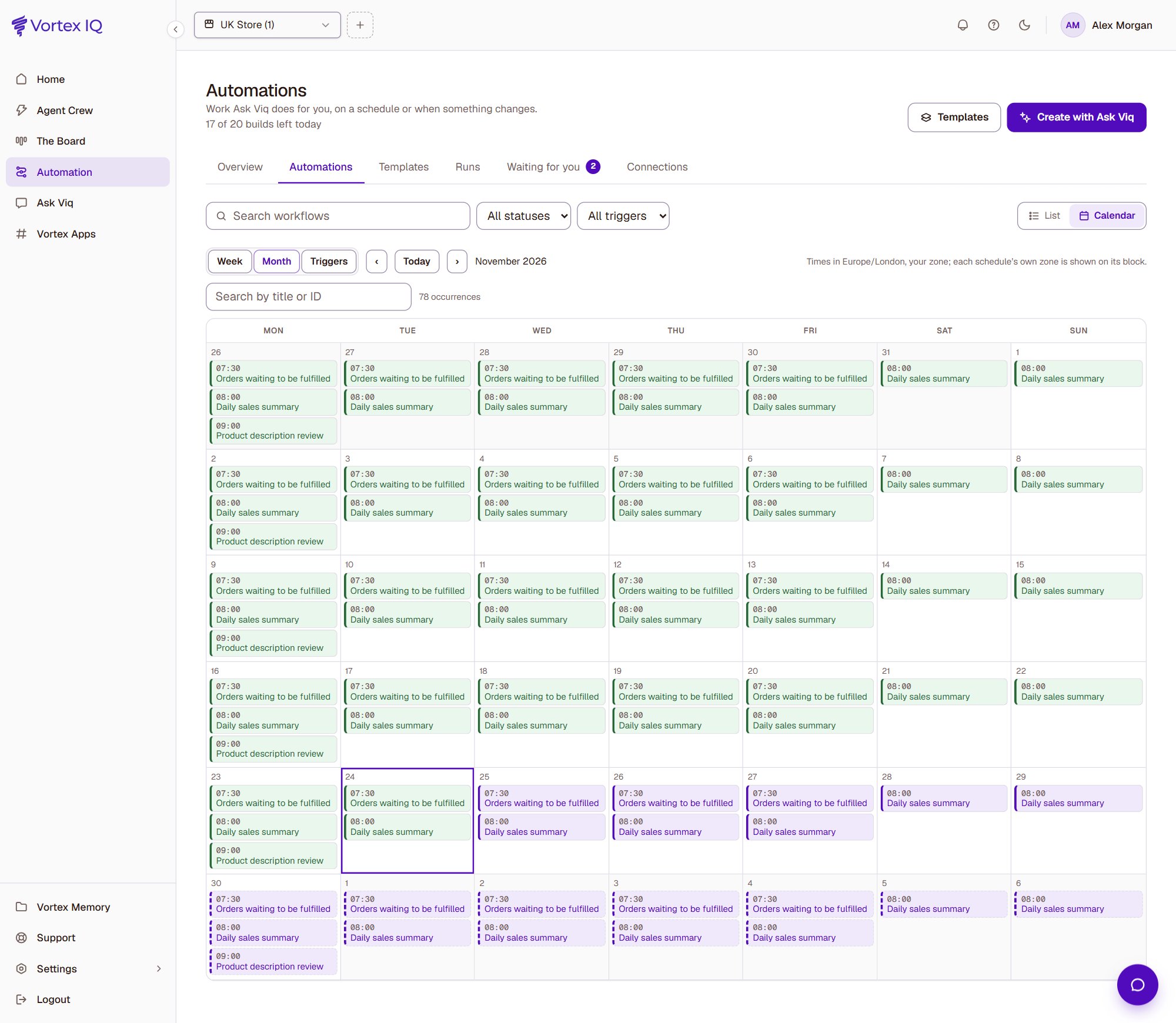
Triggers view
Automations that start on a store event or a call have no fixed time, so they are not on the calendar. The Triggers view lists them, and says whether each one is listening. Select Open to open one.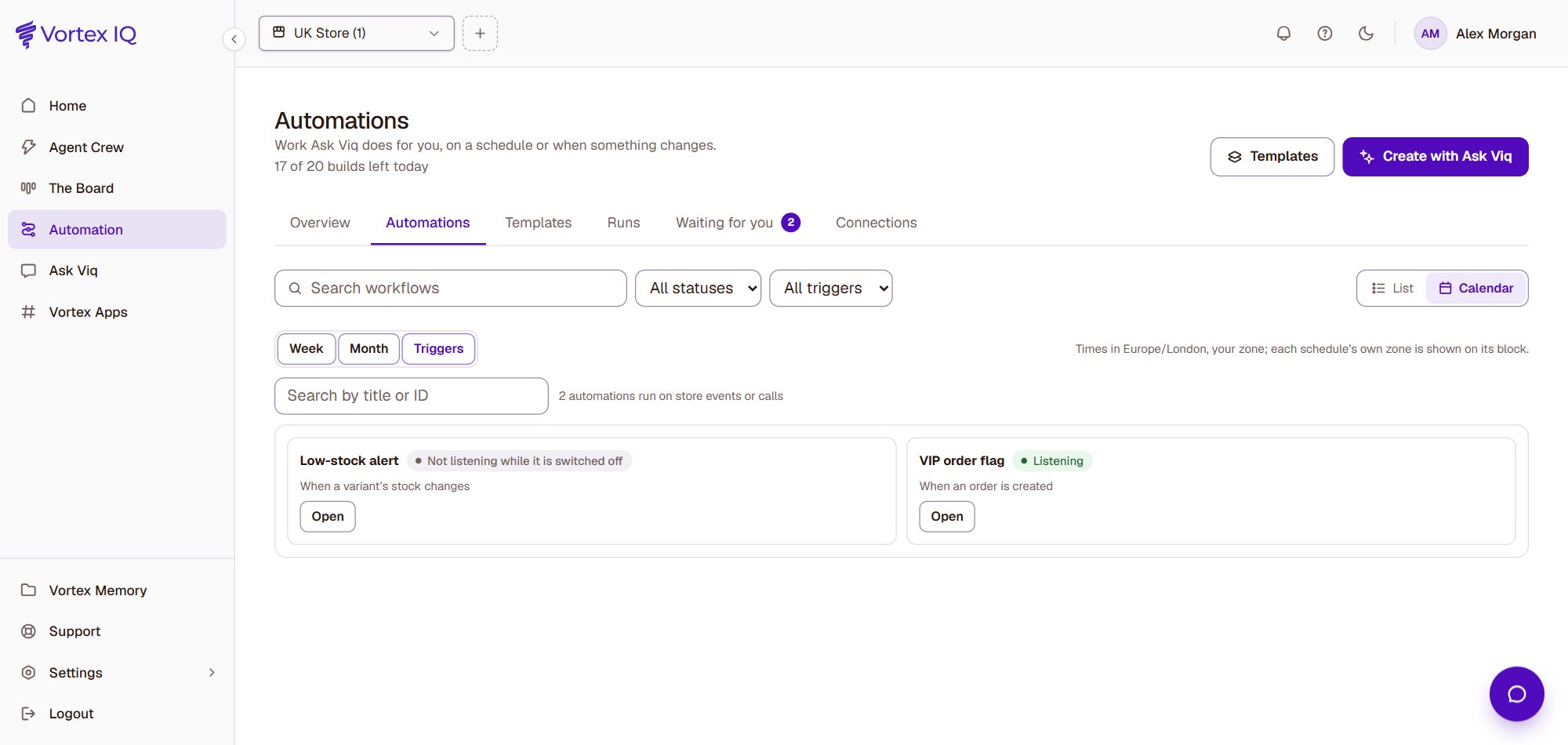
A schedule that runs every few minutes is not drawn run by run. It is listed once above the calendar, for example “Every 15 minutes”, with the automation’s name.
Work with one run
Select a block to see that run.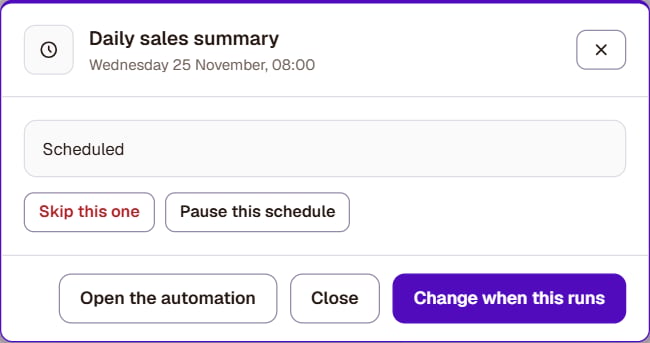
What you can do depends on the run:
Skip a run
Select Skip this one, then Skip it to confirm. The run stays on the calendar, marked as skipped by you. To keep the run, select Keep it.Move a run
In the week view, drag a coming run to another day or hour. A window asks what you mean:- Only this run. The first choice names the day, for example “This Wednesday only”. This one run moves, and the others stay where they are.
- Every run from now on. The second choice changes the schedule itself and saves it as a new version of the automation. It is offered when you drop the run on the same day at a new time.
Only a run that is still to come can be moved or skipped. A run marked Projected can be moved or skipped once it is a few days away.
Change every run
Select a run, then Change when this runs. Set the new schedule and select Save schedule. The change is saved as a new version of the automation and applies from now on. Past runs are not changed. To move a single run instead, drag its block.Good to know
- Pausing a schedule from the calendar is the same as pausing the automation on the list.
- If two people change the same run at once, the second change is refused and the calendar reloads, so nobody overwrites the other.
- If the calendar cannot be refreshed, it says so, keeps showing the last calendar it loaded, and offers Try again.