

Scheduling is included for every organisation on StagingPro V2. It works for Bulk Content Migration, Selective Content Migration and True Replica runs, and it replaces the calendar scheduling of the classic app. Dry runs and Verify runs cannot be scheduled: run them now, then schedule the real migration.
When to schedule
Schedule a bulk migration
- Open Bulk Content Migration and set it up exactly as you would for an immediate run: source and destination, storefront mapping, data treatment strategy and entities.
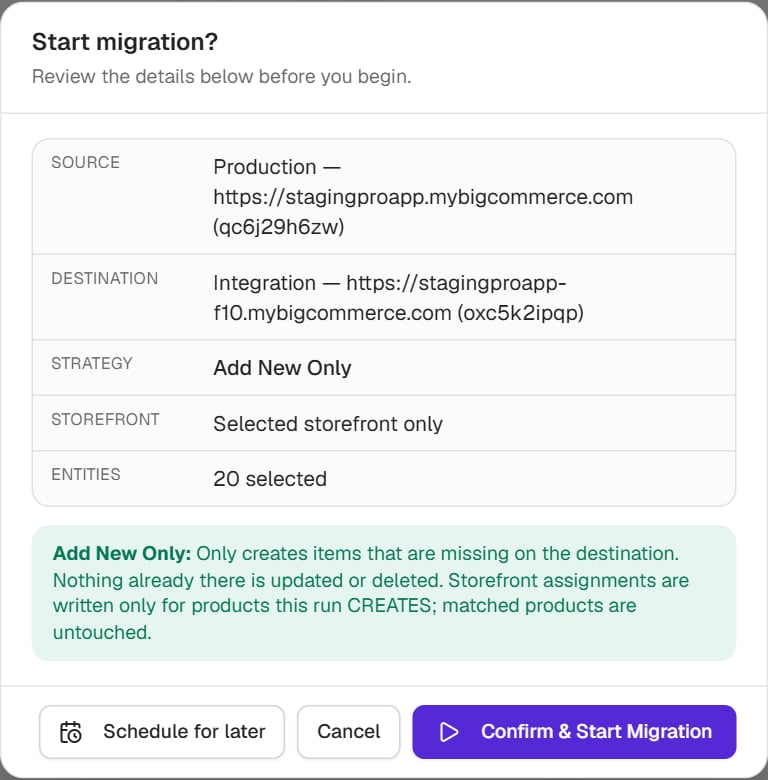
- Click Start Migration. The confirmation dialog opens.
- Click Schedule for later instead of Confirm & Start Migration.
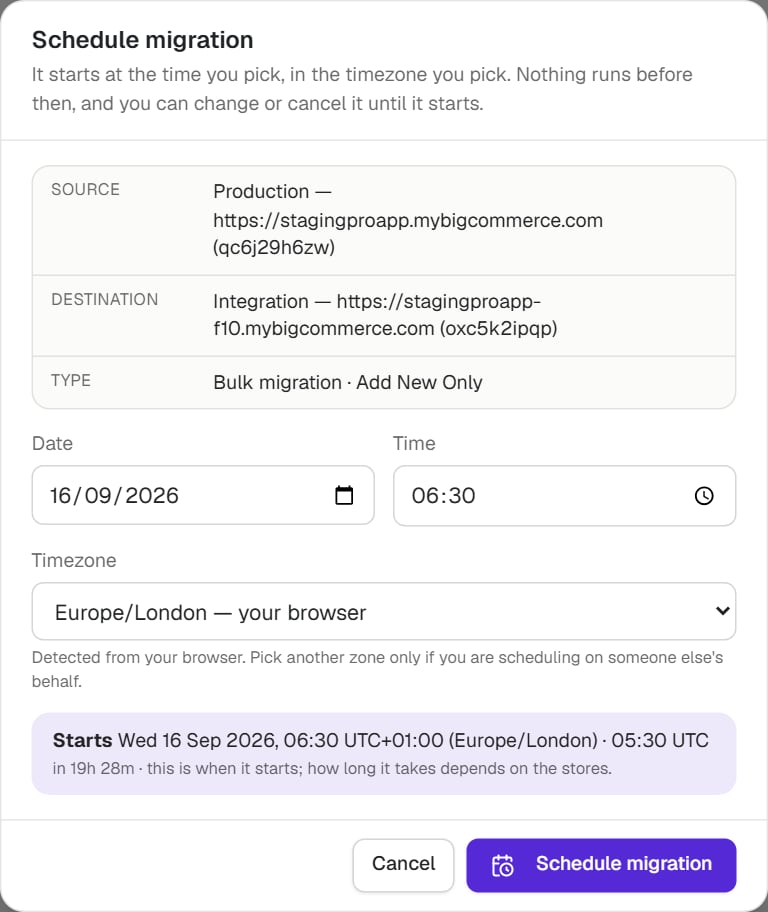
- In the Schedule migration dialog, pick the Date, the Time, and the Timezone. The dialog opens pre-filled with the earliest allowed time (5 minutes from now) in your browser’s timezone; change it to the time you want, and pick another timezone only when you are scheduling on someone else’s behalf.
- Check the Starts line. It shows the exact start in the timezone you picked and in UTC, with a countdown, so you can confirm you have the right moment before you save.
- Click Schedule migration.
Schedule a selective migration
- On Selective Content Migration, pick the source and destination, open one of the six tabs and tick the items you want. A schedule holds the picks from one tab; switching tabs clears them.
- Click Schedule for later (between Dry Run and Start Selective Migration; it is greyed out until you have ticked at least one item).
- For product picks, the Selective Product migration options popup opens first, exactly as it does for an immediate start. Choose which sub-components ride along, then click Continue to schedule.
- Pick the date, time and timezone, and click Schedule migration.

The rules the dialog applies
Selective migrations are light and are exempt from the two collision rules, both ways: they never wait, and they never make another migration wait.
After you save
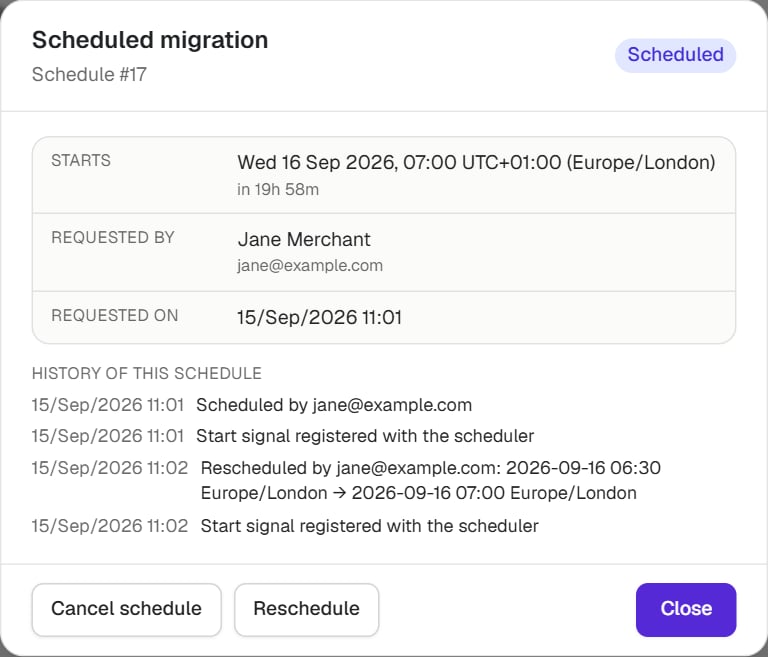
The schedule’s details open as soon as it is saved. You can reopen them at any time from Migration History with Details →.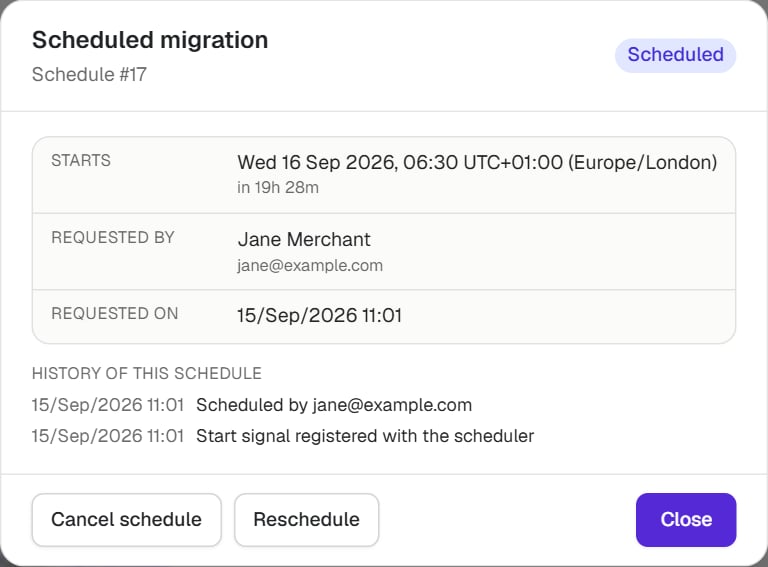
- Schedule number in the header (Schedule #13). Quote it to the helpdesk: a schedule has no migration id until it starts, and the run it becomes carries the same number in its id (
SR-13-followed by a code). - Status: Scheduled, Waiting, Starting, Could not start, Missed or Cancelled (see the status table).
- Starts: the moment it starts, in its timezone, with a countdown.
- Requested by and Requested on.
- History of this schedule: every step so far, from Scheduled by … and Start signal registered with the scheduler through to the start, a reschedule, a cancellation, or the reason it could not run. Emails sent about the schedule are listed here too.
- Cancel schedule and Reschedule, while the schedule is still pending.
Reschedule or cancel
Reschedule changes the time or the timezone and nothing else. Open Details →, click Reschedule, pick the new time and click Save new time. The same rules apply as when you first scheduled it, and the change is recorded in the schedule’s history with the old and the new time.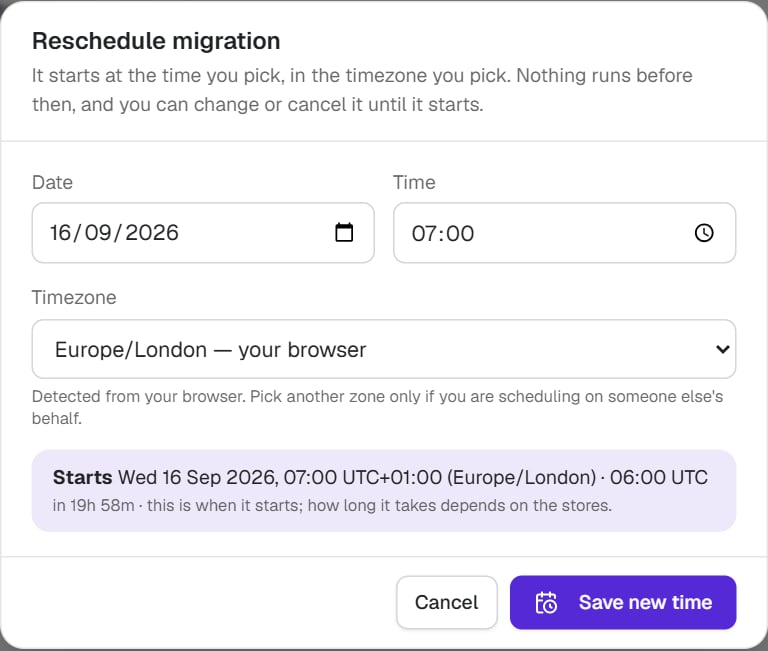
What happens at the scheduled time
At the scheduled moment StagingPro re-runs every check the Start button runs, against the stores as they are right then: the stores are still connected, the options are still valid, and the safety rails still pass. Then one of four things happens:- It starts. The schedule becomes a migration. Its Migration History row turns into the run itself, with a run id that starts with
SR-, and it opens like any other run, with live progress and the run detail. The person who scheduled it receives a started email. - It waits, because the stores are busy. If a bulk or True Replica migration is still running on either store, a bulk or True Replica schedule waits rather than starting on top of it. The row shows Waiting, the details name the migration it is waiting for, and it starts as soon as that migration finishes, for up to 2 hours after its scheduled time. A paused migration counts as still running, so resume or cancel it if you want the schedule to start. If the stores are still busy 2 hours after the slot, the schedule is marked Missed and is never started late.
- It could not start. A check failed: for example the destination store is no longer connected, or an option is no longer allowed. The row shows Could not start, the details show the reason under Why, and the person who scheduled it receives an email with the reason and what to do. Nothing is changed on either store.
- It was missed. If the migration could not be started within 15 minutes of its time, because no start signal reached StagingPro (for example during a maintenance window) or because the migration service did not answer the start request in time, it is marked Missed rather than started late, so a migration never surprises you hours after the window you chose. The person who scheduled it and the StagingPro helpdesk both receive an email, so the cause can be checked. Nothing is changed on either store.
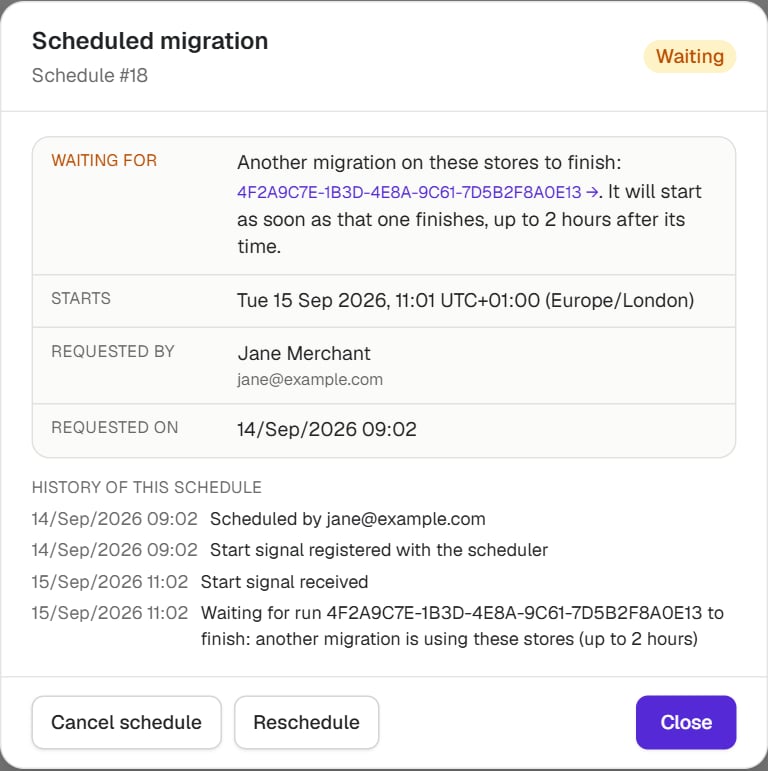
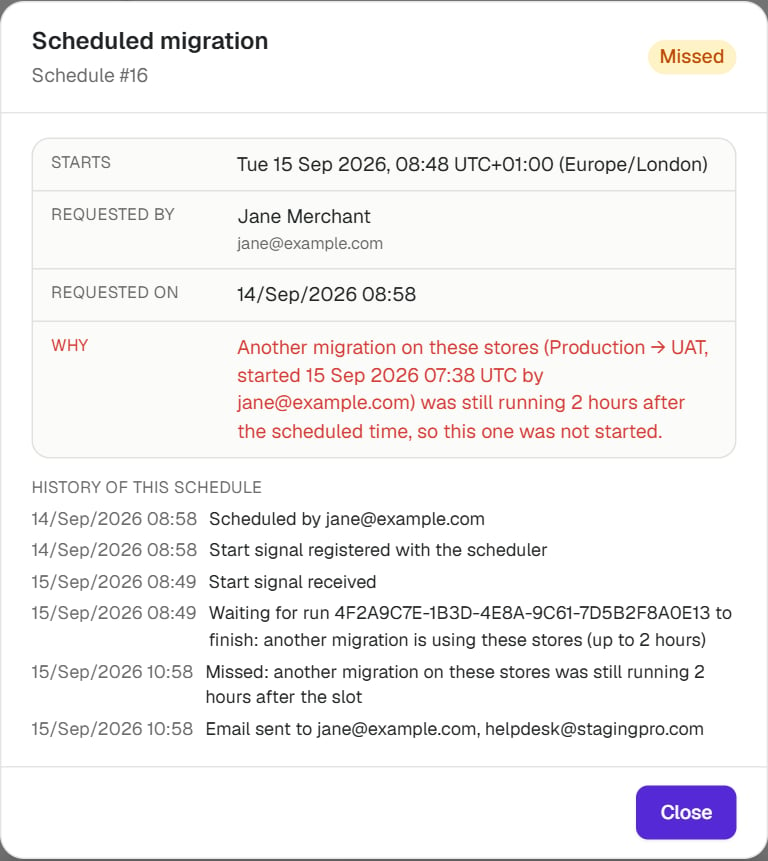
The start signal lines in the history. When you save, StagingPro books a wake-up call for the exact minute you picked. The history records it as Start signal registered with the scheduler, and Start signal received when it arrives. StagingPro also checks for due schedules itself every 2 minutes, so if the wake-up call could not be booked (the history says Start signal could not be registered) the migration still starts, at most 2 minutes after your time. Whichever arrives first starts the migration; the other is recorded as Duplicate start signal ignored. A migration is never started twice. Migration service did not answer, will retry means the start was retried; the retries still count against the 15 minutes.
The statuses a schedule moves through
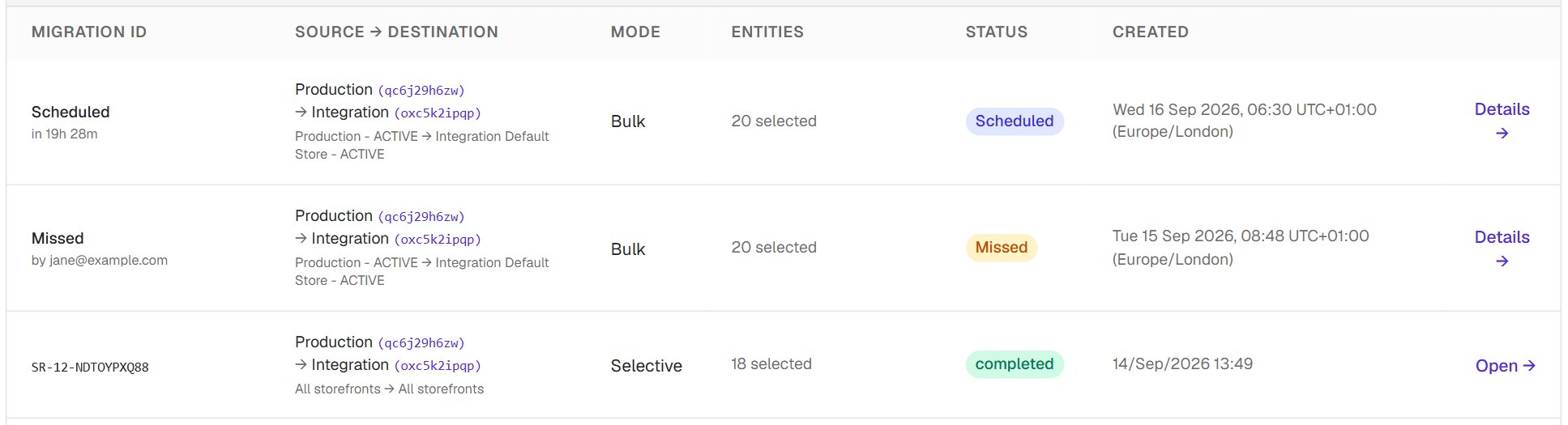
Once a schedule has started, the row carries the migration’s own status (
queued, in_progress, completed and so on), exactly as described in Migration History.
Could not start and Missed rows stay in the list for 30 days and then drop off; the email is your record after that. Pending schedules are listed soonest first.
Two heavy migrations never share a store
Two bulk or True Replica migrations running on the same store at the same time compete for the same BigCommerce API allowance, and both slow down or fail. StagingPro treats bulk migrations (a running dry run or verify run counts too) and True Replica runs as heavy, and selective migrations as light. Two migrations share a store when the source or destination of one is the source or destination of the other.
The same refusals apply to migrations started through the Migration API. Selective runs are exempt in every row of this table.
The emails
The person who scheduled the migration receives an email at each outcome. Each email says what happened, why, and what to do next. Its Open Store Migration button opens StagingPro V2 on the Migration History tab.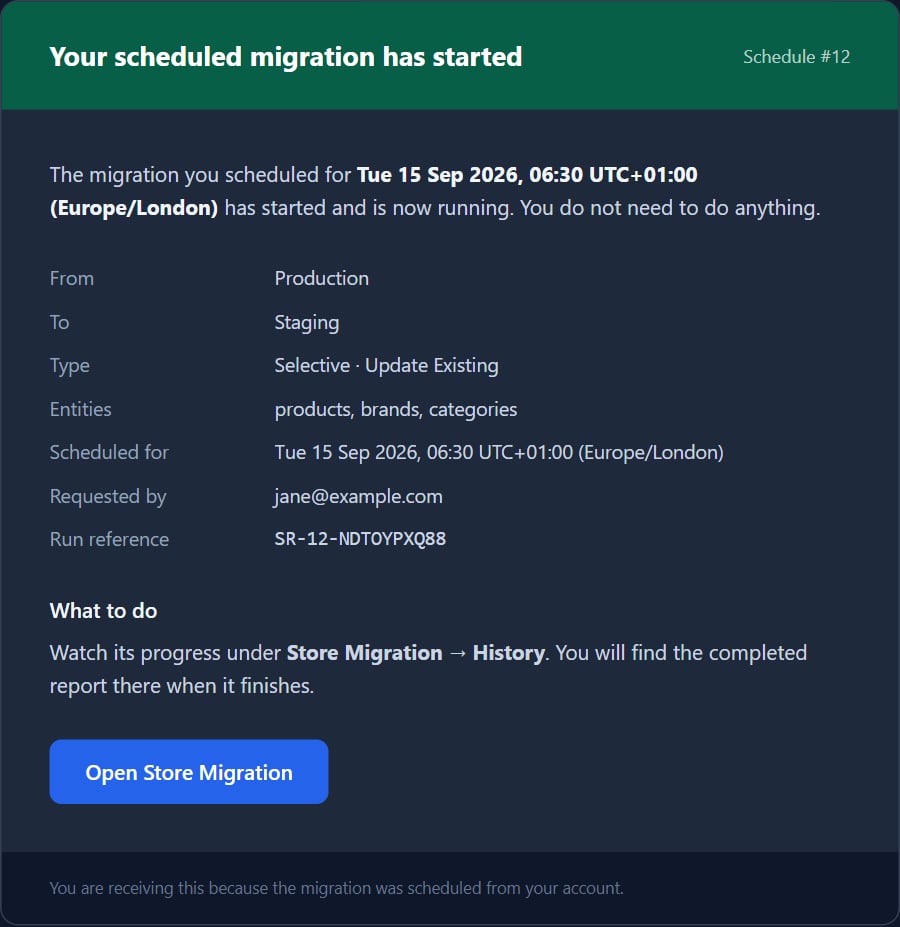
Good to know
- The run is frozen at save time; the credentials are not. The stores, strategy, entities, picks and product options are exactly what you chose when you scheduled. Store credentials are resolved at start time, so a token rotated in between does not matter, but a store disconnected in between means the schedule could not start.
- Picks made days ahead. If a picked product was deleted from the source before the run starts, the run records it as skipped, with that reason, and completes; the skipped item counts in the phase total.
- Timezones on the History list. A schedule’s start time is shown in the timezone it was scheduled in, with the UTC offset, so a schedule made in New York reads correctly for a colleague in London.
- One-off only. A schedule runs once. For a recurring refresh, schedule the next one when the previous one has completed; the options have to be set again, as a schedule cannot be copied.
- Not on the API yet. Scheduling is an in-app feature: the schedule endpoints accept the signed-in app session only, and a call with an API token is refused. A scheduled run that has started appears in the API’s migration list like any other run, with a run id starting
SR-.