

When to use Bulk Content Migration
The bulk migration options are as follows:
How existing items are matched: products are matched by SKU first, then name (so editing a SKU on the source no longer creates a duplicate; products with no SKU match by name). Brands, categories, customer groups and similar entities match by name, case-insensitively. The one thing no strategy can do is link a product whose name and SKU were both changed on the source since the last run — that arrives as a new product.The assumption underneath Bulk is “destination should look like source for the entities I selected”. If that is not your intent, switch to selective.
The interface
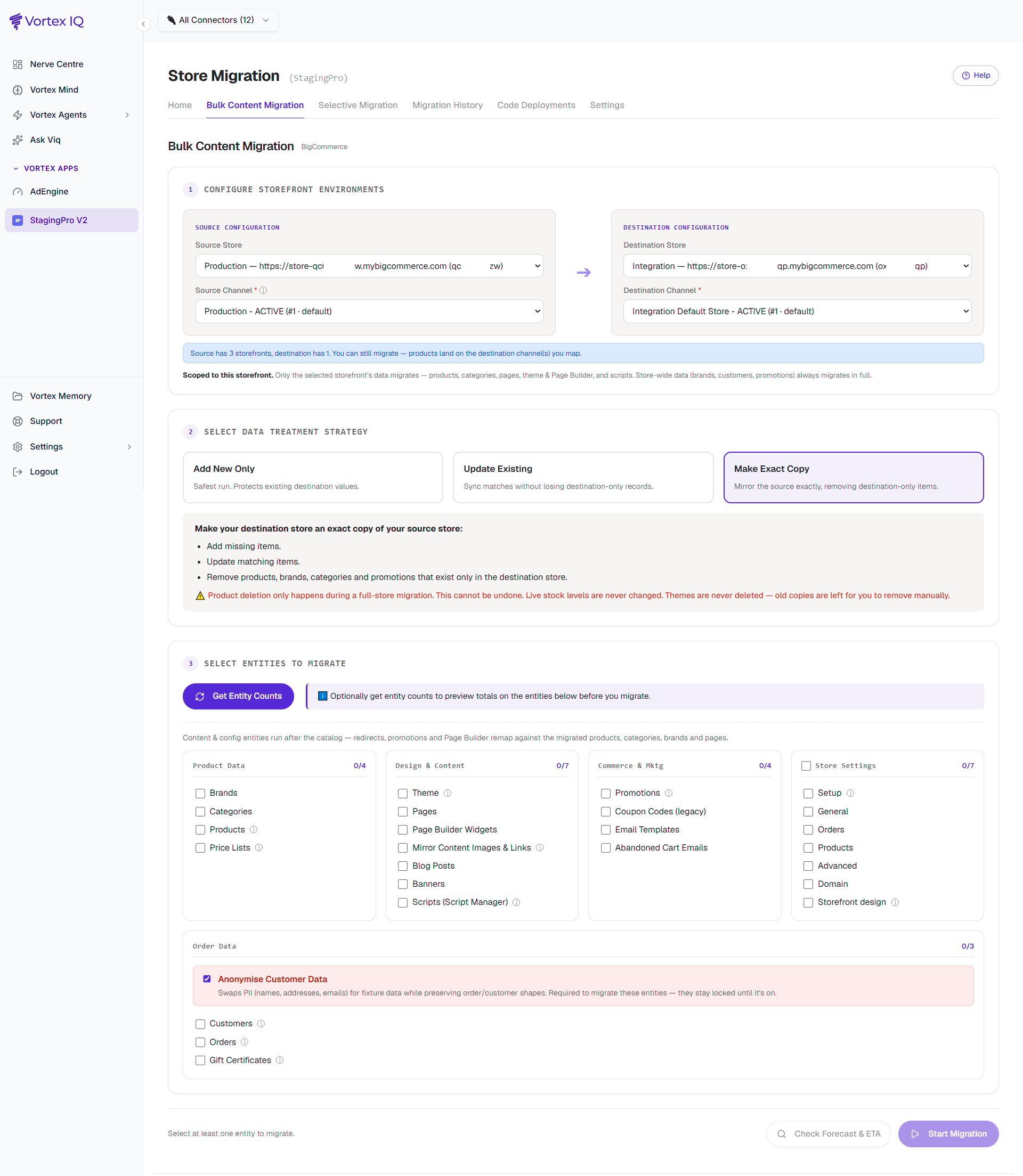
- Configure Storefront environments — pick the source store and storefront, the destination store and storefront, and (for multi-storefront runs) review the channel mapping.
- Select Data Treatment Strategy — choose Add New Only, Update Existing, or Make Exact Copy (the table above).
- Select Entities to Migrate — tick the entity groups to move (Product Data, Design & Content, Commerce & Mktg, Store Settings, Order Data, and — when both stores are B2B Edition — B2B Edition), then use Get Entity Counts to preview totals and Check Forecast & ETA before clicking Start Migration.
Storefront scoping: picking a specific source storefront scopes the run to that storefront’s data (products, categories, pages, theme & Page Builder, scripts); store-wide data (brands, customers, promotions) always migrates in full. Picking All Storefronts migrates everything and requires a saved channel mapping. Entity counts and the Forecast always show whole-store totals, so a storefront-scoped run’s actual migrated count can be lower than the forecast — that is expected.
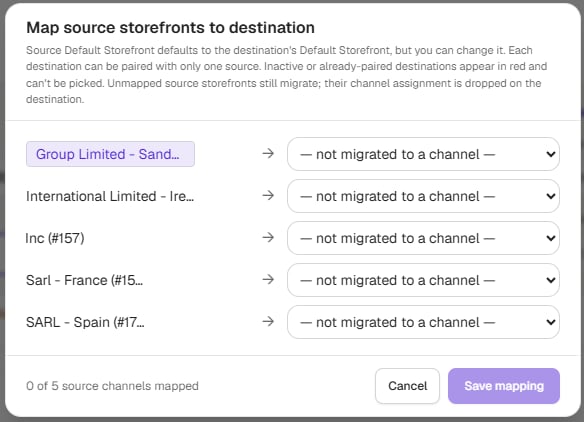
Channel Mapping: You can map the source store channels with the destination store channels prior to the migration (when both the source and destination stores are multi-storefront enabled) so as to enable you to migrate the entities to corresponding destination channels/storefronts. To do this, click the source store’s channel drop down selector and select all storefronts option, map the channels and click Save mapping.
“Get Entity Counts” button → Optionally get entity counts to preview totals on the entities before you migrate.
Moreover, “Check Forecast & ETA” button gives you the calculated estimate time required to migrate the entities so that you can plan your migration accordingly.
Product Bulk Migration
Product bulk migration processes each product through multiple component steps:- Base product creation (name, description, price, SKU)
- Options and Modifiers setup
- Variants generation
- Images and Videos upload
- Reviews, Custom Fields, and Bulk Pricing Rules
- Complex Rules and Related Products associations
- Channel Assignments and Metafields (product and variant level)
- Content (widgets and template associations)
- Locale (multi-language product data via GraphQL)
Migrating products without their brands or categories
Ticking Products ticks Brands and Categories with it, because product links need them. You can untick either one. StagingPro asks you to confirm (Sure you want to exclude Categories?, with the note Products will be migrated without categories; existing destination products keep theirs). In the run itself no category (or brand) is created or deleted: new products land without the link, and existing destination products keep the links they already have. Use this when the destination keeps its own category tree or brand list, for example when one staging store feeds several production stores. Unticking Categories also switches off Search: Contextual filtering, which depends on them; ticking contextual filtering later brings Categories back. Under Make Exact Copy both stay ticked and locked with Products, their sub-items (metafields and template associations) included; switching to Make Exact Copy re-ticks any of them you had unticked.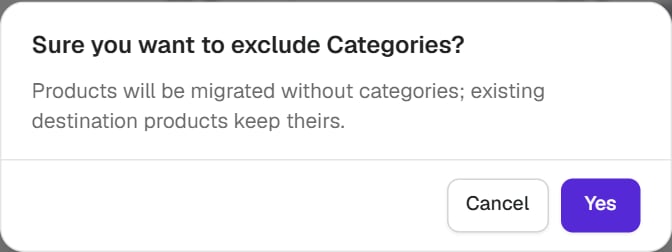
Hide products on the destination
Under Products there is a Hide products on the destination (Add New Only) row. With Add New Only, tick it and every product the run creates lands on the destination as hidden (not visible on the storefront); matched products are never written on Add New Only, so nothing already live changes. Use it to migrate to production ahead of a launch: migrate hidden, review, then make the products visible on the destination. The option is off by default and resets on every migration. With Update Existing or Make Exact Copy the row is greyed out and its tooltip says why. The run’s Migration History row and detail record the choice as Product visibility on destination: hidden.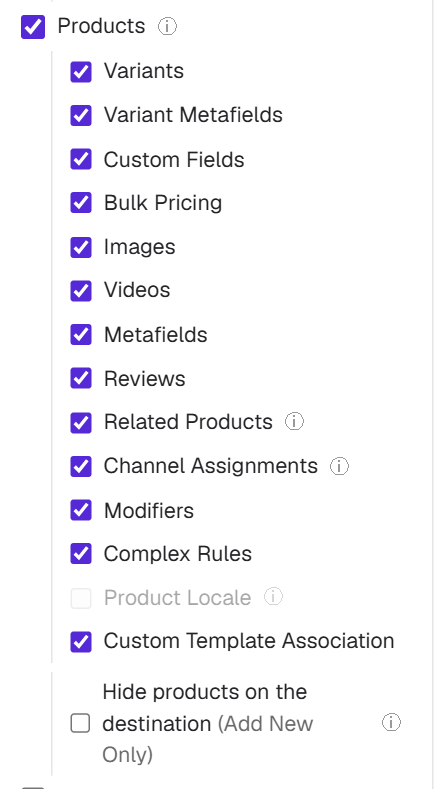
Category bulk migration
Category migration automatically includes parent categories, ensuring that the category hierarchy is preserved correctly. This helps eliminate the “parent category not found” errors that are commonly encountered with manual or custom-built BigCommerce category imports.Store & Storefront Settings
The Store Settings panel mirrors the BigCommerce control panel’s own Settings page: the ~25 individually-selectable setting groups are organised into the same sections you know from the admin (Setup, General, Orders, Products, Advanced, Domain, Storefront design), with a select-all master checkbox. Channel-scoped settings (email statuses, customer/order settings, web analytics, currency assignments, SEO, search, robots and so on) apply per storefront using your channel mapping, and each group is reported as copied, skipped, or failed. A storefront’s own logo and caption, where they differ from the store-wide ones, are copied to its mapped destination storefront. Search filters wait for the destination’s search index to catch up before they are applied, so a large product migration no longer drops filters as “not yet indexed”. A store profile that is empty on the source is reported as a skip naming the missing fields, not as a failure. If a Page Builder widget depends on a third-party app (a blog app, for example), the run warns you by app name that the app must be installed and connected on the destination before that widget shows content. The warning never blocks the migration.Order Data Migration
Under the Order Data Migration section, enable:- Anonymise Customer Data
B2B Edition Migration
When both the source and destination stores are on B2B Edition, a B2B Edition Migration panel appears with six entity families: Roles & Permissions, Companies (including status, payment configuration, parent/child hierarchy, and price-list links), Company Addresses, Company Users, Super Admins, and Sales Staff Assignments. No separate B2B credentials are needed — see B2B, coupons, and data dependencies for the prerequisites and details.If you want a clean-slate destination instead, delete the destination catalogue first via the BigCommerce control panel, then run Bulk migration.
Entity Dependencies
- The info-circle icon on an entity shows a hint. For some entities (Products, Price Lists, Promotions, B2B Companies) the hint describes dependencies that ride along automatically.
Example: Migrating Products also migrates the Brands and Categories they reference (both can be excluded, with a confirmation, see above). - Entities without a dependency hint migrate independently.
Monitoring Migration Progress
During bulk migration, you can monitor progress through:- Home tab for overall migration status per environment (live progress bars)
- Migration History tab for the live run detail: phase-by-phase progress, ETA, the Breakdown by Phase table, and the itemised issue log