

The Home tab grid
Each row on the grid represents one linked environment. The columns: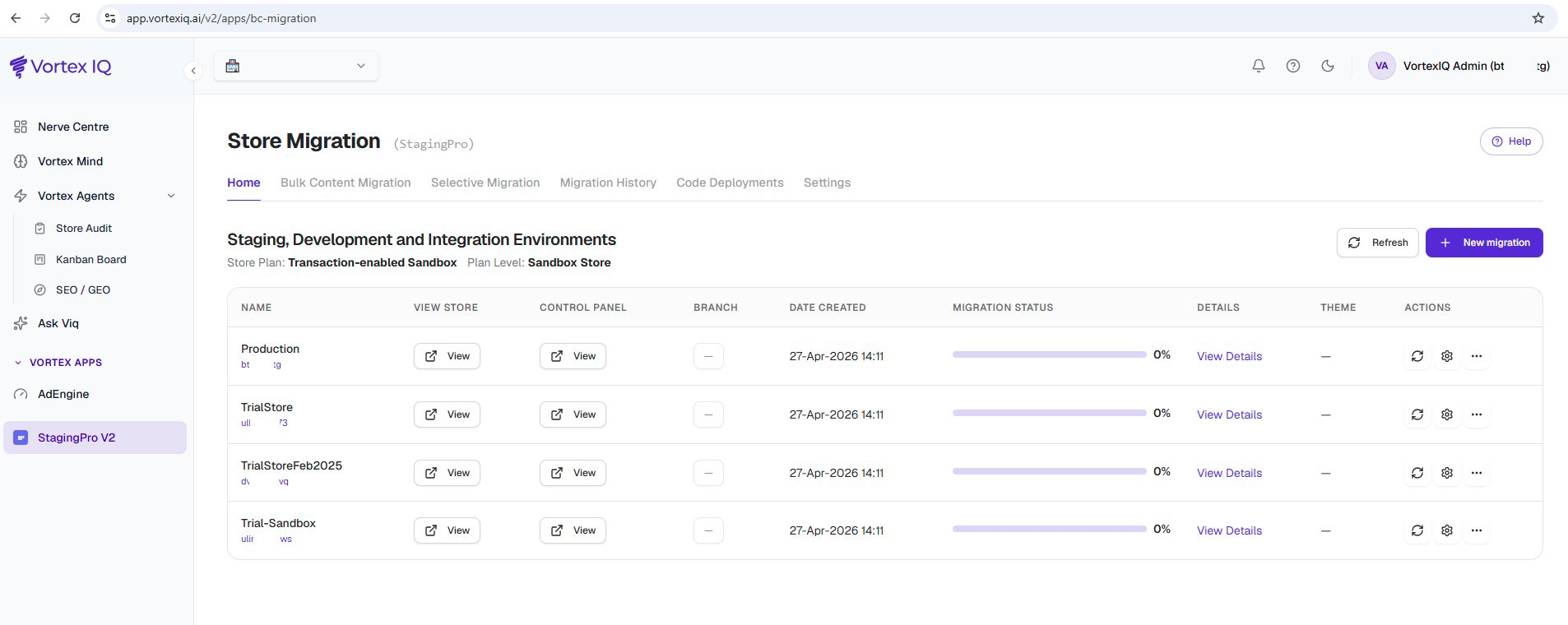
Drilling into migration detail
Environment rows show a live progress bar for any in-flight migration. For the full run detail, switch to the Migration History tab and click Open → on the run’s row: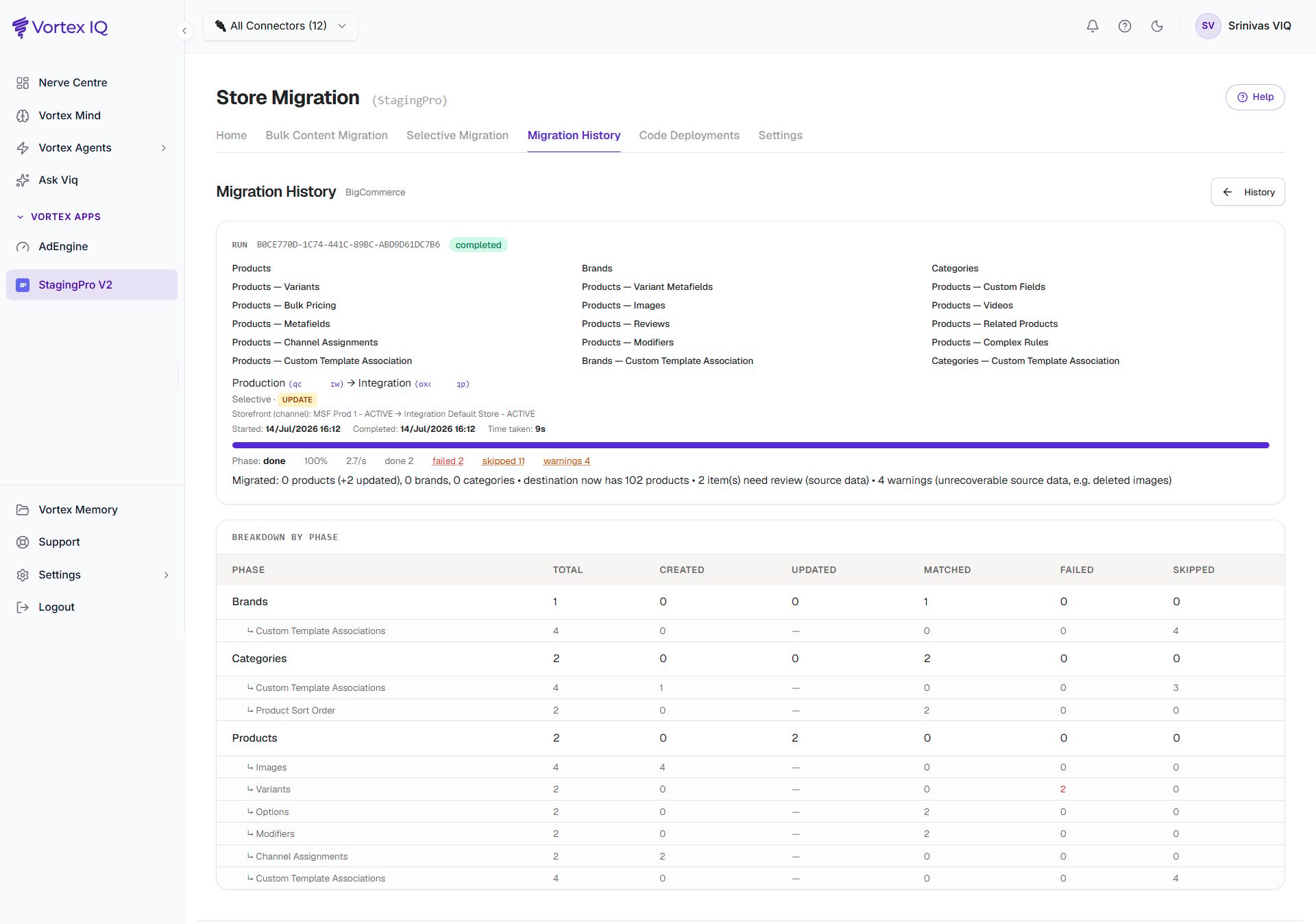
- Live progress: current phase, items done, rate, and a running time estimate.
- Breakdown by Phase: per-entity Total / Created / Updated / Matched / Failed / Skipped counts (plus Deleted on Make Exact Copy runs), with section and sub-component rows inline.
- The itemised issue log: Failed, Skipped, Warnings, and Fixed automatically, each with a plain-English reason.
- Pause / Resume / Cancel controls for in-flight runs.
Home tab summary
Three operational uses:- At-a-glance health check, are all environments listed correctly? If a row has stale dates or a half-finished progress bar, it may need attention.
- Fast environment access, View Store and Control Panel save the keystrokes of finding the right BigCommerce URL when you flip between Production and the sandboxes.
- Deploy version check, the Theme column shows the latest code release version deployed via Git to each environment. If your developers have just shipped a theme through Code Deployments, this is where you verify it landed.