

When Selective is the right tool
Selective is non-destructive on items you do not select. Selective runs always update: a picked item that already exists on the destination is brought into sync with the source rather than duplicated — there is no strategy choice on this screen.
The interface
The screen shows six pick tabs: Products, Categories, Custom Pages, Promotions, Themes, and Page Templates.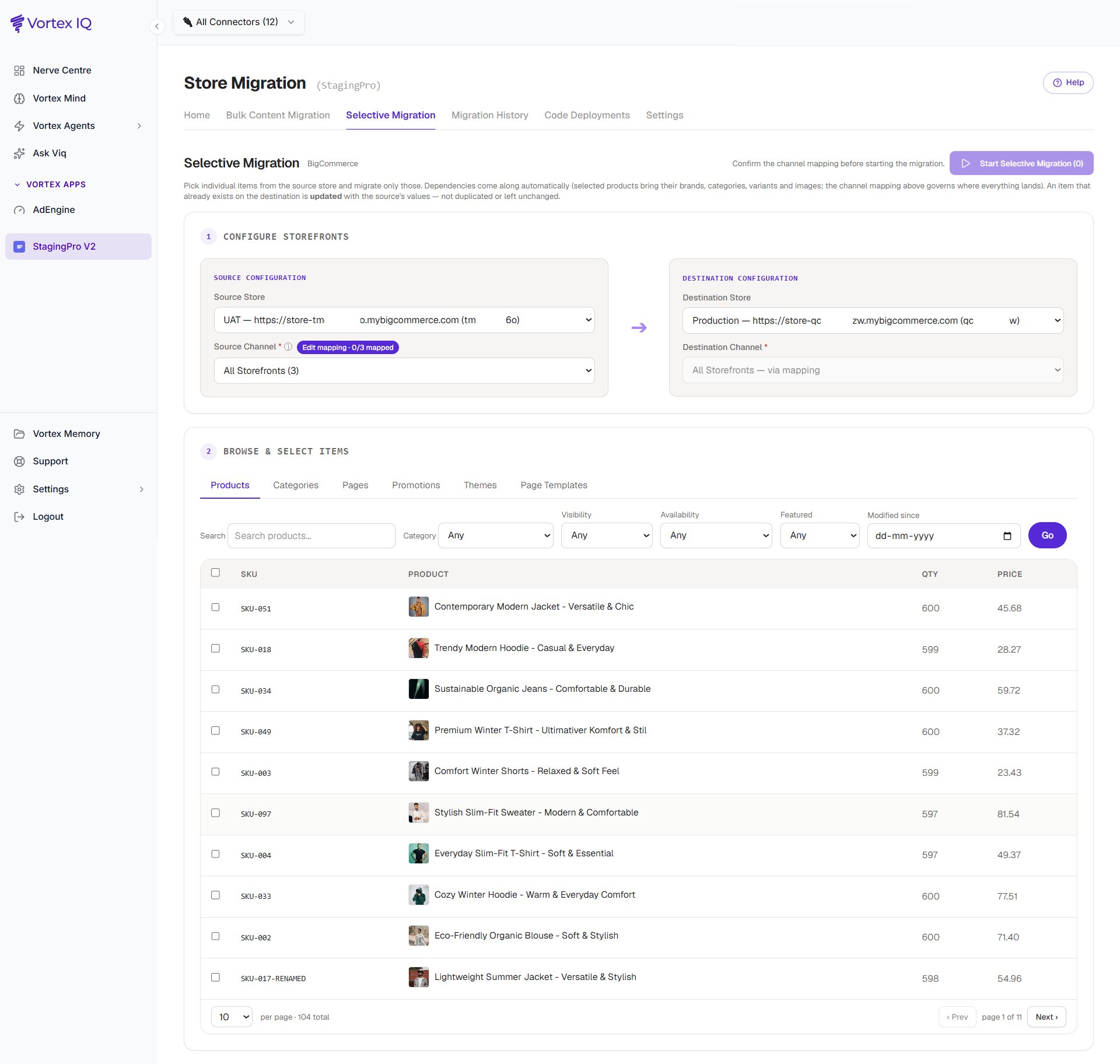
- Pick source store and storefront, then destination store and storefront. The storefront (channel) mapping can be reviewed via Edit mapping on any tab except Themes (shown when the source is set to All Storefronts; it also appears inside the product-options popup at start). Default↔Default is pre-mapped, and mappings are remembered per store pair in your browser.
- Search and tick the items you want to copy. Your staged picks accumulate across pages, and the Start Selective Migration (N) button shows the total.
- Dry Run — Forecast & ETA prices exactly the run you have staged (your picks plus your product-option choices) before you commit.
- Schedule for later saves exactly the run you have staged to start at a date, time and timezone you pick. Product picks go through the options popup first, then Continue to schedule. See Scheduled migrations.
Switching to another pick tab, or changing the source storefront, deliberately abandons all staged picks — each run is staged from one tab at a time. The category tree, page list, and page-template list are cached for 60 seconds, so an item created moments ago can take up to a minute to appear in the browse (products are always live). The storefront list is cached for your browser session — use the Home tab’s Refresh to reload it.
Advanced Filters (Products and Categories)
The Advanced Filters button (at the right-hand end of the search row) opens a panel with:- A category checkbox tree — checking a category selects its whole subtree; a “Select all” row sits at the top. With a single source storefront selected, only that storefront’s tree is shown.
- Product filters: Visibility, Availability, Featured, and Modified on or after (a date floor).
Products
The products table’s Storefront visibility column shows whether each product is Visible or Hidden on the source storefront, next to its quantity and price, so you can check before migrating that nothing meant to stay hidden goes live.
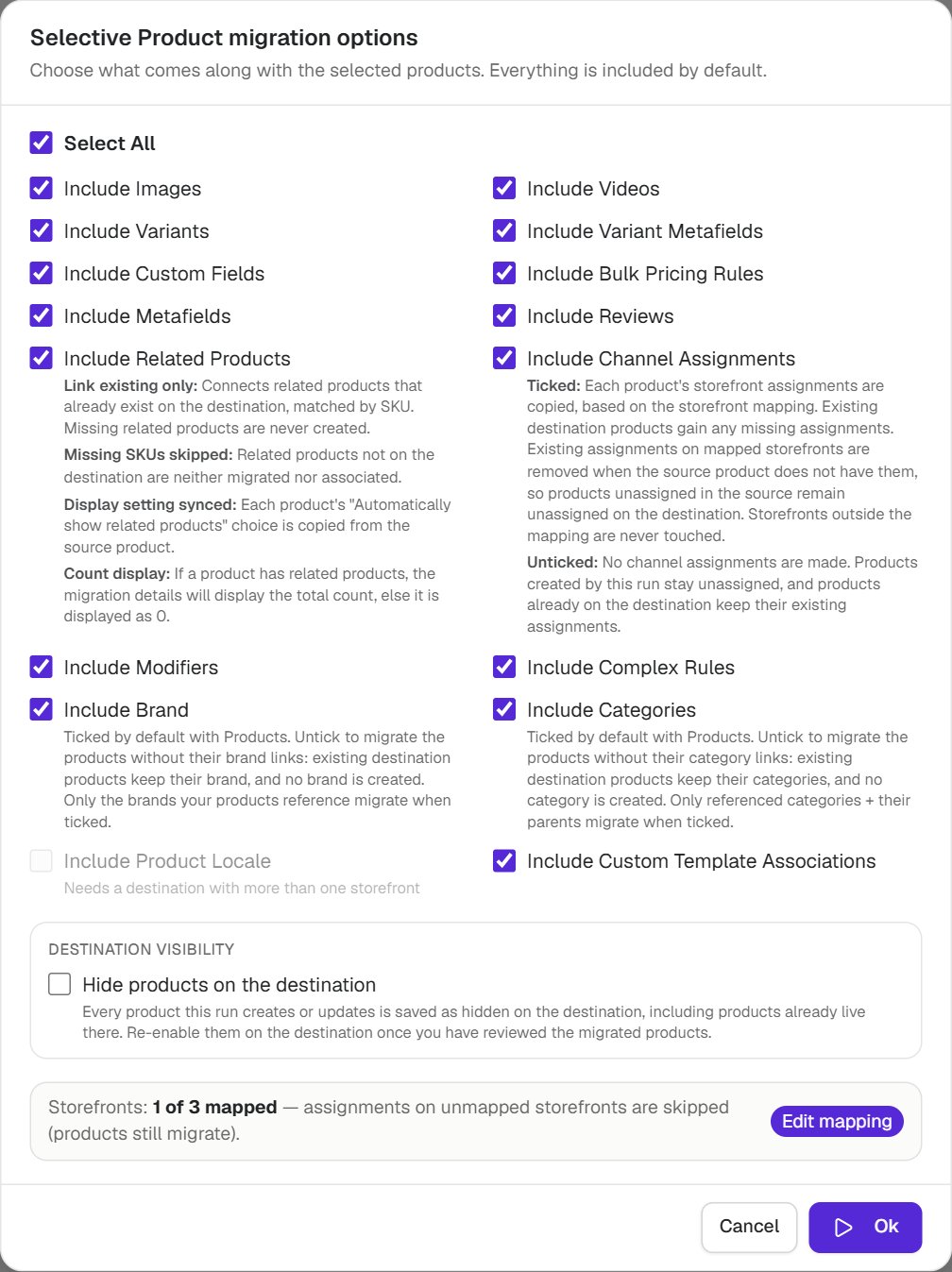
- Related products link, they don’t import. Related products that already exist on the destination are connected by SKU; missing ones are neither migrated nor associated (the skipped link is listed with a reason). The product’s “Automatically show related products” setting is copied as-is. A selective run never widens beyond your picks.
- Storefront assignments mirror the source, within the mapping. Each picked product’s placements on mapped storefronts are made to match the source — missing placements added, extra ones removed. Storefronts outside the mapping are never touched. A product unassigned everywhere on the source ends up unassigned on the destination. (The Deleted column itself appears only on Make Exact Copy bulk runs.)
- With Include Channel Assignments unticked, no channel assignments are made: products created by this run stay unassigned (they appear on no destination storefront), and existing destination products keep their current assignments.
- Product-list modifier options are linked by SKU to products already on the destination; unmappable choices are dropped with a warning naming the choice and the fix, and a dependent complex rule becomes a reasoned skip rather than a failure.
- The Breakdown by Phase on the run detail counts only your picked products’ components, never store-wide totals. The same goes for the rest of the report: custom template associations, the content fidelity check and the storefront menu comparison are scoped to the products, categories and pages in the run, so a one-product migration never reports store-wide leftovers as skipped or warns about menu items it never touched.
Categories
The Categories tab renders the tree hierarchically (parent-first, with indentation). Selection is hierarchy-aware: picking a child auto-picks its ancestor chain (even across pages); unpicking a parent unpicks its descendants; unpicking a child keeps its ancestors. Under All Storefronts, a Channels column shows which storefront tree(s) each category belongs to. Category metafields and template associations ride along automatically. Existing destination categories are matched (case-insensitively) and updated rather than failing as duplicates. Category picks migrate the categories themselves. To bring across the products inside them, either use the Products tab with the category-tree filter, or run a Bulk migration.Custom Pages
The Custom Pages tab lists pages hierarchically, like Categories; picking a child page auto-picks its parents. Search matches the page name only. A pages pick migrates the page records and the Page Builder designs on those exact pages — nothing else:Header, footer, and page-type layouts are never touched by a Custom Pages migration. Those are channel-wide global widgets, and they travel only via the Page Templates tab with the Include global widgets option. A matched destination page is updated in place; a new page is created.
Promotions
Picked promotions migrate as complete units (conditions, actions, schedule, coupon codes). Customer groups ride along automatically because promotion targeting references them. Product, category, and brand references are re-pointed at the matching destination items; a promotion whose reference cannot be mapped is skipped with a reason rather than migrated with broadened scope — a discount is never silently widened. Storefront-scoped promotions land on the mapped storefronts.Note that promotions created via the BigCommerce API cannot be edited after creation. This is a BigCommerce constraint. Workaround: delete the promotion in the source, recreate it correctly using the standard editor, then migrate.
Themes
Pick one or more themes and choose, per theme, which destination storefront(s) to set it live on in the Activate on column (Stencil storefronts only — headless channels are not listed; a storefront can have only one active theme, so two picked themes can’t target the same storefront). Activation is optional — leave it empty to upload without activating. Theme migration guarantees:- The theme is only touched when you migrate it — product, page, or settings runs never change themes.
- Theme files travel byte-for-byte; only the theme’s settings file is adjusted so your live design settings (fonts, colours, logo) carry over instead of the vendor’s demo defaults, with links re-pointed at the destination.
- Nothing on the destination is ever deleted or overwritten: every migration uploads a brand-new copy (auto-renamed if the name exists), and old copies remain as an instant rollback path. StagingPro never deletes a theme, under any setting.
- Activation is verified by reading back which theme is actually live, and other storefronts are restored to their original themes — each restore is verified, and any restore or activation that could not be confirmed is reported with the one manual step (Storefront → My Themes → apply the copy). The same applies when a safety rule refuses a switch.
BigCommerce caps a store at roughly 20 themes, and each migration consumes a slot. StagingPro checks the cap up front and warns as you approach it; clean up superseded copies manually under Storefront → My Themes.
Page Templates
The Page Templates tab picks template files (for examplepages/home) and migrates their Page Builder template-level content. Templates with no Page Builder content are hidden from the list. Tick Include global widgets once for the run to also carry the channel-wide global widget content (header/footer) — it’s a single run-level choice, because global regions are channel-wide rather than template-specific, and it is the only way global widgets migrate. The run detail shows a Page templates section recording what was picked and whether global content was included and migrated.