

Github Actions and workflow processes should be assigned to your development team who will review and fixes the notifications visible on the deployment logs.
Once all log items are reviewed and fixed by your development team, the StagingPro code deployments will be successful.
Once all log items are reviewed and fixed by your development team, the StagingPro code deployments will be successful.
StagingPro Repository and Branches
Before installing StagingPro in your tenant, you need to create an organisation repository in GitHub and add StagingPro as an Admin collaborator. Then you can associate your organisation repository with your StagingPro tenant. StagingPro will automatically create branches based on your linked environment setup in StagingPro When you add Git users in the ‘Connect GitHub’ tab, it creates team member branches for each environment branch (e.g. Production, Staging, UAT etc).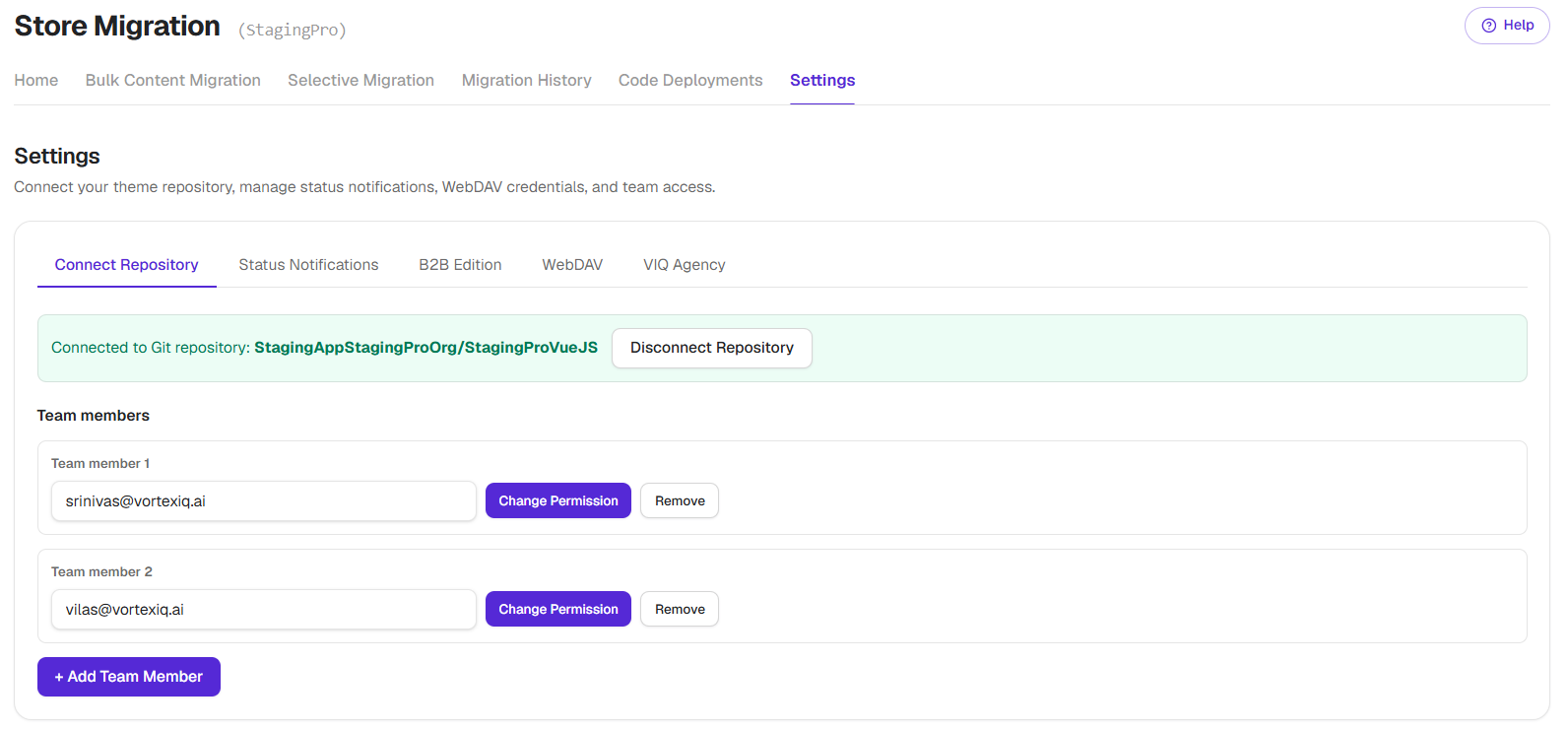
Recommended Git Development Flow
Standard Deployment (Pull Request-Based)
The following illustration represents the ideal Git development workflow using Pull Requests, implemented as part of your StagingPro setup.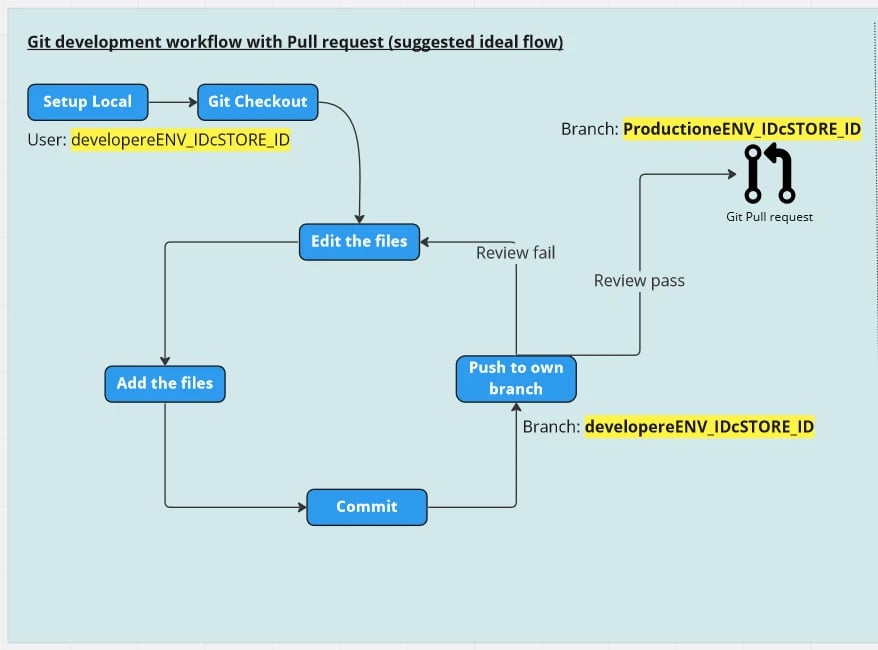
Hotfix Deployment (Direct to Production)
The following illustration represents the ideal hotfix workflow, where changes are committed directly to the Production environment.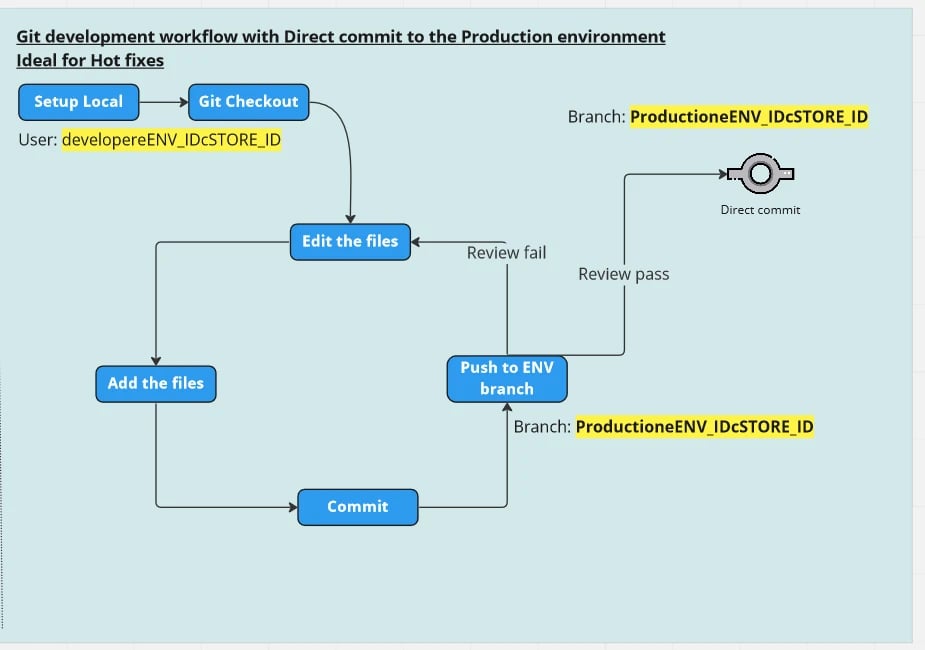
“General Best Practice” Developers should first commit code to their local or personal branch.
Code is then reviewed and approved before being merged into a shared branch (for example, Production).
Code is then reviewed and approved before being merged into a shared branch (for example, Production).
Important Git Branch Rules
- Once StagingPro is linked to your Git repository:
- Active branches are programmatically generated
- Branch names must NOT be renamed or deleted
For GitHub integration steps, refer to: GitHub and Bitbucket
StagingPro Git Branch Workflow
As part of the theme deployment workflow, consider a StagingPro setup with the following mapped environments:- Production
- Staging
- UAT
Git Branch Workflow Components
The following illustration highlights how these components work together:- StagingPro repository in your GitHub Organization
- Webhook-enabled environments (Production, Staging, UAT)
- Storefront channels per environment
- GitHub users (developer, designer)
- User-specific Git branches
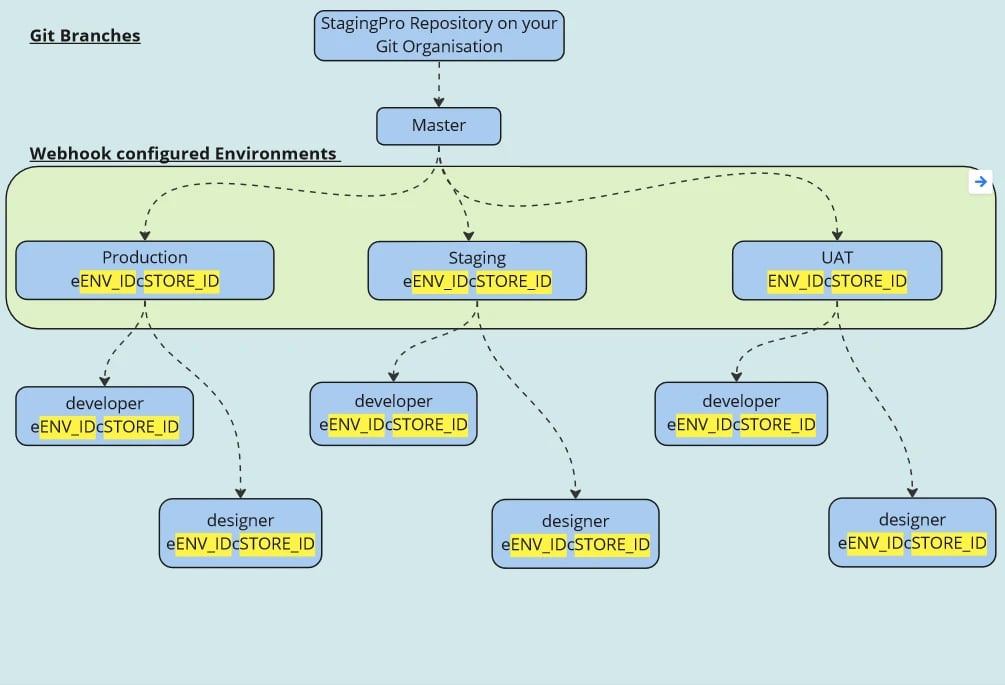
StagingPro Git Branch Code Deployment
This section displays the list of Git commits from your connected GitHub repository that are available for deployment in StagingPro.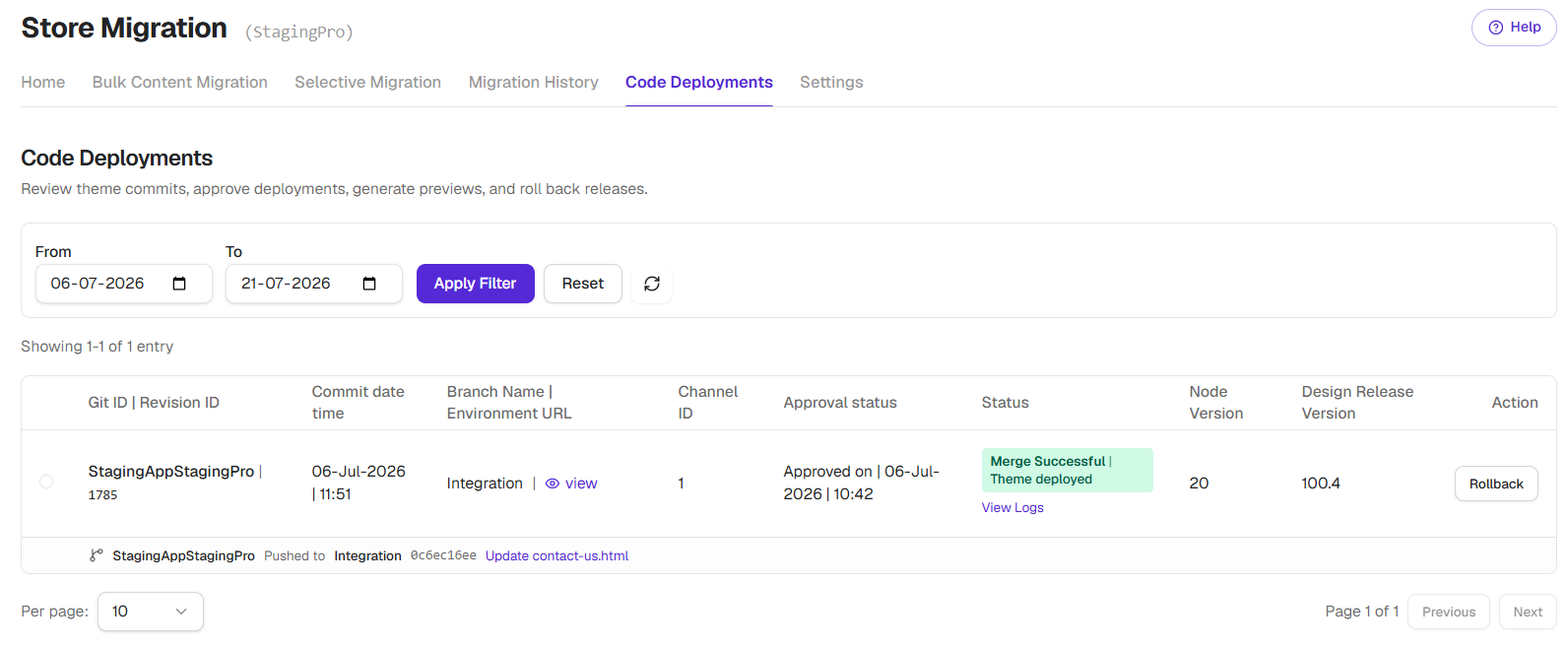
Deployment Status Scenarios
Status “Awaiting Approval”
- Git commit appears in the grid
- Approval is required before merge
- Approve and Deploy, deploy immediately
- Generate Preview and Approve Later, preview changes before approval
Status “Approved & Deployed”
- Status: Merge Successful | Theme Deployed
- Code is merged into the respective environment branch
Deployment may take 15-20 minutes, depending on theme size, as StagingPro:
- Builds the theme bundle
- Uploads it to BigCommerce
- A Rollback option is available to revert to a previous version
Status “Errors or Conflicts”
- Conflicts (for example, in
config.json) are detected - Click to view and resolve conflicts before proceeding
- Click on Reject to cancel deploymen
Status “Rejected”
- Status: Rejected | Code Not Approved
- No changes are merged into the environment
GitHub FAQs
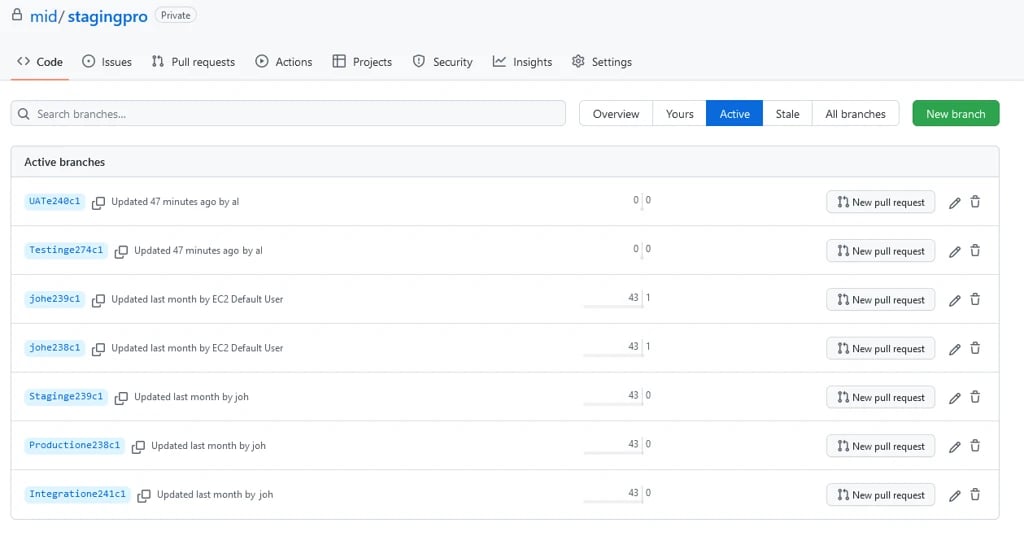
Q1. I see autogenerated branches like Productione347c1. Should I keep them?
Yes.These branches are required for commit tracking and integration. !!! warning Do not rename or delete these branches. Branches are created:
- Per environment
- Per channel
- Per team member
Q2. What is the purpose of developer branches?
Developer branches allow:- Frequent commits without impacting environment branches
- Isolated development per team member
- Cleaner merges once work is complete
Q3. Why use developer branches instead of feature branches?
Developer branches:- Allow multiple developers to work independently
- Prevent conflicts between developers
- Enable easy merging into environment branches when ready
Q4. What is the role of the Main/Master branch?
- Acts as a buffer/default branch
- Can remain unused after setup
- StagingPro uses autogenerated environment branches instead
Q5. Does StagingPro export themes from BigCommerce to GitHub?
Yes. !!! info Once GitHub integration is connected and at least one team member is added:- StagingPro automatically downloads the theme into the connected branch
Q6. Do GitHub commits appear as rollback options?
Yes.All tracked commits appear as rollback options in the deployment grid.
Q7. How does version control work with multiple teams and CI/CD?
- Commits appear in Code Deployment with incremental versions
- Branches are created:
- Per environment
- Per channel
- Per team member
- Microsoft Teams
- Slack
Q8. Why does preview launch take time to generate the preview URL?
The time required to generate a preview URL depends on the size of the theme files. In some cases, this process may take up to 5 minutes, as it involves provisioning a temporary server and installing the theme.Q9. Why does deployment take time after approval?
After approval, deployment may take approximately 15-20 minutes, depending on the size of the theme files. This time is required to create the theme bundle and upload it to BigCommerce.Click here → Understanding the Homepage to understand other pages of the app.
Related Documentation
- GitHub Integration Setup, Connect GitHub to your BigCommerce staging environment
- Bitbucket Integration, Connect Bitbucket to your BigCommerce staging environment
- Migration History, Track deployments and roll back theme changes
- Settings Reference, Configure repository connections, notifications, and team access
- FAQs, Frequently asked questions about StagingPro staging and migration