

Overview
Call the StagingPro V2 Migration API server-to-server using a Bearer token. To obtain that token, log in at:- username
- organisation name
- client_id
- client_secret
- It is generated by the system - nobody chooses the values.
- The client_id is permanent for the organisation.
- The client_secret is random and regenerated on every issue/rotate.
- The client_secret is displayed EXACTLY ONCE, at the moment it is issued.
- Only a hash is stored server-side; it can never be retrieved again.
- If it is lost, rotate it.
- Rotating or disabling the credential instantly invalidates every API token previously issued to that organisation.
Prerequisites
- A VortexIQ admin account with access to the admin panel and the VortexSpace management permission.
- The customer organisation must exist in VortexIQ and be enabled for Store Migration (this same page manages that).
- For API login to succeed, the organisation must have at least 2 connected BigCommerce (StagingPro) stores - a migration needs a source and a destination.
Step 1 - Sign in to the Admin Portal
Open the admin login page in your browser: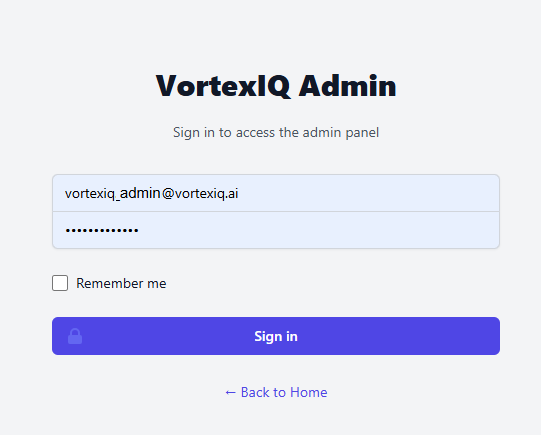
Step 2 - Open VortexSpace Migrations
After signing in, use the left sidebar. Scroll to the VORTEXSPACE section and click Migrations.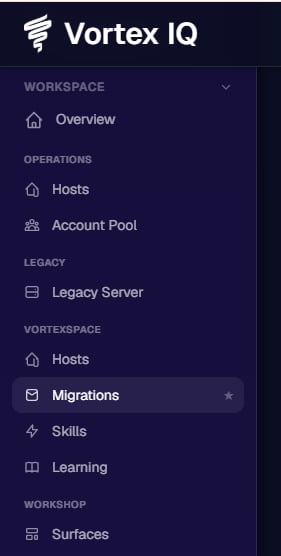
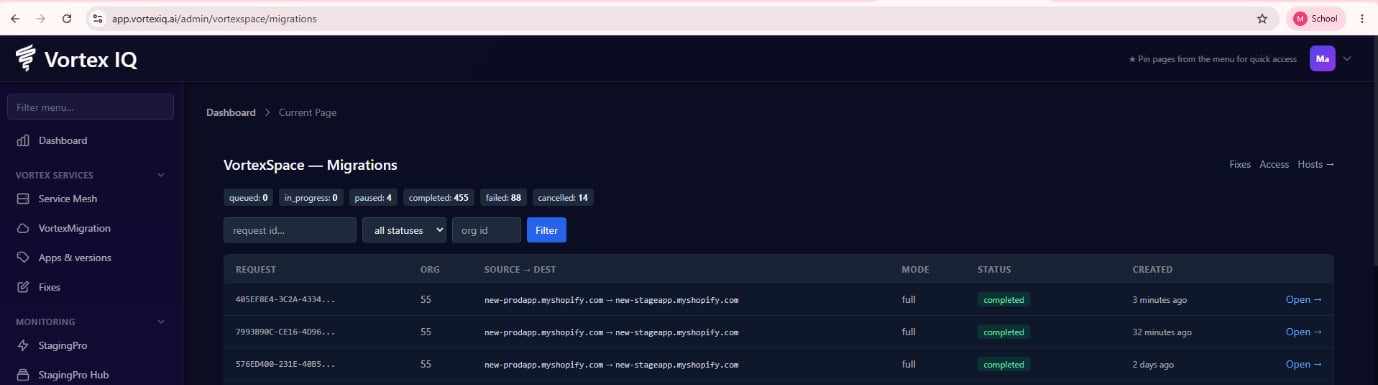
Step 3 - The Migration Access page
The Access link opens the Store Migration - Access page:- Type its name in the Add organizations search box.
- Select it.
- Click Enable selected.
Step 4 - Issue the Client ID and Client Secret
Find the organisation’s row in the table and click Issue credential in the API CREDENTIAL column. The page reloads with an amber banner showing the freshly generated pair - THIS IS THE ONLY TIME THE SECRET IS EVER DISPLAYED.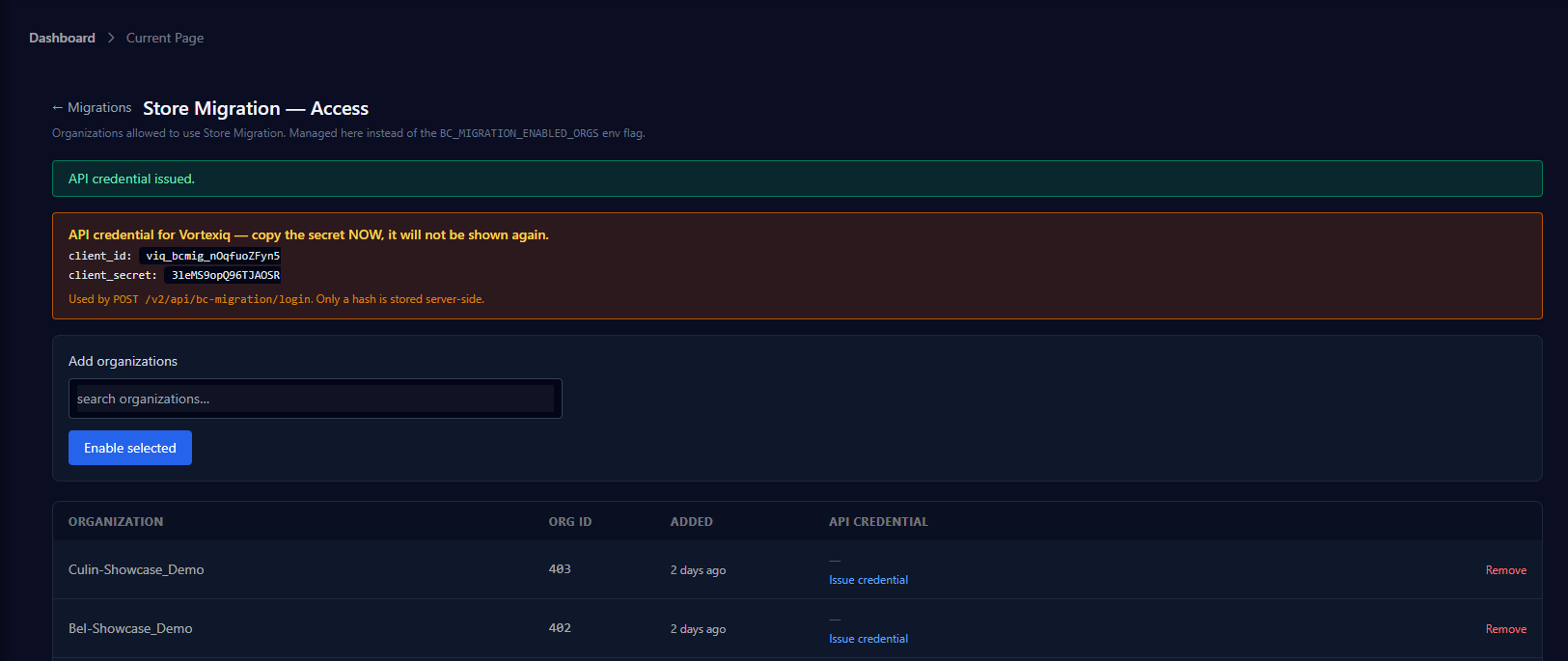
- client_id - the organisation’s permanent public identifier (starts with viq_bcmig_).
- client_secret - the private key. Copy it NOW and store it in a password manager. Only a hash is kept server-side.
The values visible in the screenshots of this guide are examples for illustration.
Step 5 - Managing an issued credential
Once issued, the organisation’s row shows the live credential state.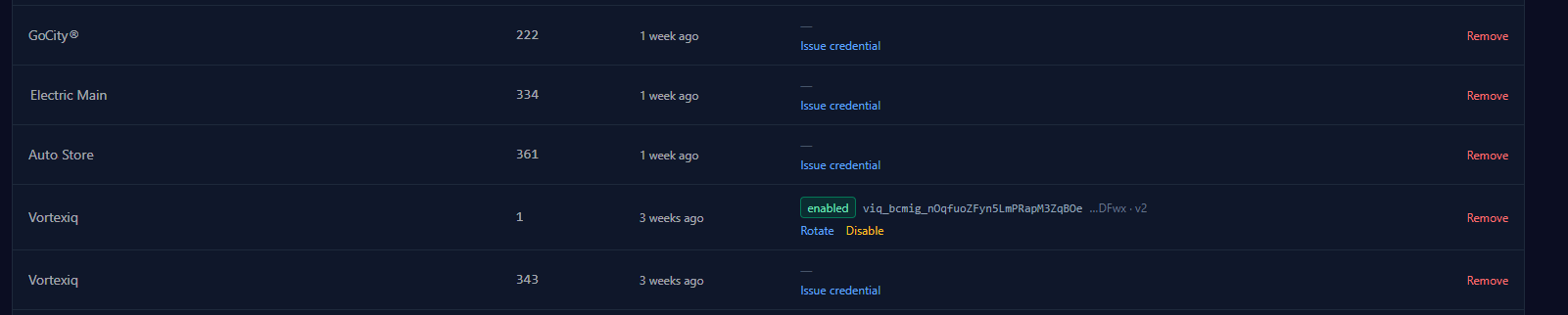
- enabled badge - API login is active for this organisation.
- The value after the badge is the client_id; ”…DFwx” shows the last 4 characters of the current secret; v2 is the secret version (increments on every rotate/disable).
- Rotate - generates a NEW secret (same client_id), shows it once in the banner, and IMMEDIATELY invalidates the old secret and every outstanding API token for the organisation. Use when a secret is lost or compromised, or for periodic hygiene.
- Disable - switches the organisation’s API access off without touching their normal UI access. All outstanding tokens stop working immediately. Issue credential turns it back on with a fresh secret.
- Remove - removes the organisation from Store Migration entirely (UI and API).
Every issue, rotate, and disable records the acting admin and timestamp for audit.
Sharing the credentials
Deliver the client_id and client_secret to the customer through a SECURE channel - a password manager share or a one-time secret link. Never send the secret in plain email or chat. Tell the customer the three identity values must match their VortexIQ account exactly:- username - their name as registered on their VortexIQ user (first name, last name, or full name).
- email - the email of their VortexIQ user account.
- organization_name - their organisation name exactly as registered (case-insensitive).
Bearer Token Login Request
With those plus the credentials, they log in and receive a Bearer token valid for 10 days. The customer authenticates by calling the login endpoint.API Documentation
Complete API documentation is available at:- Authentication
- Store discovery
- Migration endpoints
- Request and response examples
- Error responses
- API reference
Quick Troubleshooting
The client_secret was lost
The client_secret was lost
The secret cannot be recovered.Click Rotate to generate a new secret.Share the newly generated secret securely with the customer.
401 - Invalid credentials
401 - Invalid credentials
Verify that:
- username matches the VortexIQ user.
- email matches the VortexIQ user.
- organization_name matches the organisation.
- client_id is correct.
- client_secret is the latest version.
403 - Organisation does not have enough connected stores
403 - Organisation does not have enough connected stores
The organisation must have at least two connected BigCommerce stores before Migration API authentication is permitted.
Bearer token suddenly stopped working
Bearer token suddenly stopped working
The credential may have been:
- Rotated
- Disabled
You have successfully generated and managed an Organisation Client ID and Client Secret for use with the StagingPro V2 Migration API.